
bluebarry search replaces the search on your store with one that answers while shoppers type, forgives typos, and knows your catalog. This article explains what your shoppers get, how a search configuration is organized, and how it reaches your store.
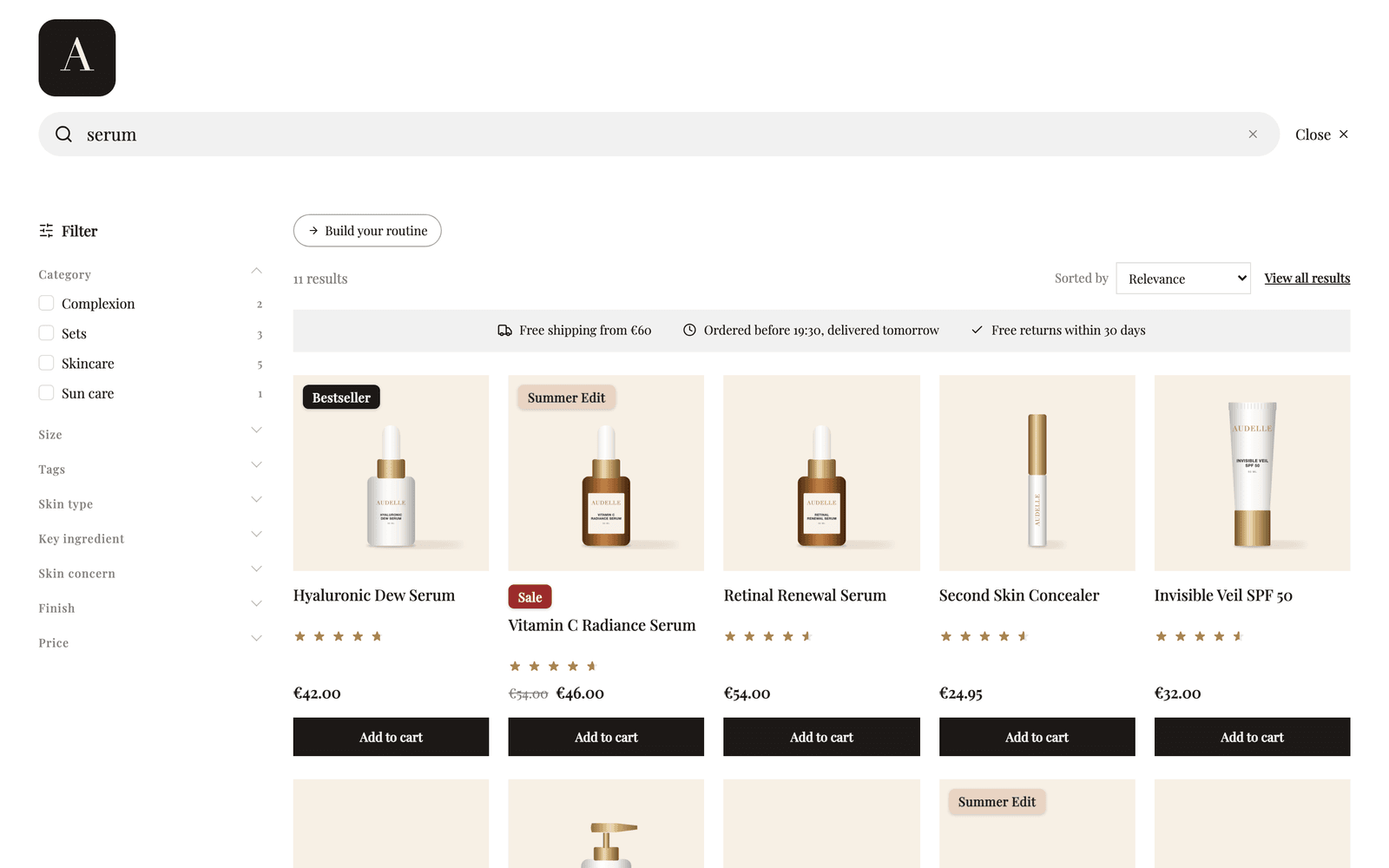
What your shoppers get
Search opens from the search box your store already has. Shoppers do not have to learn anything new, and your header stays as it is.
- Results as they type. The dropdown updates with every letter. It can show a short list of suggestions, a full product grid, or a grid with filters beside it.
- A full results page. Pressing Enter or clicking View all results opens a results page with filters, sorting and more products as shoppers scroll. This page is optional.
- Filters that match your catalog. Brand, category, skin type or any other attribute you choose, plus a price range and an in-stock filter.
- Help when nothing matches. Misspelled searches can be corrected automatically. When a search still finds nothing, shoppers see spelling suggestions, related searches and matching categories instead of an empty page.
- Something useful before they type. Popular searches, your best sellers and links to guides or lookbooks.
- Quiz triggers. A search like “gift” can show your gift finder quiz right in the results.
- Quick add to cart. Shoppers add a product straight from the result. Products that need a choice, like a size, open the product page instead.
- A keyboard shortcut. ⌘K on a Mac or Ctrl+K on Windows opens search from any page, and the arrow keys move through the results.
You can also give a segment of shoppers its own results, for example pinning fragrance-free products for shoppers with sensitive skin. See personalize search results.
What a search configuration is
A search configuration holds everything about how search behaves and looks on one storefront: what counts as a match, which products come first, what the dropdown and results page show, and the design. You find your configurations under Live on your store → Search.
Each configuration card shows Live when it received searches from your store in the last 30 days, and Not live otherwise. Most stores need one configuration. A second one is handy when you want to try a bigger change on your own store before shoppers see it.
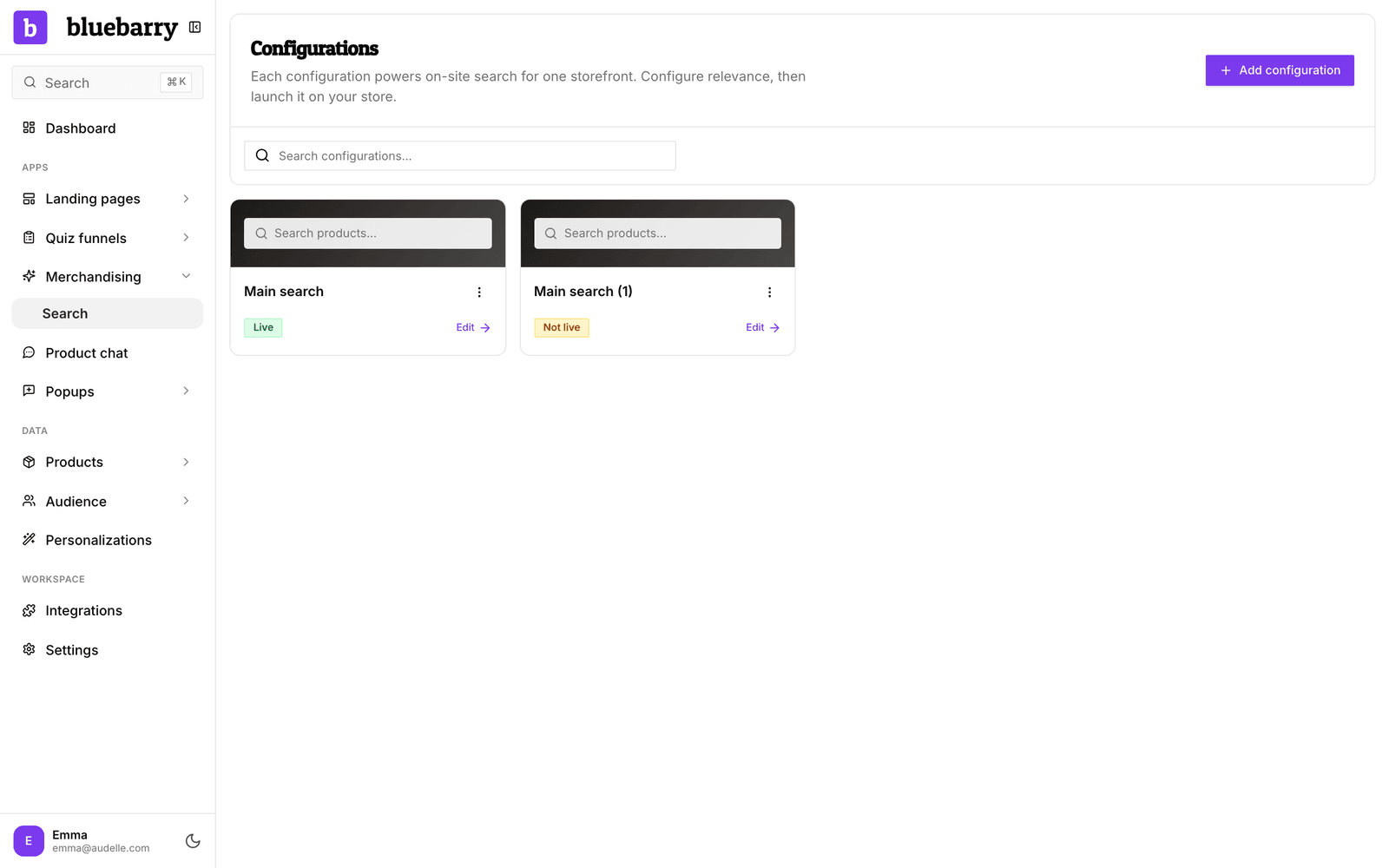
When you open a configuration, four steps run along the top: Configure, Preview, Launch and Analyze. Configure has five sections.
| Section | What you decide there |
|---|---|
| Matching | Which attributes are searched, how forgiving matching is, synonyms, and which products search can return at all. |
| Ranking & Personalization | The default order, pinned, boosted and hidden products, rules for segments, and personalized badges. |
| Results & Filters | What the dropdown shows, how the results page loads more products, and which filters shoppers get. |
| Suggestions & Banners | What shoppers see before they type or when nothing matches, redirects, quiz triggers and banners. |
| Design & Styling | Colors, logo, font, language, the product card, badges and custom CSS. |
Preview shows the live widget with your own products, on desktop and mobile. Launch switches search on for your store. Analyze shows what shoppers search for and what it earns.
One catalog for everything
Search uses the same product catalog as your quizzes, product chat and popups: the products, properties and collections you sync from your store or import with a feed. There is nothing separate to upload for search. Fix a property once and every part of bluebarry improves with it, and catalog changes reach search automatically.
It works the other way too. What a shopper searches for and which filters they use become part of their profile. You can build segments on it, like shoppers who searched but did not buy, and a popup can step in when a search comes up empty.
How search reaches your store
Search runs in the same bluebarry script that already powers your quizzes and popups, so there is no extra app to install. Nothing changes for your shoppers until you switch search on.
- Shopify, WooCommerce, CCV Shop and Magento: flip one switch in the Launch step. The full results page takes over your store's own search page with one more click, without theme edits.
- Other platforms: paste two short snippets into your store's
<head>.
The details are in launch search on your store. Curious what search adds to your page weight? See storefront performance and script size.
Where to go next
The search articles follow the order you will most likely work in.
- Set up search: add a configuration and walk through the guided setup.
- Tune search matching: sensitivity, matching by meaning, searchable attributes, synonyms and catalog scope.
- Personalize search results: default order, pin and boost rules, segments and badges.
- Configure results and filters: the dropdown, the results page and filters.
- Add redirects, banners and quiz triggers: what shoppers see before they type and when nothing matches.
- Style your search: colors, fonts, product cards and custom CSS.
- Launch search on your store: switch it on and add the full results page.
- Read search analytics: what shoppers search for, what they cannot find, and what search earns.