
Every search configuration starts with a short guided setup. It asks a handful of questions, shows each answer live next to the question, and ends with a link that opens the configuration on your own store. Shoppers see nothing until you switch search on.
Add a configuration
- Go to Live on your store → Search. Not in the sidebar yet? A module only shows under Live on your store once it is live or has a draft. Click + Add a module and then Add next to Search, and Barry sets it up with you.
- Click Add configuration. If you have none yet, the button reads Create your first configuration.
- bluebarry creates a configuration called “New configuration” and opens the setup. Your brand color, price, rating and image properties are already filled in from your store and catalog.
Every answer saves right away, so you can leave and pick up later. Use Back and Continue at the bottom, or click any step along the top. Skip setup takes you straight to the full editor.
The setup steps
Most steps show a search box above the question. Click it to try the widget with your own products, as a dropdown or as a results page, on desktop or mobile.
Start
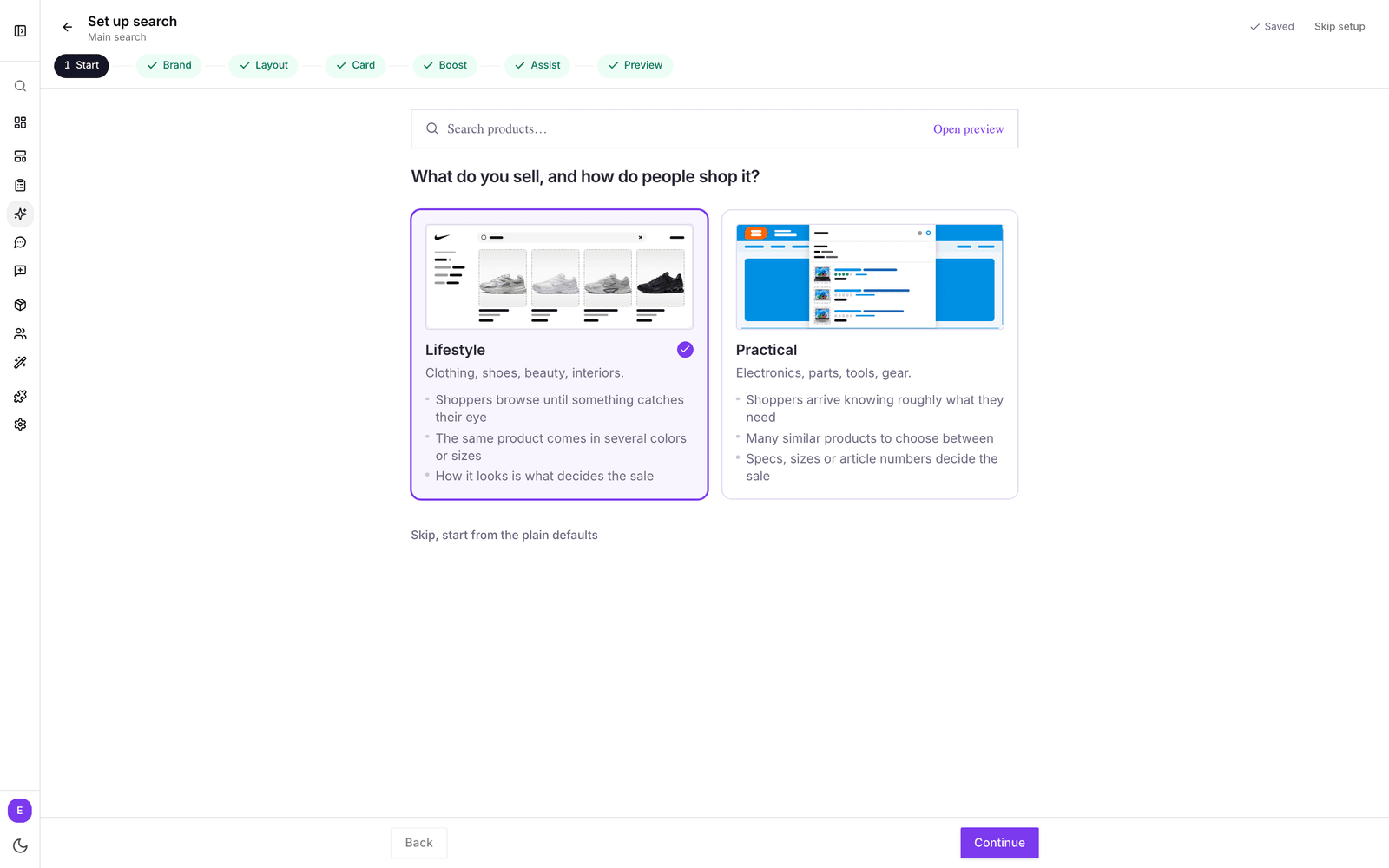
“What do you sell, and how do people shop it?” Pick the starting point that sounds most like your store.
- Lifestyle (clothing, shoes, beauty, interiors) is for shoppers who browse until something catches their eye. The dropdown shows product results with images, variant swatches and quick add to cart, and before they type it shows your best sellers.
- Practical (electronics, parts, tools, gear) is for shoppers who know roughly what they need. The dropdown shows a short list of suggestions, matching is stricter so an article number finds that exact part, and filters live on the results page.
Picking one also decides which attributes are searched and which filters shoppers get, based on your catalog. Filters get readable names, such as “Climate” instead of “attr_climate”, and when Barry sets up search with you, it also puts those names in your store's language. Everything stays editable later. Prefer to start from scratch? Click Skip, start from the plain defaults.
Brand
“Make it look like your store.” If bluebarry has not found your logo yet, enter your store address under Start from your storefront and click Pull colors in. It takes your brand color and logo from your site. Adjust the colors, logo and font as you like.
Layout
“What should shoppers see when they type?” Choose Suggestions only, Results or Results and filters. Lifestyle offers the two results layouts. Practical skips this step, because a short suggestions list is the point of that starting point.
Card
“What a result looks like.” Check which properties hold the price, the compare-at price, stock and extra images, and choose how VAT is shown. You can also show star ratings, variant swatches, an add to cart button and a discount label on products that are on sale.
Boost
“Which products should stand out?” Pick brands to rank above equally relevant results, such as your own label or your best margins, and decide whether out of stock products are left out entirely.
Assist
“Add synonyms and redirects to your search.” Shoppers use their own words, not your catalog's. bluebarry fills in synonyms and redirects from your catalog and your site. Remove anything that does not fit. If you have quizzes, you can add a quiz trigger here too.
Preview
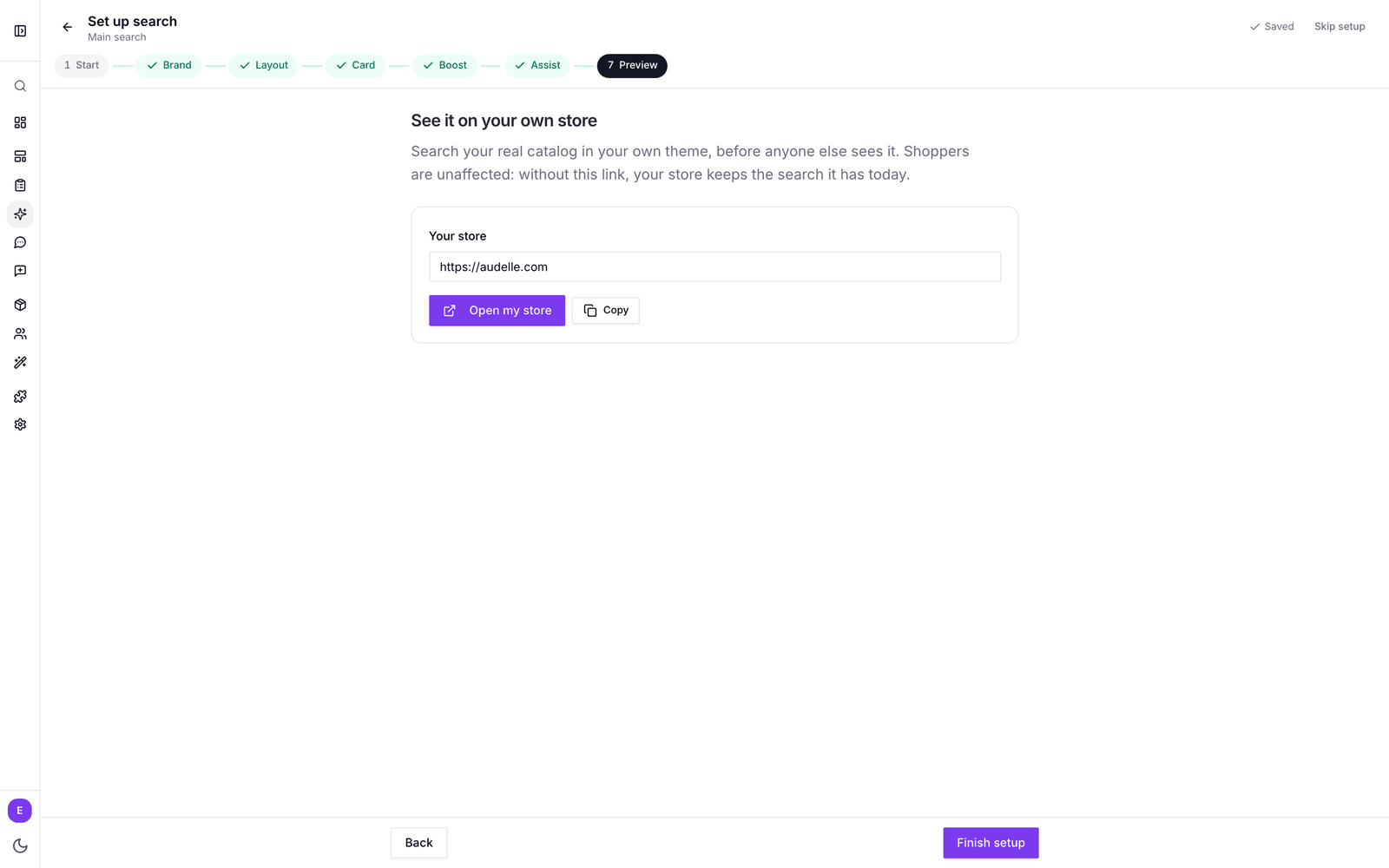
“See it on your own store.” This is where you judge the result on your real theme. The next section explains how it works.
Preview on your own store
The preview link opens your store with this configuration, before anyone else sees it. Shoppers without the link keep the search they have today.
- Check the address under Your store. bluebarry fills it in when it knows your store. You can point it at any page, such as a category page.
- Click Open my store, or use the copy button next to it to share the link with a colleague.
- Your store opens with search already open. A small badge says “bluebarry preview. Shoppers still see your current search.” Search as much as you like: preview searches are not counted in your analytics. Click Exit on the badge to leave the preview.
- Back in Studio, click Finish setup. You land in the editor, where you can fine-tune everything and switch search on.
The preview needs the bluebarry script on your store: the app embed on Shopify, the plugin on WooCommerce, the CCV Shop integration, the module on Magento, or the script snippet on other platforms. If the link opens your store without search, check that first.
Re-run the setup
On the Configurations page, open the menu on a configuration card and click Re-run setup. The setup opens where you left off and shows what is already configured, so changes you made in the editor are not lost.
One thing to know: picking a starting point on the Start step again rewrites the settings it covers, such as the layout, match sensitivity, card options and accent color. If you have fine-tuned those in the editor, go straight to the step you want to revisit.
Duplicate a configuration
In the card menu, click Duplicate. The copy gets a numbered name, like “Main search (1)”, and includes everything: searchable attributes, synonyms, redirects, quiz triggers, banners, badges, catalog scope and personalization rules.
The copy is never live on its own, and its full results page is off. That makes duplicating the safe way to try a bigger change: duplicate, change the copy, check it with the preview link, and switch it on in Launch when you are happy. The same menu has Edit and Delete. To rename a configuration, click its name at the top of the editor.
Next steps
- Tune search matching to decide what counts as a match.
- Launch search on your store when you are ready for shoppers.