
Relevance decides which products match a search. Ranking and personalization decide which of those products your shoppers see first. You can set one default order for everyone, then give a segment of shoppers its own rules, so a returning skincare fan and a first-time visitor each see the products that suit them at the top.
Everything in this article lives in one place: open Live on your store → Search, open a configuration and go to Configure → Ranking & Personalization.
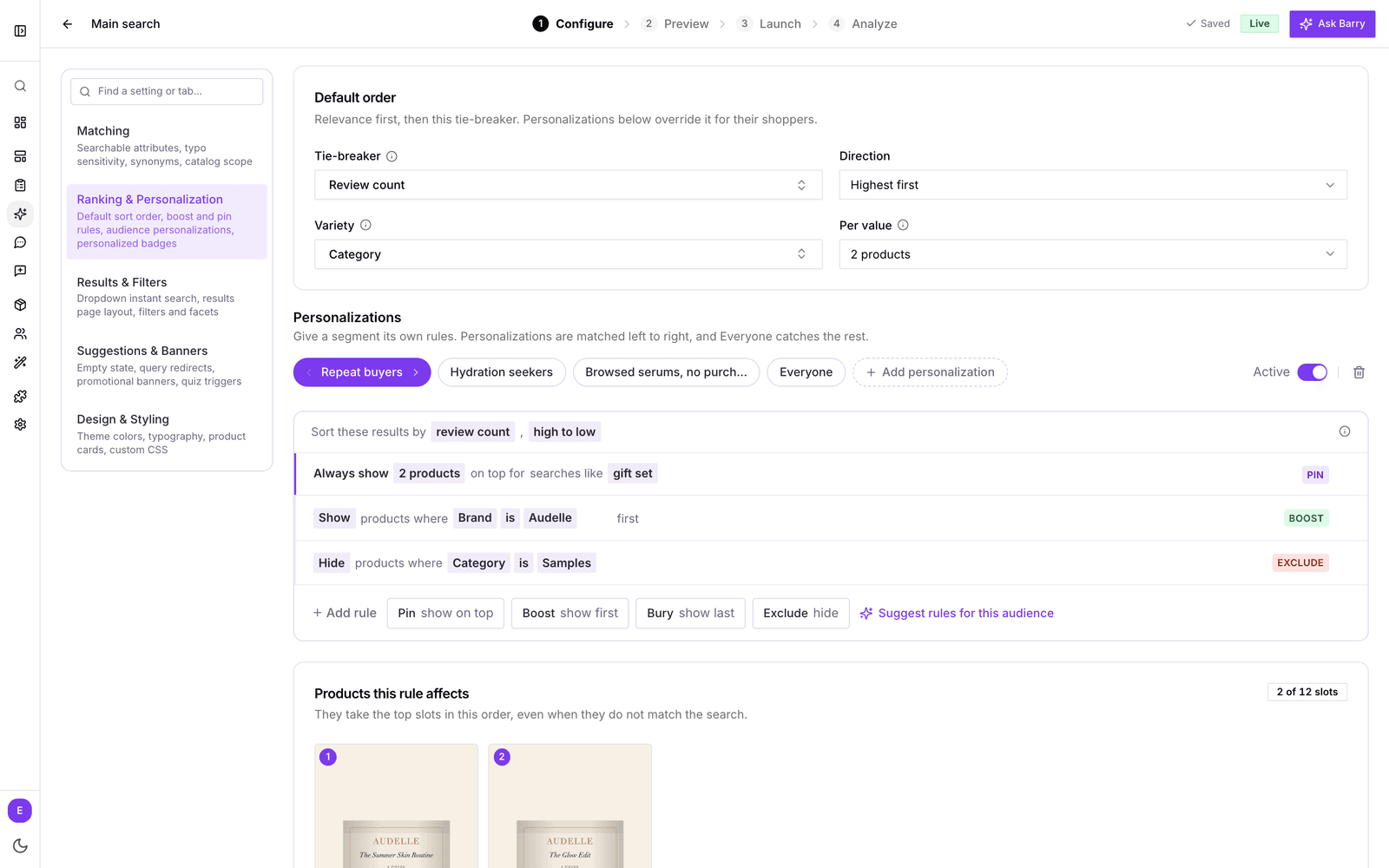
Set the default order
Results are always sorted by relevance first. Default order decides what happens when several products match a search equally well.
- Tie-breaker: a numeric product property, such as popularity or margin, that orders equally good matches. Leave it on Relevance only if you do not need one.
- Direction: Highest first or Lowest first.
- Variety: spreads equally good matches across the values of a property, usually brand, so the first screen shows your range instead of ten products from one label. With Per value you choose how many products (1 to 5) each value gets before the next one takes a turn.
- Variant shown: search shows each product once, with one of its variants. Pick a numeric property, such as price, with Lowest first or Highest first to choose which variant that is when they match the search equally well. With price lowest first, a search for the product name shows the cheapest size. A variant that matches more of the search, like its color, still wins. Leave it on Best match if you do not need it.
Variety pauses when a shopper picks their own sort order, and a price sort picks the variant by price. Personalizations below override the default order for the shoppers they apply to.
Choose who the rules are for
Under Personalizations you see an audience bar. The Everyone tab holds the rules for all shoppers. Add a tab per segment to give that group its own rules.
- Click Add personalization in the audience bar.
- Pick a segment. You build segments under Audience → Segments, for example "Repeat buyers" or "Quiz, no purchase".
- Write the rules for that tab, as described below.
Personalizations are matched left to right. A shopper gets the rules of the first segment they belong to, and Everyone catches the rest. The rules do not stack: a shopper in a segment gets that segment's rules instead of the Everyone rules. Use the arrows on a tab to change the order, the Active switch to pause a personalization without deleting it, and Remove personalization to delete it.
Only segments built from rules can be added, and each segment can have one tab per configuration. Segment membership is checked live, so a shopper who joins a segment mid-visit sees its rules on their next search.
Write rules as sentences
Each rule reads as a plain sentence, such as "Show products where Brand is Acme first". Start one with the buttons next to Add rule:
- Pin (show on top): always shows the products you pick in the top slots, in the order you pick them, up to 12. Pinned products show even when they do not match the search.
- Boost (show first): matching products move up the results.
- Bury (show last): matching products move down but stay findable.
- Exclude (hide): matching products leave the results for this audience.
For Boost, Bury and Exclude you complete the sentence with a product condition: pick an attribute, how it compares (is, is not, contains, is over, is under and so on) and a value. Click or… to add another condition that also counts. Then click Add rule. Below the rules, Products this rule affects shows which products the rule you are writing or last touched will move, so you can check it before shoppers see it.
Removed a rule by mistake? The confirmation has an Undo button.
Limit a pin to certain searches
A pin rule reads "Always show 2 products on top for every search". Click every search and type the searches where the pin should apply, such as "gift set, pedicure set". Leave it empty to pin on every search. Boost, Bury and Exclude rules apply to every search for their audience.
When shoppers sort for themselves
If a shopper picks their own sort order, such as price low to high, your pins, boosts and buries pause so the sort does what they asked. Excluded products stay hidden.
Sort one audience differently
The first row of every audience reads "Sort these results by relevance (default)". Click relevance (default) to pick a numeric property instead, then choose low to high or high to low. Your deal hunters can see the lowest prices first while everyone else keeps the default order.
Let AI suggest rules
On a segment tab, click Suggest rules for this audience. bluebarry looks at the segment and your catalog and proposes a few Boost, Bury or Exclude rules, each with a short reason. Click Add to keep one, the cross to skip it, or Dismiss all. Added suggestions become normal rules you can edit or remove.
Show personalized badges
Personalized badges use what you know about a shopper. If their profile says skin type: dry, products that suit dry skin can carry a badge like "For dry skin". Profile values come from quiz answers and form fields, so this section fills up once shoppers take a quiz or fill in a form.
- Under Personalized badges, choose a property from Add a profile property…. The list shows how many profiles have each one.
- For each Profile value, type the Badge text and use Shows on to choose the products: an attribute and the values that suit this shopper.
- Pick a badge color with the swatch next to the property.
To save typing, click Fill with AI on one property or Suggest badges for the whole section. Suggestions arrive as drafts. Adjust any row, then click Save. Values that clearly fit no product are left empty on purpose.
See whether it works
To show you real lift, bluebarry keeps a small share of each segment's shoppers, about one in ten, on the Everyone results. Comparing the two groups tells you whether the segment rules earn more clicks, add-to-carts and revenue than the default would have.
- In the configuration, open Analyze and look at Segment targeting impact (targeted shoppers compared with the holdout) and Performance by segment.
- Open Analytics → Personalizations for one table of every personalization, with its uplift and a status such as Collecting, Winning, No effect or Losing.
Give a new personalization time. It shows Collecting until there is enough traffic to say something with confidence.
Good to know
- Changes save automatically and reach your store within about a minute.
- Shoppers bluebarry cannot match to a segment get the Everyone rules. If Everyone has no rules, results follow relevance and your default order.
- Rules decide order, not matching. To change which products a search finds, see Tune search matching.
- If an experiment is running on this search configuration, saving changes pauses it. Studio asks you to confirm first. Start a new experiment afterwards. See How experiments work.
Next steps
- Read your search analytics to see which searches and segments convert.
- Style your search to set up regular badges like Sale and Sold out.
- Learn how profiles work, the source of personalized badges.