
Good search does more than list products. It greets shoppers before they type, helps them when nothing matches, sends "returns" straight to your returns page and offers a quiz to someone searching for "gift". You set all of that up in one place.
Open Live on your store → Search, open a configuration and go to Configure → Suggestions & Banners.
Before they type
This is what shoppers see the moment they open search. The top of the section sums it up, for example "Shoppers currently see a best sellers row and 2 discovery links." With nothing set up, shoppers see popular searches only.
- Best sellers row: turn it on to show your best-selling products straight away.
- Rank best sellers by: Store trending uses recent sales from the orders bluebarry imported from your store (see Store data → Orders). You can also pick a numeric property, such as a popularity score, highest first.
- Best sellers can show: conditions that leave products out of the row, such as add-ons that sell with every order. Shoppers still find them when they search.
Discovery links, redirects and quiz triggers can also show here. You switch that on per item, as described below.
When nothing matches
A search without results never ends in a blank screen. Shoppers see spelling suggestions, related searches, matching categories and your discovery links.
When a search finds nothing, search corrects the spelling itself. For a typo like "moisturiser" it runs "moisturizer" and says so above the results. If search keeps "correcting" a word that is actually right, such as a brand name, add it to a synonym group or a redirect.
Discovery links
Discovery links point to guides, lookbooks or info pages and show before a shopper types. Click Add link, then fill in a Title, a URL and, if you like, an Image as a thumbnail. Use the arrows to set the order.
Redirects
Some searches are really questions: "returns", "shipping", "contact". A redirect sends them to the right page.
- Under Redirects, click Add redirect.
- Enter one or more Keywords, such as "returns, refund".
- Choose Match: Exact when the whole search must be the keyword, Contains when the search only has to include it.
- Enter the Target URL and the Link text shoppers see, such as "View our returns policy".
- Decide how it behaves. With Redirect automatically on, the shopper goes straight to the page. Off, they get a link. Show in empty state also shows the link before they type. Group heading groups links under a heading like "Pages".
Short on ideas? Suggest redirects proposes redirects for your store, each with a reason. Click Accept to add one.
Quiz triggers
Someone searching for "gift" or "which serum" often does not know what they want yet. A quiz trigger offers them your quiz right in the search results.
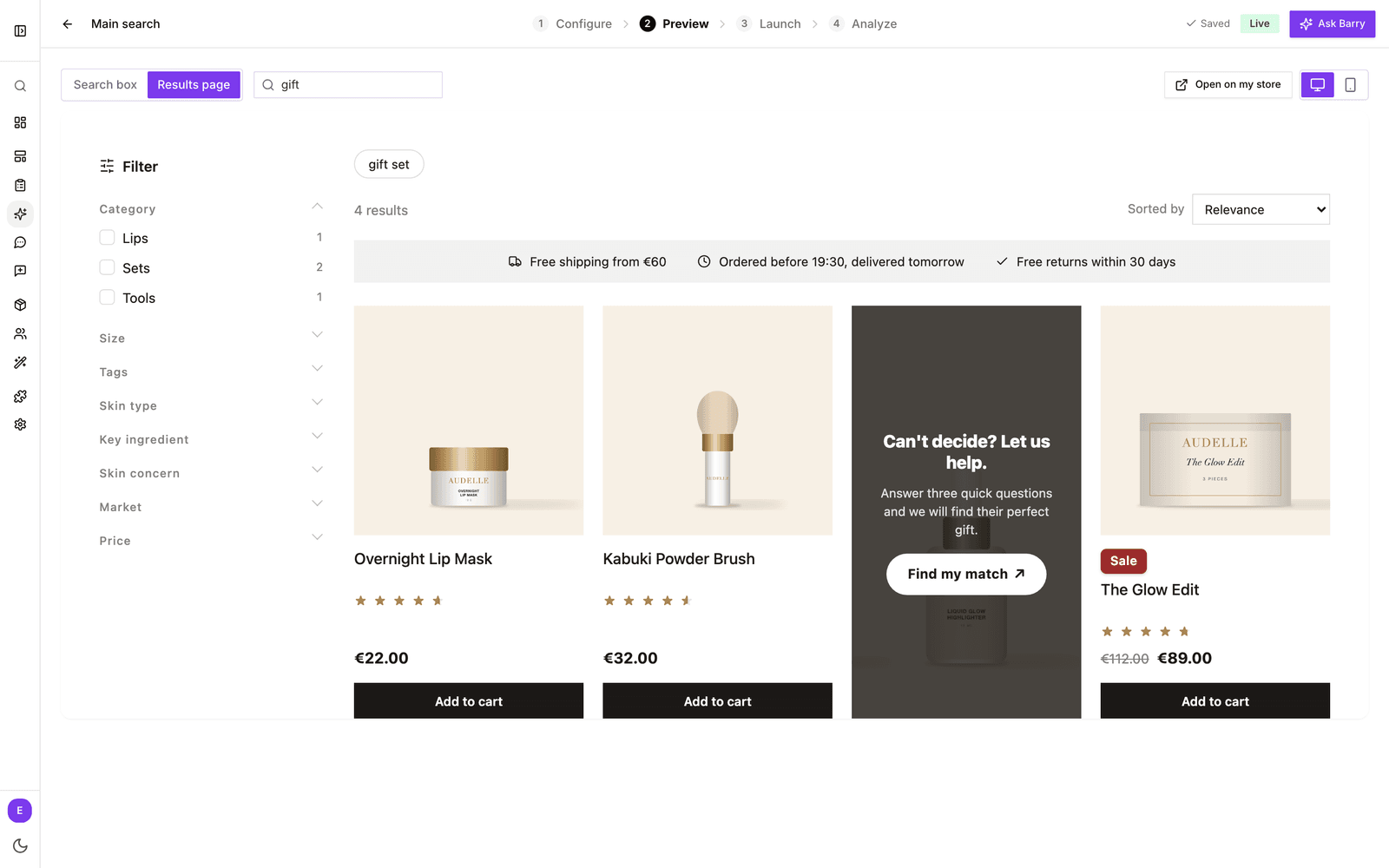
- Under Quiz triggers, click Add quiz trigger.
- Enter the Search terms that should bring up the quiz, such as "gift, present", and pick the Quiz.
- Choose how it looks with In the dropdown, show as and On the results page, show as. A Link sits with the suggestions in the dropdown and shows as a chip under the search field on the results page. A Card or Image takes a slot in the product grid.
- Fill in the text. For a link that is the Link text. For a card it is a Heading (default "Can't decide? Let us help."), Button text (default "Find my match"), an optional subheading and an optional background image. For an image you upload the full image, with the copy and button baked in. Use Grid slot to choose where a card or image sits, counted from the first product.
- Optionally turn on Always show to show it for every search (search terms then become optional), Show in empty state to show it before shoppers type, and, for a link in the dropdown, pick a Link position in dropdown: Above the results or Below the results.
How often quiz triggers are shown and opened appears on the Analyze step under Quiz triggers and blogs. New to quizzes? See Start your first quiz funnel.
Banners
Banners put a message in the results grid: your free shipping threshold, a bundle deal, a sale. They show on the results page only.
- Under Banners, click Add banner and give it a Name. Shoppers do not see the name.
- Pick a Type. A USP bar is a row of up to six short claims, each with an optional icon, such as "Free shipping from 60". Custom HTML is your own snippet.
- Choose Show on: All screens, Desktop only or Mobile only.
- Choose Show in results as: Full-width row or Card, and where. Row 1 sits above all products, row 2 after the first row of products, and so on. A card takes a slot counted from the first product.
- For a USP bar, choose what happens on narrow screens under When they don't fit: cycle through the claims one at a time, always cycle, or wrap them onto more lines.
- Leave Always show on to show the banner for every search, or switch it off and enter Search terms, such as "sale, outlet".
The Banner preview shows the result as you go. Custom HTML can use inline styles or one style block. Scripts, event handlers, iframes and forms are removed for your shoppers' safety.
Collections in search
When a search matches one of your collections or categories, such as "sneakers", search suggests that collection above the products. At the bottom of Suggestions & Banners, click Manage collections in search to choose which ones can appear.
This list is store-wide: every search configuration uses it. Unpublished and empty collections are left out automatically. For the rest:
- Use the switch on a collection to hide it from search, for example a test collection or a supplier grouping. Type in Filter collections to find one quickly.
- Click Find ones to hide to let AI spot collections that do not look like real categories, like "Copy of Sale". Tick the ones you agree with and click the Hide button.
No collections listed yet? They arrive with your next store sync.
Good to know
- Everything here saves automatically. Try it in the Preview step before you rely on it.
- Banners need a results page. If you do not have one yet, see Launch search on your store.
- To see which searches end without results, and so need a redirect or synonym, check Read search analytics.