
When your configuration looks right in the preview, the Launch step puts it in front of shoppers. On Shopify, WooCommerce and CCV Shop that is one switch. On other platforms you paste a short snippet. Your store keeps its own search until you do.
Open the configuration under Live on your store → Search and click Launch at the top. What you see depends on the platform your store runs on.
Shopify, WooCommerce and CCV Shop
Your integration already loads bluebarry on your store, so there is nothing to paste.
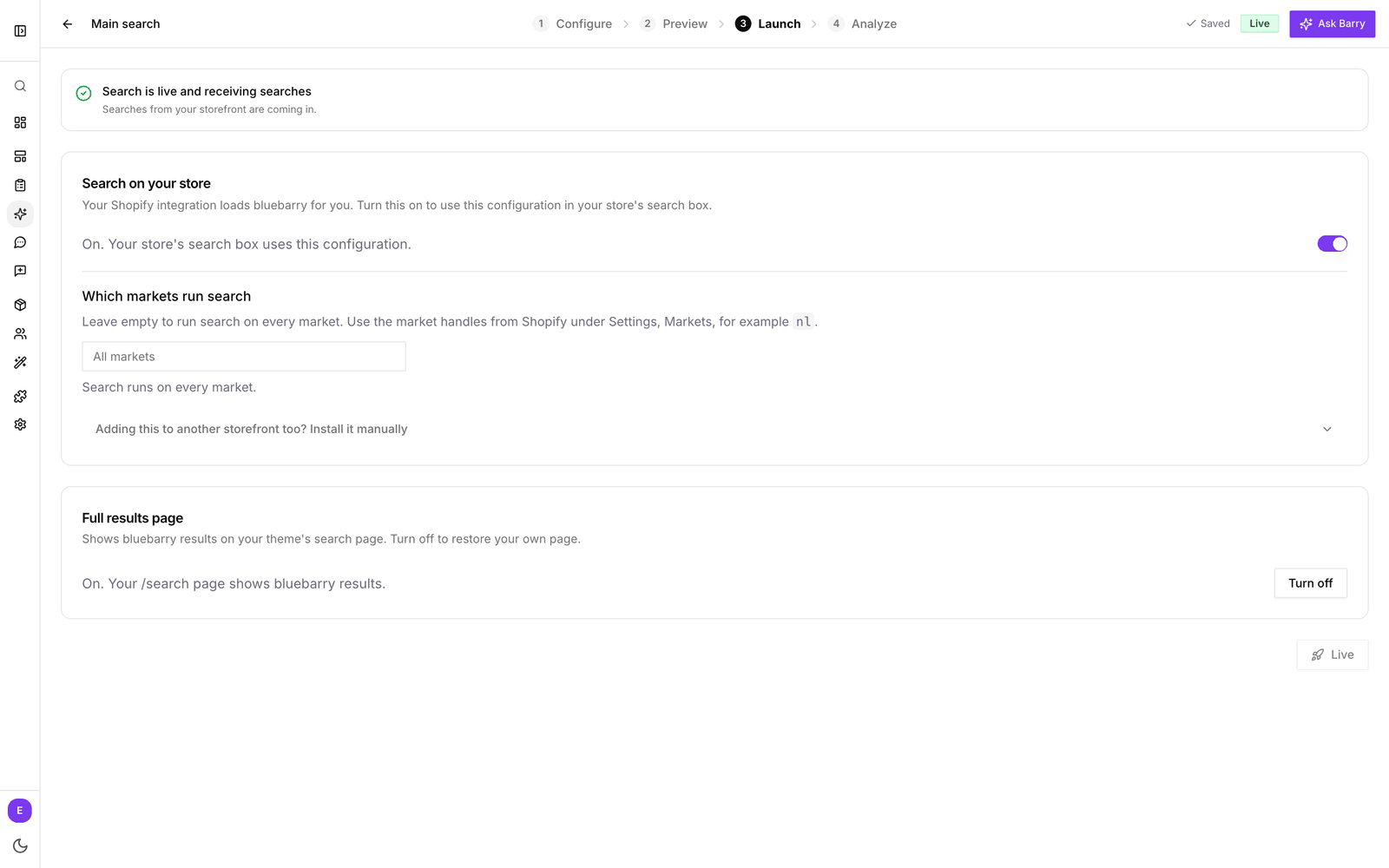
- Under Search on your store, turn the switch on. The line next to it changes to “On. Your store's search box uses this configuration.”
- Open your store in a new window and search. The bluebarry dropdown opens from your existing search box.
To go back to your store's own search, turn the switch off.
On Shopify, search runs through the bluebarry app embed in your theme. If you switch search on and nothing changes on your store, check that the embed is enabled. See configure the Shopify app embed. If you run several CCV Shop stores, every connected store uses the same configuration.
One configuration at a time
Your store's search box can use one configuration at a time. If another configuration is already on, Studio warns you that turning this one on replaces it. That makes switching easy: prepare a duplicate, check it with the preview link, then turn it on here.
Limit search to some Shopify markets
On Shopify you can choose which markets run bluebarry search under Which markets run search. Enter the market handles from Shopify, under Settings, Markets, separated by commas, for example nl. Leave it empty to run search on every market. Markets you leave out keep your theme's own search. This helps while your search is set up in one language and your store sells in several. You can set it before you switch search on.
WooCommerce
Since plugin version 2.3.0 you switch search on here, like on Shopify. The plugin needs its API key for that. Did you pick a configuration in the plugin's settings before? It stays on until you change it here, and the plugin's settings page now shows what is on. New to the plugin? See connect WooCommerce.
Magento
Once the bluebarry module is connected with its API key, you switch search on here, like on Shopify: every connected website's search box uses this configuration, and the full results page replaces Magento's catalog search results. Your store picks up a change within seconds, and at the latest within an hour. See connect Magento.
Other platforms
On Lightspeed or a custom store, the Launch step shows two snippets with your own IDs already filled in. Copy them with the copy button and paste both into the <head> of your store.
- Add the bluebarry SDK loads bluebarry on your store. If you already use bluebarry quizzes there, it is probably in place.
- Initialize this configuration tells bluebarry which configuration to use.
Search attaches to your store's existing search box on its own. If your theme uses an unusual search field, your developer can point search at it with the searchSelector option shown under the snippet. Because the configuration is named in the snippet, you can give a second storefront a different configuration.
Running a second storefront next to a Shopify, CCV Shop or WooCommerce store? Open Adding this to another storefront too? Install it manually on the Launch step for the same snippets.
The full results page
The dropdown handles most searches. The full results page is where shoppers land when they press Enter or click View all results, with filters, sorting and all matching products. Set it up under Full results page on the Launch step.
On Shopify, WooCommerce and CCV Shop
Click Turn on. bluebarry results now appear on your store's own search page (/search on Shopify, the product search results on WooCommerce). Nothing is written into your theme. Click Turn off and your original search page is back as it was.
The results page always shows the configuration that is switched on for your store. Turn it on from that configuration's Launch step.
On other platforms
- Create a page for search results on your store, or use an existing one.
- Enter its address in the field, for example
/search. - Paste this line on that page where the results should appear:
<div data-bluebarry-serp></div>Once the address is saved, the dropdown offers View all results and Enter takes shoppers to that page.
What the status means
The card at the top of the Launch step tells you whether shoppers are using this configuration.
| Status | What it means |
|---|---|
| Search is live and receiving searches | Your store uses this configuration and searches are coming in. |
| Waiting for the first search… | Search is switched on, or installed with a snippet, but no shopper has searched yet. It turns live with the first search. If it stays here, search on your store yourself and check the installation. |
| Search is turned off | Your store's search box does not use this configuration. Turn it on under Search on your store. This status appears on Shopify, WooCommerce and CCV Shop. |
On the Configurations page, a card shows Live when that configuration received searches in the last 30 days.
Next steps
- Give it a week, then check search analytics for searches that find nothing.
- Decide what the results page shows in configure search results and filters.