
Matching decides which products come back for a search at all. Get it right and shoppers find the moisturizer whether they type “moisturiser”, “face cream” or a brand name. Which of those products come first is a separate choice, covered in personalize search results.
Open your configuration under Live on your store → Search, stay on Configure and choose Matching. Changes save automatically. Check them on the Preview step.
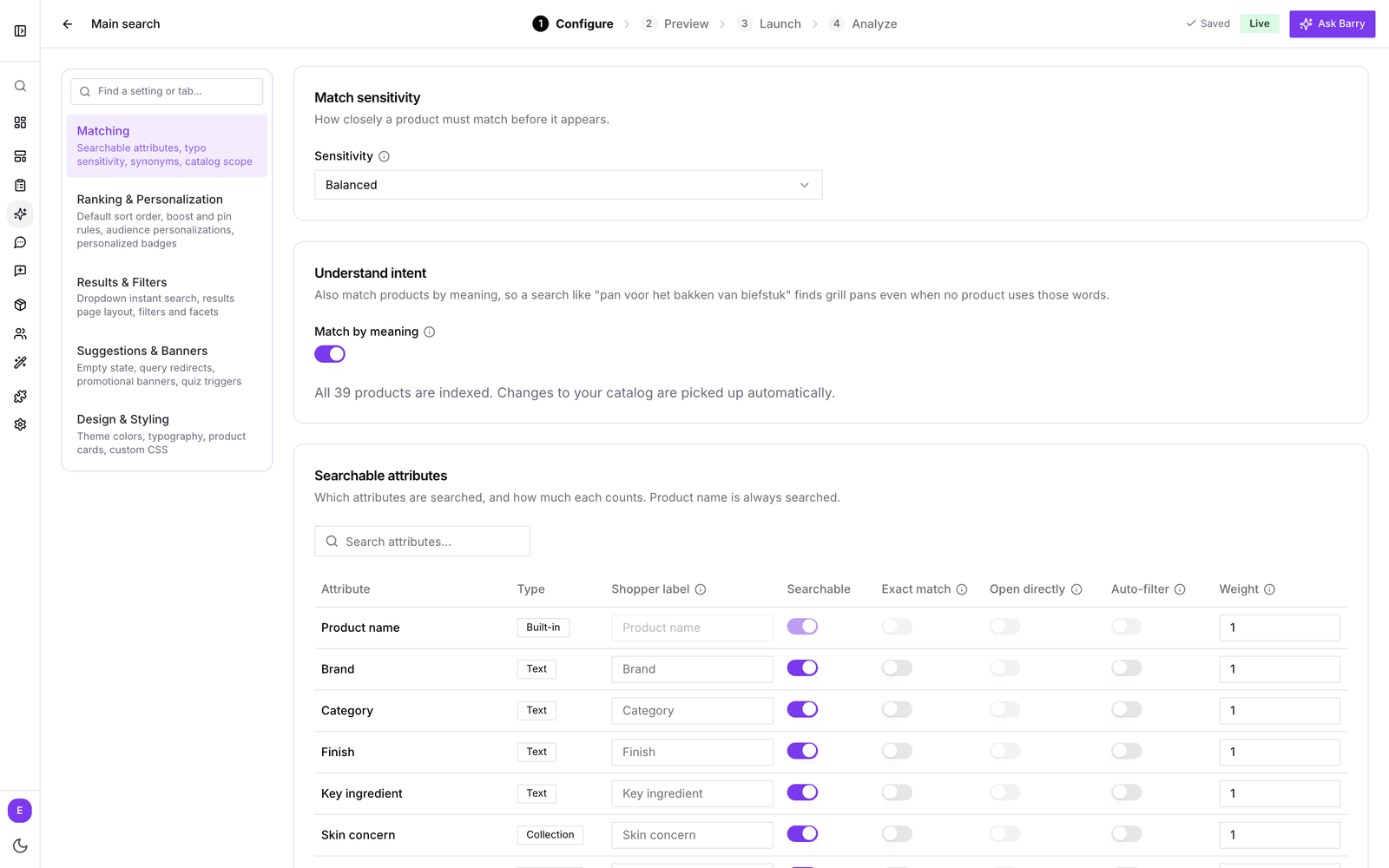
Match sensitivity
Sensitivity sets how closely a product must match before it appears. It controls typo tolerance and how much of the whole search has to match. Products below the line are left out of both the results and the filters.
| Level | Overall match needed | Good for |
|---|---|---|
| Loose | At least 20% | Small catalogs, and shoppers who make lots of typos |
| Balanced | At least 30% | Most stores. The default |
| Focused | At least 40% | Large catalogs with many similar names |
| Strict | At least 50% | Parts and article numbers, where a near miss is the wrong product |
| Very strict | At least 60% | Only close matches, with little typo tolerance |
A simple rule: if shoppers see products that have nothing to do with their search, move one step stricter. If obvious typos find nothing, move one step looser.
Match by meaning
Under Understand intent, switch on Match by meaning to also find products by what a search means, not just the words in it. A search like “something for dry lips at night” can then find an overnight lip mask, even when no product uses those words.
Keyword matches still come first. Products with a related meaning fill in below and around them. After you switch it on, bluebarry prepares your catalog in the background and shows progress, for example “1,200 of 1,500 products indexed”. It starts within a minute, and new or changed products are picked up automatically.
Searchable attributes
The attributes table decides where search looks and how much each match counts. The product name is always searched. Use Search attributes… above the table to find an attribute quickly.
| Column | What it does |
|---|---|
| Shopper label | The name shoppers see in filters and the product comparison. Leave it empty to use the property name. |
| Searchable | Search looks inside this attribute. Switch it on for things shoppers type, like brand, category, color or key ingredient. |
| Exact match | For identifiers like a SKU or article number. Matches the exact text or its start, without typo tolerance. |
| Open directly | When a search equals one product's value, that product page opens instead of a result list. Needs Exact match. |
| Auto-filter | When a search contains one of this attribute's values, results narrow to it: “le creuset pan” shows only Le Creuset pans. When the same word is a value of two auto-filter attributes, such as a category named after a brand, either one is enough. Text and list attributes only. |
| Weight | How strongly a match here counts. 1 is normal. Raise it for attributes that say a lot, like brand, and lower it for noisy ones. |
Keep it focused. Making every attribute searchable adds noise, because a search for “rose” will also match every product with rose somewhere in a long list of tags. Start with what shoppers actually type and add more when your analytics show a gap.
Synonyms
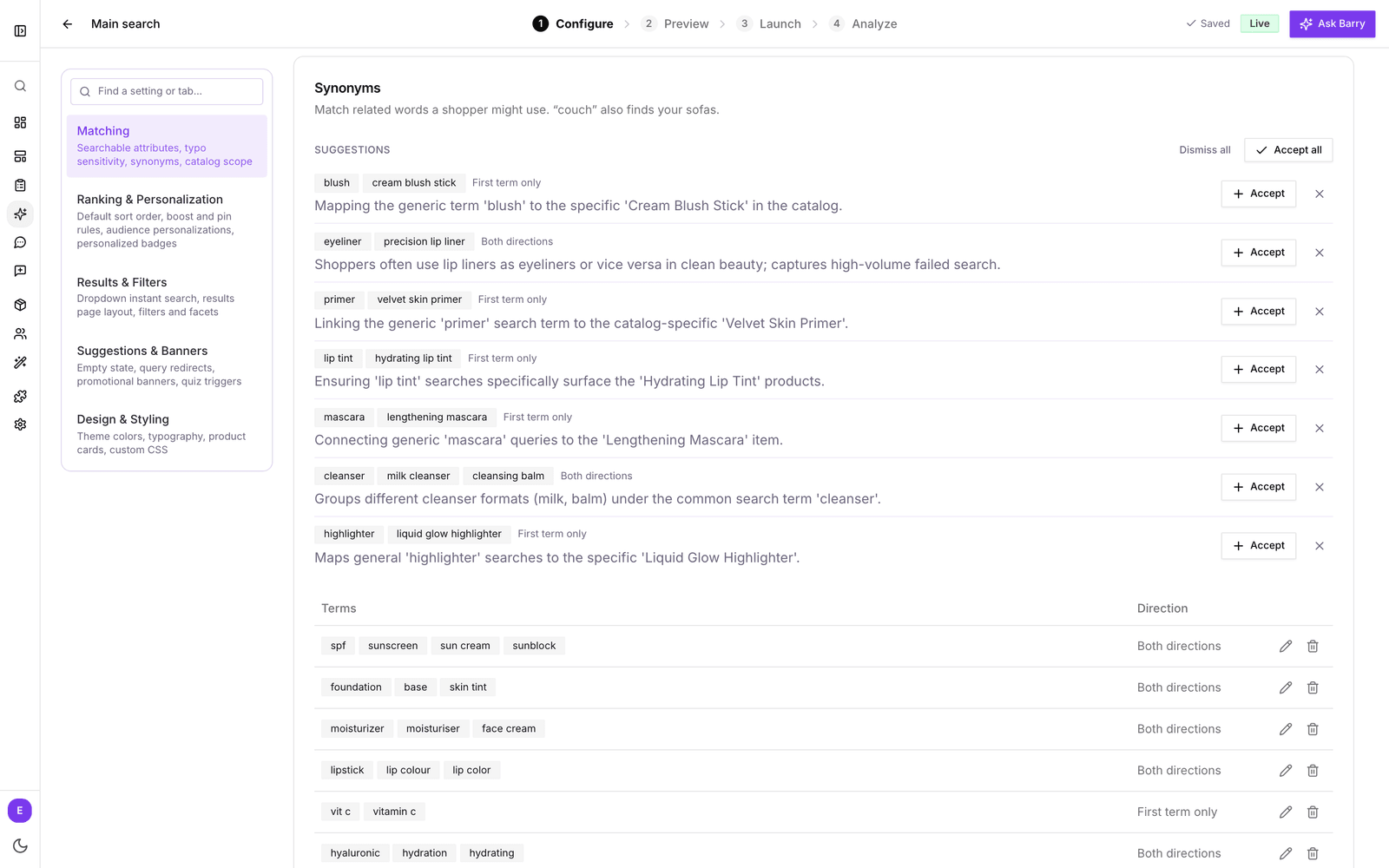
Synonyms connect the words shoppers use to the words in your catalog, so “couch” also finds your sofas.
Add synonyms yourself
- Click Add synonyms.
- Under Terms, enter two or more words that should find each other, like sofa, couch and settee.
- Choose a Direction. Both directions means every term finds the others. First term only means the first term finds the rest, but not the reverse. Use it for broad words: with “makeup, foundation, concealer”, a search for makeup finds both, but a search for foundation does not show concealers.
- Click Add synonyms to save. Edit or delete a group from its row later.
Search skips single letters and digits, so “height C” and “height F” search the same words. To make a letter count, add a First term only group whose first term holds it, like “height c”, followed by words only those products carry, like “193mm”. A search for height c then finds the products with those words.
Let bluebarry suggest synonyms
Click Suggest synonyms. bluebarry reads your catalog and proposes groups, each with a short reason. Click Accept on the ones that fit, or use Accept all and Dismiss all. Nothing is added until you accept it.
Import synonyms from a CSV file
Already have a synonym list? Click Import CSV. Put one group per row, 2 to 10 terms separated by commas, without a header row. Every row is imported as Both directions.
sofa,couch,settee
moisturizer,moisturiser,face cream
A configuration holds up to 200 synonym groups. Terms can be up to three words long. Rows with fewer than two terms or a longer term are skipped, and the import tells you what it skipped.
Catalog scope
Catalog scope limits which products this configuration can return at all, for example only products in stock, or everything except samples.
- Pick an attribute, a condition such as equals, is not or greater than, and a value.
- Click Add. The condition appears under Active conditions.
- Check Matching products below. It shows a sample of what search can return, and warns you when no product matches.
A product that matches any one condition is included. With no conditions, search can return your whole active catalog.
Good to know
- The Practical starting point sets sensitivity to Strict and Lifestyle to Balanced. Change it any time.
- The best source for new synonyms is your own shoppers. The Zero-result searches list on the Analyze step shows what they typed and did not find. See read search analytics.
- When a search should open a page rather than show products, like “returns”, use a redirect instead of a synonym. See add redirects, banners and quiz triggers.
- Which attributes appear as filters is set under Results & Filters. See configure search results and filters.