
Getting a quiz on your store takes two things: the bluebarry script on your pages, and a way for shoppers to open the quiz. The script goes on once and works for all your quizzes (and for search, product chat and popups too). After that, you choose per quiz how it opens.
Step 1: Add bluebarry to your store
On these platforms, the app or plugin adds the script for you:
- Shopify: install the bluebarry app and turn on the Bluebarry Core Script app embed in your theme editor. See Install the bluebarry Shopify app.
- WooCommerce: install the WordPress plugin.
- Magento 2 / Adobe Commerce: install the Magento module.
- Lightspeed: install the Lightspeed app.
- CCV Shop: install the CCV Shop app.
The quiz editor's Launch tab shows your platform with a link to its app. Other platforms are under Other platforms.
Any other website: add the funnel script
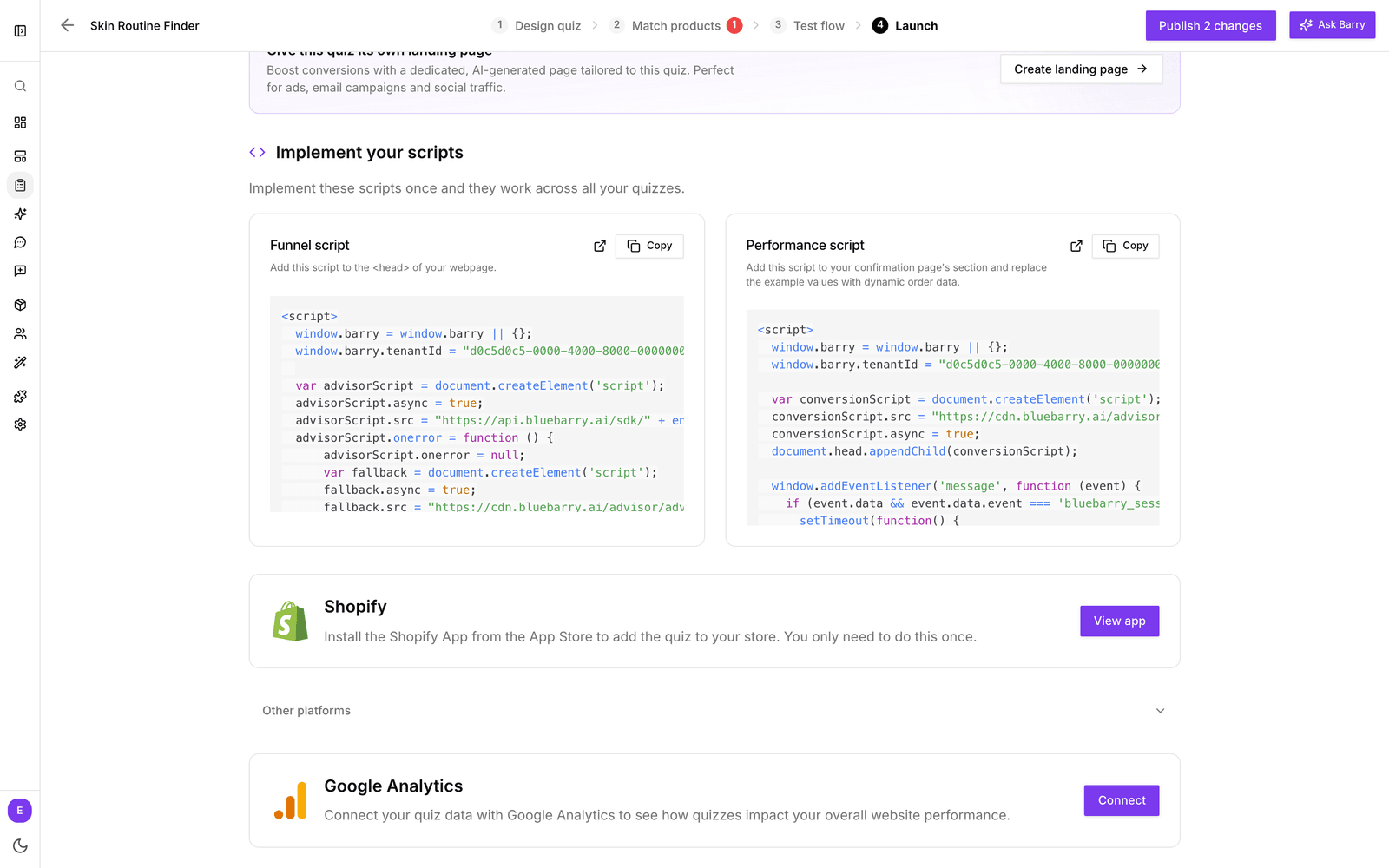
- In the sidebar, go to Quizzes and click Edit on any quiz.
- Open the Launch tab and scroll to Implement your scripts.
- Copy the Funnel script. Your account ID is already filled in.
- Paste it into the
<head>of every page, for example in your site's header template.
Next to it is the Performance script for your order confirmation page, so bluebarry can measure the revenue your quizzes bring in. See Implementing the performance tracking script. Shopify stores don't see this section: the app handles both.
Step 2: Choose how shoppers open the quiz
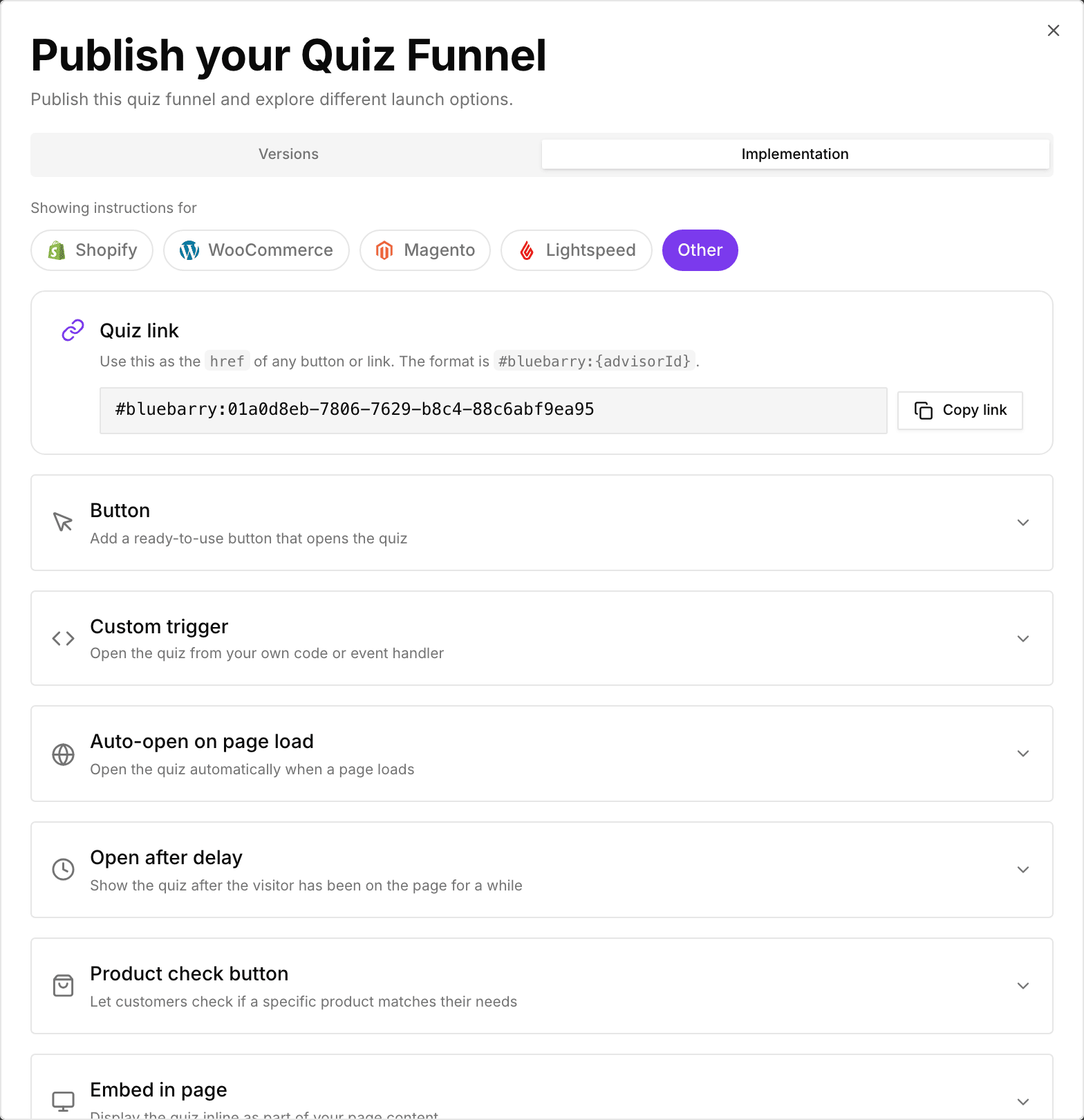
Publish your quiz first. Then click the publish button at the top right of the editor and open the Implementation tab. Pick your platform under Showing instructions for and choose one or more of the options below.
A button or link
The most common setup. Use the Quiz link as the link of any button or menu item, or copy the ready-made Button. The quiz opens over the page when clicked. On Shopify, add the quiz button app block instead. See Launch as a button.
Automatically, as a popup
Let the quiz open by itself after a delay, a scroll depth or when a visitor is about to leave. No code needed: turn on Open automatically as a popup on the Launch tab. See Launch as a popup.
Embedded in a page
Show the quiz as part of a page, such as a "Find your match" page. Use Embed in page. See Embedding your quiz funnel.
On product pages
With product check, shoppers ask "Is this right for me?" on a product page. See Configure product check.
A link to share
Share your quiz with your team at the top of the Launch tab gives you a standalone link to the quiz. It is meant for reviewing with colleagues. For email, ads or social traffic, link to a page on your store where the quiz opens or is embedded, so shoppers can go straight on to buy.
How the quiz looks when it opens
Under Choose your preferred display type on the Launch tab, pick Pop-up, Side panel, Embedded or Full page. This decides how the quiz appears when a button, link or auto-open starts it.
Done? Check everything on your live store with Test your storefront quiz.