
The bluebarry Shopify app connects your store to bluebarry. It loads everything you run with bluebarry on your storefront (quizzes, on-site search, product chat and popups), keeps your products in sync, and tracks which orders came from bluebarry. This guide takes you from install to a working store.
What the app does
- Loads bluebarry on your store. One app embed, Bluebarry Core Script, brings your published quizzes, live popups, product chat and search to every page. You don't paste any code.
- Syncs your products. Products, variants, stock and the fields you choose stay up to date in bluebarry.
- Tracks conversions. A Shopify pixel reports completed checkouts, so you can see revenue from shoppers who used bluebarry.
- Switches on search. Pick which search configuration powers your store's search box.
Install the app
- Open the bluebarry app on the Shopify App Store and click Install. Approve the permissions Shopify asks for.
- The app asks whether you already use bluebarry. Click I'm new to Bluebarry or I already have an account and follow the matching section below.
If you're new to bluebarry
New stores get a short setup wizard that ends with a quiz live on your store.
- On Pick a plan to try, choose a plan and approve the charge in Shopify. Your first subscription starts with a 14-day free trial. See Manage Shopify billing for the plans.
- On Create your Bluebarry account, fill in your first name, email and password, then click Create account and connect store. You use these details to sign in to bluebarry at app.bluebarry.ai.
- On the welcome screen, click Create quiz.
- On Select fields to sync, choose which product data bluebarry should receive and click Continue to Bluebarry. The app imports your catalog. This usually takes less than a minute.
- Click Create quiz in Bluebarry. bluebarry opens in a new tab so you can create your first quiz. Keep the Shopify tab open: the app moves on by itself once your quiz exists.
- Under Step 1: Enable 'Bluebarry Core Script', click Activate app embed. Shopify's theme editor opens with the embed selected. Switch it on and click Save.
- Under Step 2: Add your quiz trigger, copy the Quiz trigger link. It looks like
#bluebarry:followed by your quiz ID. Use it as the link on any button, banner or menu item that should open the quiz. Then click Done.
If you already have an account
- Click I already have an account.
- In bluebarry, go to Store data → Integrations and copy your Tenant ID from the top of the page. Paste it into Step 1: Add your tenant ID in the Shopify app.
- Still on Integrations, open the Developer area, click Manage next to API keys and create a key for Shopify.
- In Step 2: Sync your products to bluebarry, tick Enable product sync, paste the key into Bluebarry API key and choose your fields.
- Click Save, then Sync all products now.
- Turn on the app embed as described below.
Turn on the app embed
Without the app embed, nothing from bluebarry appears on your store, even when everything else is set up. The setup wizard links you straight to it. To check it later:
- In Shopify, go to Online Store → Themes.
- Click Customize on your live theme.
- Open App embeds in the left sidebar.
- Switch on Bluebarry Core Script. The app name Bluebarry Product Quiz shows underneath it.
- Click Save.
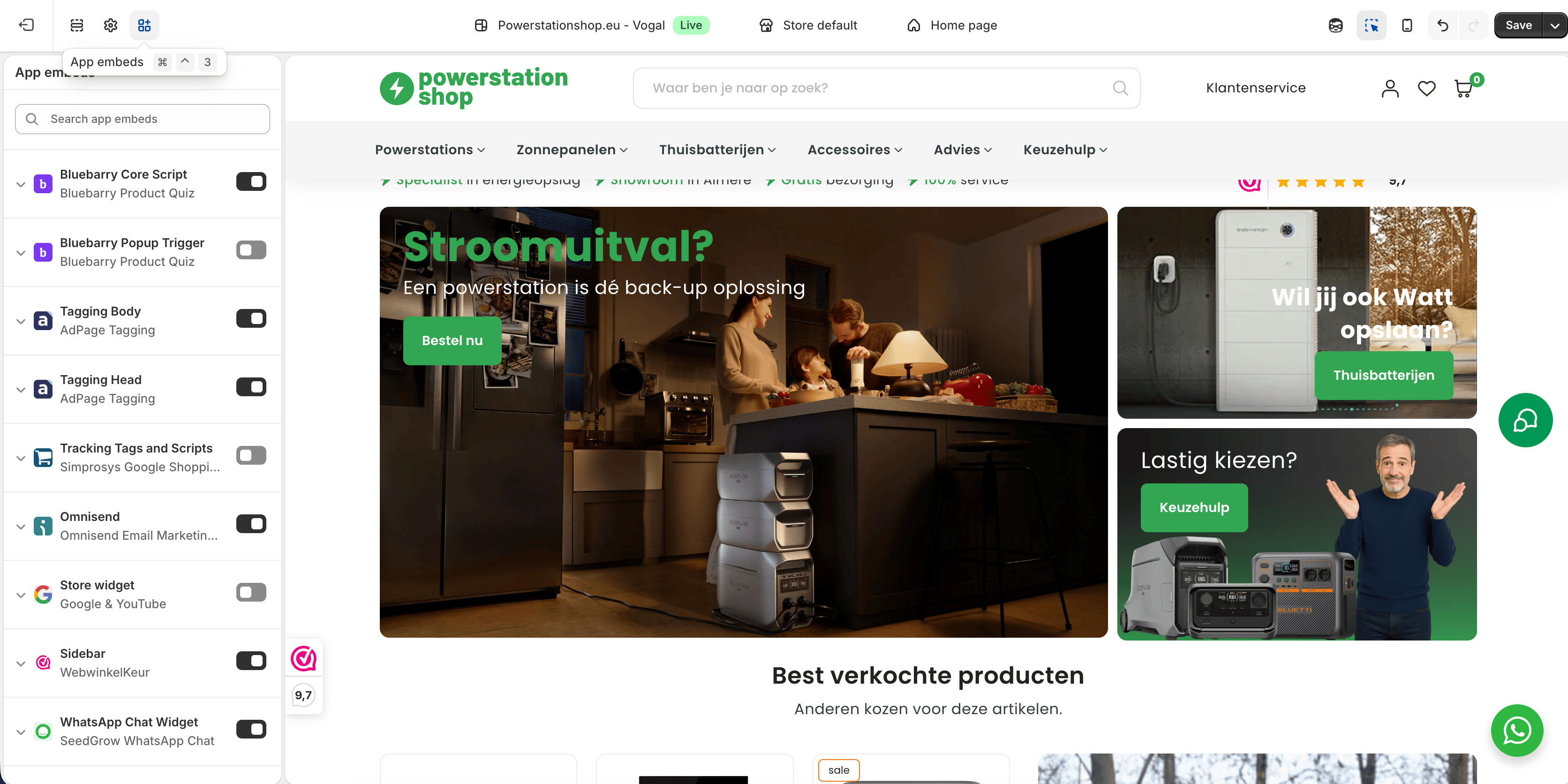
That one switch is all your store needs. Live popups, product chat and a switched-on search configuration load through it automatically. If the embed is ever switched off, the app shows a warning with an Activate app embed button.
Theme blocks the app adds
Besides the core script, the app adds a few optional blocks to your theme editor. Add them where you want a button or placement on the page.
| Block | Where | What it's for |
|---|---|---|
| Bluebarry Core Script | App embed, every page | Required. Loads bluebarry on your store: quizzes, search, product chat and popups. Also needed for collection page quiz banners, the personalized product order and quiz matches. |
| Bluebarry Quiz Button | Section block, any template | A button that opens one quiz. You paste the quiz ID into the block. |
| Quiz Button | Collection template | Shows only on the collections you switch on in the quiz's Launch tab. |
| Product Check Button | Product template | Shows only on the products or collections you switch on for product check. |
| Bluebarry Popup Trigger | App embed or section block | Opens a quiz as a popup after a delay, a scroll or exit intent. Popups you build in the Popups app need no block. |
| Bluebarry Shopping Help | Product and collection templates | Sets where product chat appears when it uses the Inline shopping help or Embedded display. |
| bluebarry recs | Section block, any template | Shows a recommendation block. Paste the Block ID from the block's Embed step. |
Switch on search from the app
After setup, the app home shows an On-site search card. Pick a search configuration in the Search profile list to power your store's search box, or choose Disabled to turn it off. Changes apply to your store right away. You can also do this from bluebarry itself, see Launch search on your store.
Good to know
- After setup, the app home is called Configure your Bluebarry integration. It has your account details, product sync and on-site search in one place.
- If something doesn't show on your store, start with Fix the Shopify app embed not showing.