
The performance script tells bluebarry about the orders on your store. With it, you see how much revenue your quizzes bring in, per quiz. You add it once, on your order confirmation page, and it works for all your quizzes.
Do you need it?
- Shopify: no. The bluebarry app tracks checkouts for you. See Track Shopify checkout conversions.
- WooCommerce: no. The plugin sends completed orders. See Track WooCommerce checkout conversions.
- Magento: no. The bluebarry module sends paid orders. See Connect Magento.
- Any other platform: yes, add the script below.
Not doing this yourself?
Adding the script needs someone who can edit your checkout templates. Copy this email, fill in the parts in brackets and send it to your developer:
Hi [NAME],

We use bluebarry for product quizzes on our store. To see how much revenue the quizzes bring in, bluebarry needs a small script on our order confirmation (thank you) page.

What needs to happen:

1. Add the bluebarry performance script to the order confirmation page.
2. Fill the example values in the script with the real order data: order ID, currency, totals and the ordered items.
3. Make sure it only runs after a successful order, and place a test order through a live quiz to check it.

Instructions and the script: https://bluebarry.ai/implementing-performance-tracking-script/

Our bluebarry tenant ID: [your tenant ID]

Questions? bluebarry support is at [email protected].

Thanks!

[Your name]
Step 1: Copy the performance script
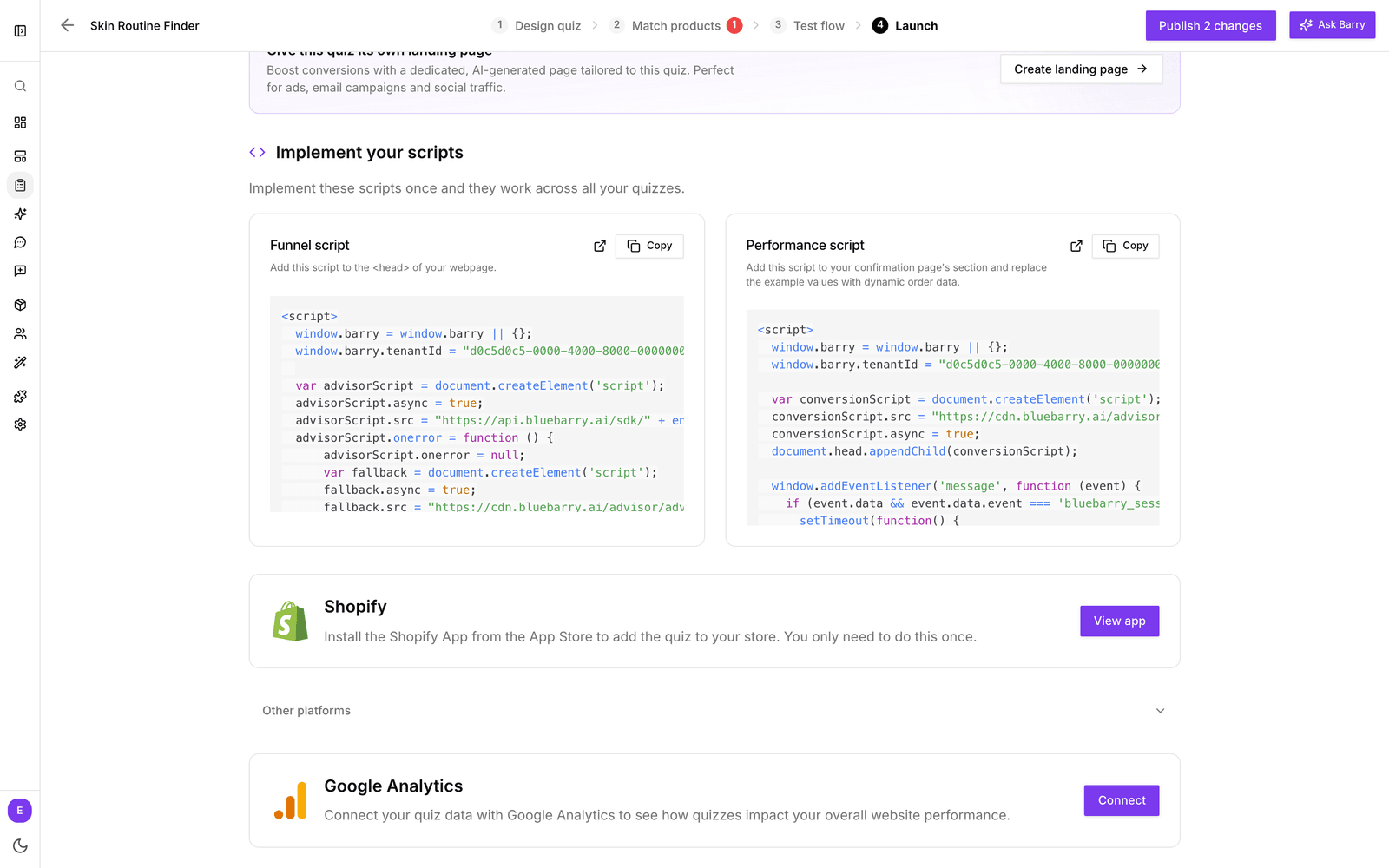
- In the sidebar, go to Quizzes and click Edit on any quiz.
- Open the Launch tab and scroll to Implement your scripts.
- Copy the Performance script. Your tenant ID is already filled in.
Or copy it from here
This is the same script. Replace TENANT_ID_HERE with your tenant ID.
<script>
  window.barry = window.barry || {};
  window.barry.tenantId = "TENANT_ID_HERE";

  function bluebarryTrackOrder() {
    barry.trackConversion({
      currencyIso: "EUR", // the currency of the order (3 character ISO code)
      conversionId: "ORDER-12345", // your internal ID of the order (max 64 chars)

      // Order totals
      orderProductTotal: 250.00, // total value of products excluding tax
      orderTaxTotal: 62.50, // total tax amount
      orderGrandTotal: 312.50, // grand total including tax

      items: [  // can be any number of items
        {
          itemId: "PRODUCT-001", // your internal ID/name of the product (max 64 chars)
          quantity: 2, // quantity of this item
          priceExclTax: 100.00, // price per item excluding tax
          priceInclTax: 125.00, // price per item including tax
          taxPercentage: 25.00, // tax percentage (e.g., 25 for 25%)
        },
        {
          itemId: "PRODUCT-002", // another item example
          quantity: 1,
          priceExclTax: 50.00,
          priceInclTax: 62.50,
          taxPercentage: 25.00,
        },
      ],
    });

    // Optional: uncomment and replace with the customer's email
    // barry.identify({
    //   email: "CUSTOMER_EMAIL_HERE",
    // });
  }

  // Uses the bluebarry script when the page already has it, and loads it otherwise.
  if (window.barry.trackConversion) {
    bluebarryTrackOrder();
  } else {
    window.barry.popups = false; // no popups or chat over the order confirmation
    window.barry.chat = false;
    var barryScript = document.createElement('script');
    barryScript.async = true;
    barryScript.src = "https://api.bluebarry.ai/sdk/" + encodeURIComponent(window.barry.tenantId) + "/advisor.js?quiz=true";
    barryScript.onload = bluebarryTrackOrder;
    barryScript.onerror = function () {
      barryScript.onerror = null;
      var fallback = document.createElement('script');
      fallback.async = true;
      fallback.src = "https://cdn.bluebarry.ai/advisor/advisor.js";
      fallback.onload = bluebarryTrackOrder;
      document.head.appendChild(fallback);
    };
    document.head.appendChild(barryScript);
  }
</script>
You find your tenant ID under Store data → Integrations in the sidebar, at the top of the page next to Tenant ID:. Click the copy icon.

Step 2: Fill in the real order data
The values in the script are examples. Replace them with the real data from the order, the way your platform provides it on the confirmation page:
currencyIso: the order's currency, such as EUR.conversionId: your order number.orderProductTotal,orderTaxTotalandorderGrandTotal: the totals of the order.items: one entry per ordered product, with its ID, quantity, prices and tax percentage.- Optional: uncomment the
barry.identifypart and pass the customer's email. The order then joins that shopper's profile, together with their quiz answers.
Step 3: Add it to your confirmation page
Put the script on the page customers see right after a completed purchase, the thank you page.
- It should only run after a successful order, not on a failed or cancelled payment.
- The order data has to be available on the page when the script runs.
- Is the Funnel script already on that page? Then the performance script uses it. If not, it loads it for you, with popups and product chat turned off so neither opens over the order confirmation.
- Test it: take a quiz on your live store, click through to a product, and place a test order.
Once it works, the revenue from quiz takers shows up in your quiz analytics. See Understand conversion attribution.
Added the script before? If yours loads conversion.js, replace it with the script above. The older version only counts orders from shoppers who took a quiz, and it doesn't pass experiment details on, so order and revenue goals of search and popup experiments stay at zero. See Fix paused or stuck experiments.
Need a hand?
If you can't get it working, we probably can. Ask us in Discord or email [email protected].