
Product check turns your quiz into a second opinion on the product page. A shopper clicks "Is this right for me?", answers your questions, and learns whether the product they're looking at fits them. If it doesn't, the quiz suggests better options. You reuse the quiz you already have, so there are no extra questions to write.
What shoppers see
- On a product page, the shopper clicks the product check button.
- Your quiz opens with the product they were looking at and asks your normal questions.
- Instead of the normal results page, they get a verdict:
- Match: "This product is perfect for you", the product they checked marked as a perfect match, and alternatives below it.
- No match: "There might be a better product for you", the checked product greyed out, and better options next to it.
The checked product never shows up again among the alternatives, and neither do its other variants, unless your quiz shows each variant as its own product.
When to use it
Product check works best where shoppers doubt whether a product suits them, and return it when it doesn't. It answers that doubt on the page where they decide, and keeps them in your store when the answer is no.
| Use case | Example |
|---|---|
| Sizes and fit | A shopper looks at a running shoe and wants to know if it suits flat feet and long distances. |
| Technical fit | A shopper checks if a printer cartridge, phone case or spare part works with what they already own. |
| Skin, hair and diet | A shopper checks if a moisturizer suits dry, sensitive skin, or if a food fits their diet. |
| Expensive choices | A shopper hesitating over a mattress, bike or coffee machine gets a clear yes, or a better option before they buy the wrong one. |
A match also builds confidence to buy now. A no match is a chance to sell the right product instead of handling a return later.
One quiz or two
One quiz can do both jobs. It runs as a normal quiz when shoppers open it from your homepage, a popup or a button, and as a product check when they open it from a product check button. You don't need to build a second quiz.
- Shared: the questions, answers, product filters and design.
- Only for product check: the Match and No match pages, the product check cards and the product check pre-result page. Your normal results page stays as it is.
Use a separate quiz when the check needs different logic, for example fewer questions on the product page, other product filters or a stricter threshold. Turn on product check in that quiz and switch on its products on the Launch tab. Each product uses one quiz for its check, so you can also link running shoes to a running quiz and jackets to a jacket quiz.
How the match score works
bluebarry scores the checked product against the shopper's answers with the same product filters your quiz uses for its results:
- Every answered question whose answers have product filters counts as one part. If your quiz has global product filters, they count as one more part.
- The score is the share of parts the product meets. A product that meets 4 of 5 parts scores 80%.
- Questions without product filters don't change the score. A quiz without any product filters gives every product 100%.
- When the score reaches your Show perfect match when value, the shopper sees the match page. Below it, they see the no match page.
In a normal quiz, filters remove products from the results. In a product check they only lower the checked product's score, so the shopper always gets a verdict about it. A higher threshold makes product check stricter: with five parts, 80% allows one miss and 85% or more allows none. Good answer filters matter more than the threshold, see Configure answer product filters.
Turn on product check
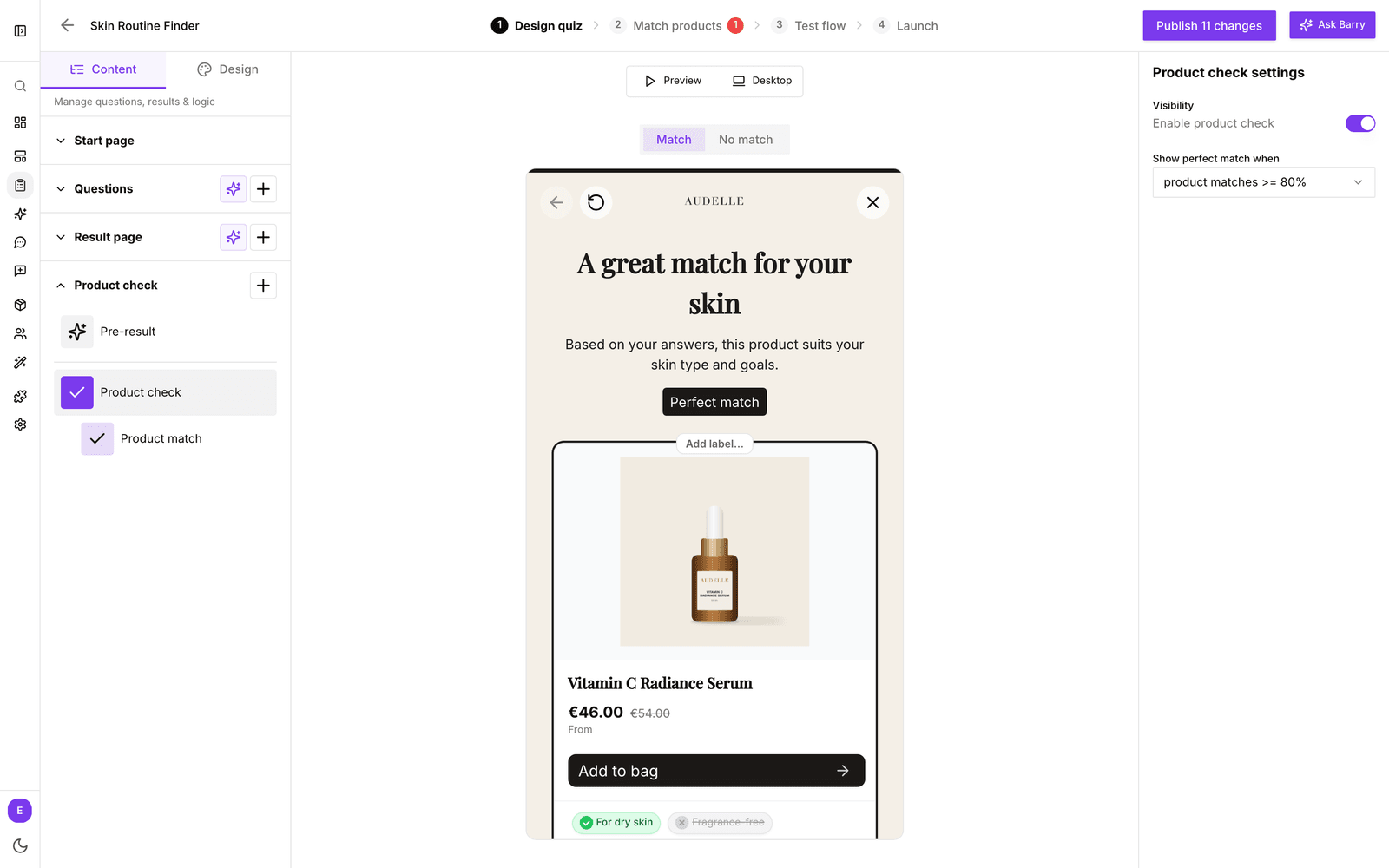
- In the sidebar, go to Quizzes and click Edit on your quiz.
- On Design quiz, find Product check on the Content tab and switch it on.
- Click Product check and choose Show perfect match when, for example "product matches >= 80%". From that score, shoppers hear the product is a good fit.
- Use the + ("Add product check card") to add the cards shoppers see after the check. Without product check cards, the quiz uses your normal result cards.
- For each card, set Visibility under Behaviour: Always show, Only when product matches or Only when product does not match. For example, show alternatives only when the product isn't a match.
- Publish the quiz. Product check changes reach your store only after you publish.
Settings
| Setting | Where | What it does |
|---|---|---|
| Enable product check | Product check, Visibility | Turns product check on for this quiz. Without it the button opens the normal quiz. |
| Show perfect match when | Product check | The score a product needs to count as a match: 70, 75, 80, 85, 90 or 95%. New quizzes start at 80%. |
| Match and No match pages | Product check page on the canvas | Title, description, the label above the checked product, the label above the alternatives, the checked product's label and its button text. |
| Pre-result | Pre-result under Product check | A short loading screen before the verdict, with its own image, description and layout. It is separate from the pre-result page of the normal quiz. |
| Product check cards | + next to Product check | The alternatives shoppers see after the check. Each card has the same Product, Display and Behaviour settings as a result card. |
| Visibility | Card settings, Behaviour | Always show, Only when product matches or Only when product does not match. |
| Compare value to | Match products, a product check card's rule | Compares an attribute with the checked product's own value instead of a fixed value, for example the same brand. |
Match and No match pages
Click Product check in the left sidebar to open the verdict page on the canvas. Switch between Match and No match at the top and click a text to edit it. Leave a text empty to use the default, for example "Perfect match" and "Great alternatives" on the match page. Default texts follow the shopper's language. The pricing text is shared with your normal results page.
Write a button text for the checked product on the No match page too, for example "View anyway". Without one, the button shows only an arrow.
Product check cards
Each product check card shows one alternative. You set them up like result cards: pick the best match from the quiz or a fixed product, choose the sort order, the USP property, and what the button does. See Build result cards. Drag cards in the sidebar to change their order.
Visibility decides when a card shows:
- Always show: the card shows after every check, for example "Most popular in this category".
- Only when product matches: for add-ons that go with a product the shopper is about to buy, like care products for a jacket.
- Only when product does not match: for the better option, like the best match from the quiz.
If a card adds products to the cart, the checked product's button adds to the cart as well, so a shopper who hears "perfect match" can buy right away.
Compare with the checked product
A product check card can compare an attribute with the checked product's own value instead of a fixed value. Use it to stay close to what the shopper picked. For example, a shopper checks a mattress that turns out too firm for them. A card with the rule "brand equals the checked product's" shows a softer mattress from the same brand, not one from a brand they weren't looking at.
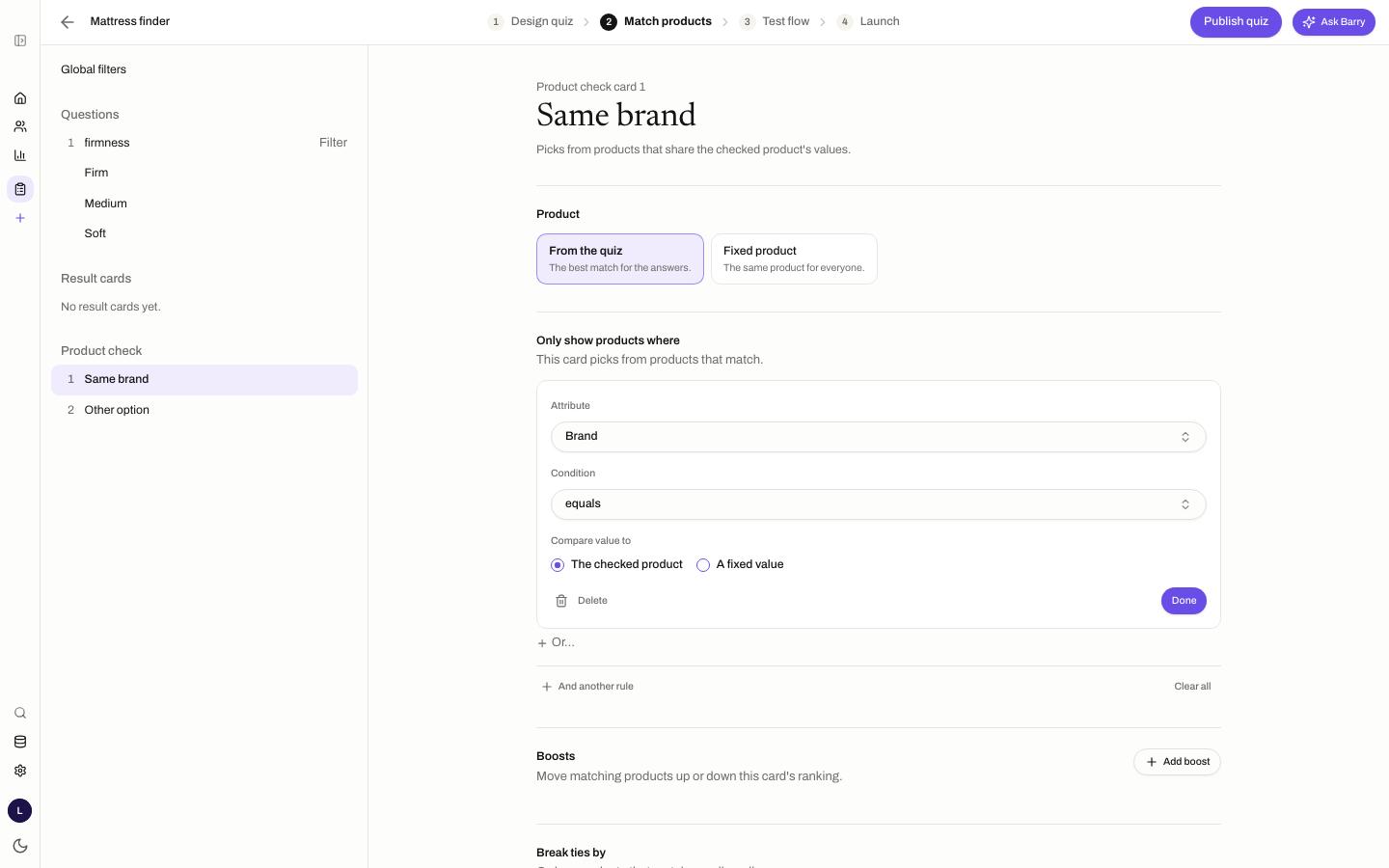
- In the quiz editor, open Match products and click a card under Product check.
- Under Only show products where, click Add rule, pick the attribute and choose equals or not equal to.
- Under Compare value to, choose The checked product.
To rank those products first without hiding the others, add it under Boosts instead: pick the attribute and choose the checked product's as the value.
- It works on text, number and yes/no attributes, with equals or not equal to.
- Your catalog needs an attribute the products share, like a brand or a product line. If the checked product has no value for it, the rule is skipped.
- It only exists on product check cards. Normal result cards have no checked product.
- Which products pass depends on the checked product, so a card with only such rules says "Picks from products that share the checked product's values" instead of a count.
Preview it in Studio
Click Preview in the quiz editor and pick a product under Check Product at the top. Answer the questions to see whether it matches, and try a product that shouldn't.
Add the button on Shopify
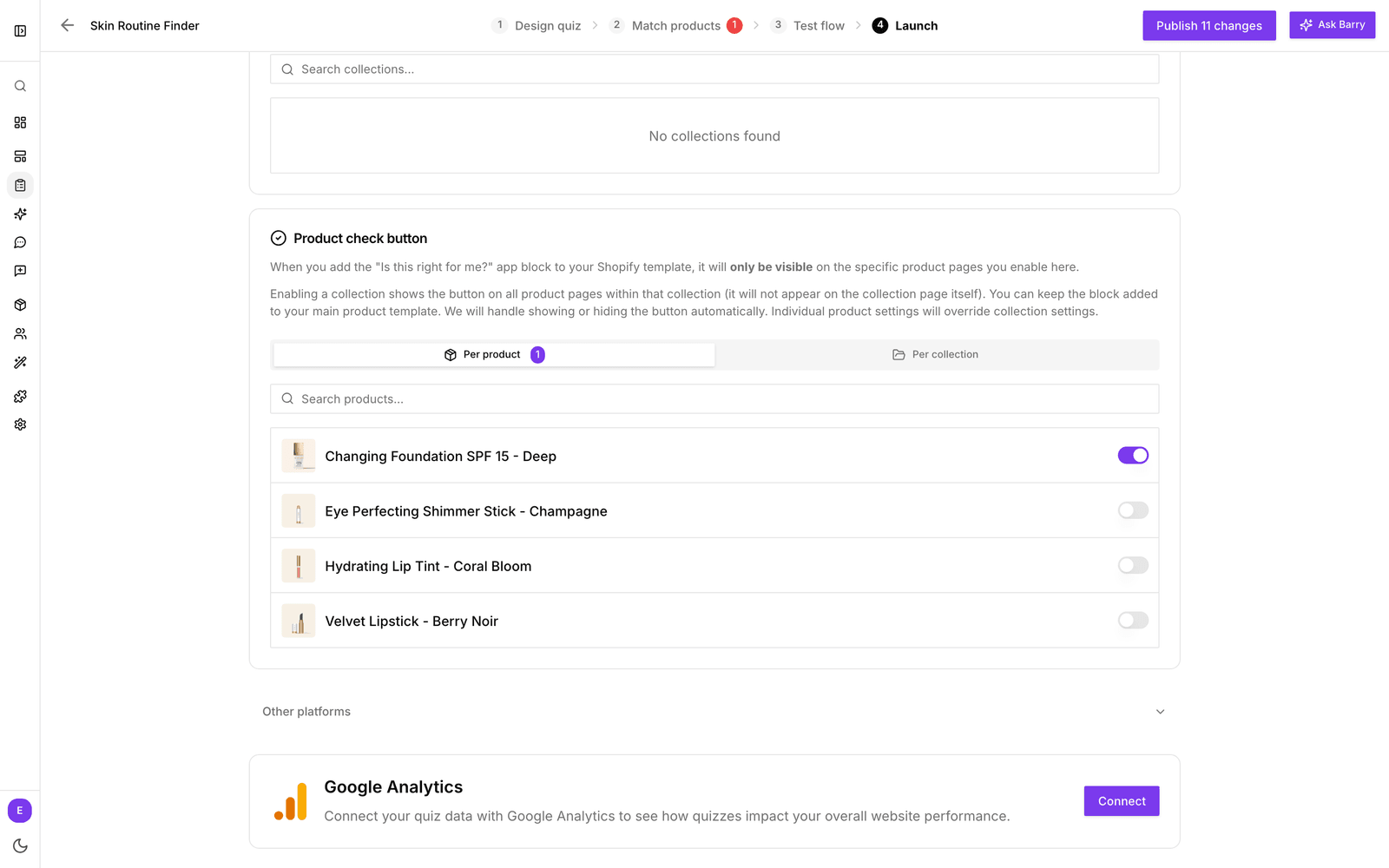
- In the quiz editor, open the Launch tab. With Shopify connected and product check on, you'll see Product check button.
- Choose Per product or Per collection and switch on the products or collections where the button should appear. Enabling a collection shows the button on every product page in it. A product setting overrides its collection.
- In your Shopify theme editor, add the Product Check Button app block to your product template once. It shows "Is this right for me?" by default, and you can change the text and style there.
You can leave the block on your product template: bluebarry only shows it on the products you enabled. The button checks the variant the shopper has selected. More detail in Add product check to Shopify product pages.
Add the button on WooCommerce, Magento or CCV Shop
- On the quiz's Launch tab, find Product check button and switch on the products where it should appear.
- Go to Integrations, open your platform and switch on Product check button under On your store. Change the Button text if you like.
The button appears below the add-to-cart button or price, only on the products you switched on. When a shopper picks a variant, the button checks that variant. On CCV Shop you can enter a CSS selector under Place somewhere else (optional) to move it. On WooCommerce you can also place it yourself with the shortcode [bluebarry_product_check].
Other platforms
Click the publish button at the top right of the editor and open the Implementation tab. Under Product check button you'll find a button snippet for your product pages. Replace PRODUCT_ID_HERE with the product's ID, the same ID your feed or store sync uses. The other snippets, like the popup and auto-open, have a product check version too.
Good to know
- A product can use product check from one quiz. Products already linked to another quiz show Enabled for another quiz on the Launch tab.
- If bluebarry can't find the product, or it is inactive or not sold in the shopper's market, the shopper gets the normal quiz results instead of a verdict.
- On Shopify, turning product check off doesn't hide the button. It then opens the normal quiz. Remove the block from your theme if you no longer want it.
- Product check doesn't use the quiz's custom results page, and it doesn't create a discount code in the email step. To give the page your own layout, use the Product check template in the theme's custom code.
Measure results
- On the Dashboard, switch between All, Quiz and Product checks to see product checks on their own. The switch shows once both kinds of sessions exist in the period.
- In a shopper's profile, the timeline shows Product check: match or Product check: no match with the score, the checked product and the best matching product.
- Klaviyo and Omnisend receive the events Product Check Matched and Product Check No Match, so you can follow up on a no match by email.
Test it on a product that should match and one that shouldn't. See Test your storefront quiz.