
The easiest way to get shoppers into a quiz is a link on something they already click: a homepage banner, a button or a menu item. On Shopify you can paste a quiz link into any of those, or add one of the app's ready-made quiz buttons.
Before you start
- The bluebarry app is installed and Bluebarry Core Script is switched on under App embeds. See Install the bluebarry Shopify app.
- Your quiz is published.
Copy your quiz link
- In bluebarry, go to Quizzes and open your quiz.
- Click the publish button at the top right. For a new quiz it reads Publish quiz. For a published quiz without changes it reads No changes, view implementations.
- Open the Implementation tab and choose Shopify under Showing instructions for.
- Under Quiz link, click Copy link. The link looks like
#bluebarry:followed by your quiz ID.
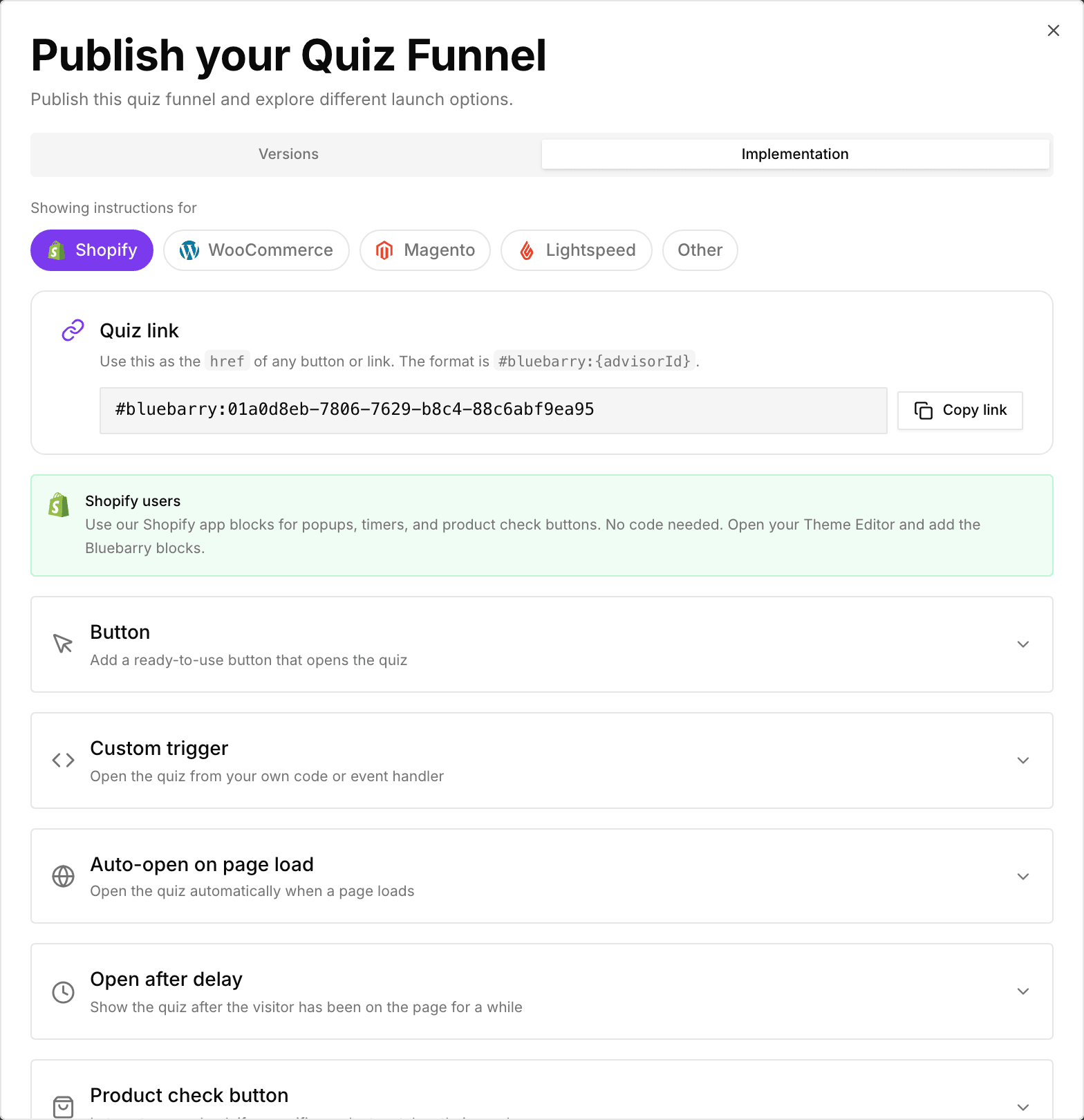
New stores also see this link as the Quiz trigger link at the end of the setup wizard in the Shopify app.
Add the link to a banner, button or menu
- In Shopify, go to Online Store → Themes and click Customize.
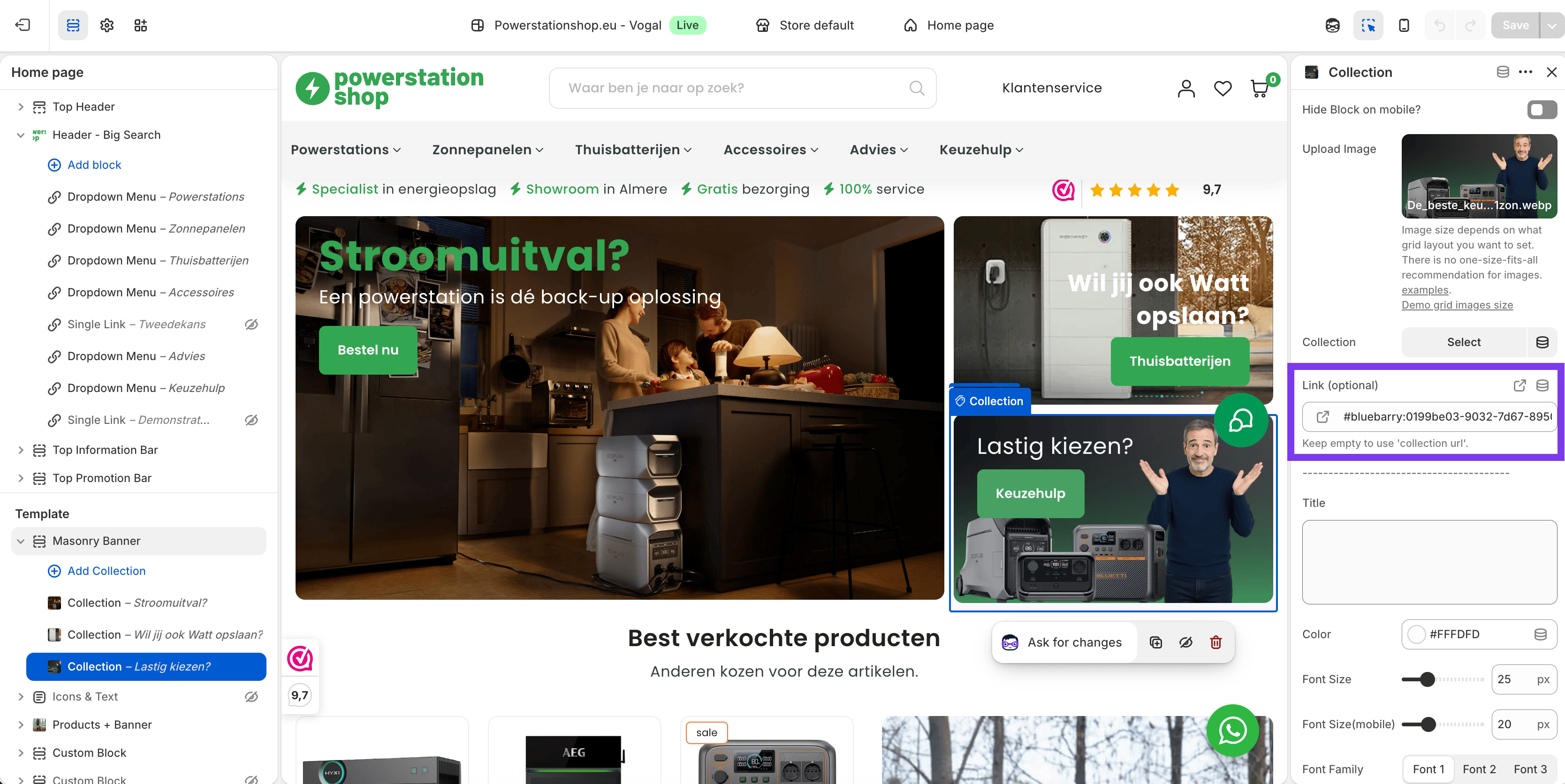
- Select the banner, image or button that should open the quiz.
- Paste the quiz link into its link field and click Save.
For a menu item, go to Online Store → Navigation, open your menu and paste the quiz link as the item's link. When a shopper clicks, the quiz opens on top of the page, without a page reload.
Or use a quiz button block
Prefer a styled button without touching links? The app adds two button blocks to your theme editor.
Bluebarry Quiz Button (any page)
- In the theme editor, click Add block or Add section, open Apps and choose Bluebarry Quiz Button.
- Paste your quiz ID into Advisor ID. That's the part of the quiz link after
#bluebarry:. - Set the Button text and, if you like, the colors, font, corner radius and padding. Full width stretches the button across the section.
- Click Save.
Quiz Button (collection pages)
This block lives on your collection template and only appears on the collections you choose in bluebarry. Add it once and manage the rest from bluebarry.
- In the theme editor, open a collection page and add the Quiz Button app block. Style it and click Save.
- In bluebarry, open the quiz and go to the Launch tab.
- In the Quiz button card, switch on the collections where the button should show. A collection that already shows another quiz is marked Enabled for another quiz.
How the quiz opens
You decide how the quiz appears on the Launch tab under Choose your preferred display type: Pop-up, Side panel, Embedded or Full page. The link and the button blocks follow that choice.