
Product chat runs on the same bluebarry script as your quizzes and search. With the Chat popup display, that script is all you need. Inline shopping help and Embedded also need a placement: a spot above your product grid where the chat sits.
You find a short version of these steps in Studio under Product chat → Setup → Install. Not in the sidebar yet? A module only shows under Live on your store once it is live or has a draft. Click + Add a module and then Add next to Product chat, and Barry sets it up with you.
Shopify
First, make sure the bluebarry app embed is on. It loads the chat on every page and tells it which product, collection and theme template the shopper is looking at, and what is in their cart.
- In Shopify Admin, go to Online Store → Themes and click Customize on your live theme.
- Open App embeds and turn on Bluebarry Core Script.
- Click Save.
For Inline shopping help or Embedded, add the placement block too:
- In the theme editor, open a collection template (or a product template).
- Click Add block, open Apps and pick Bluebarry Shopping Help.
- Drag the block above the product grid and click Save.
The Shopping Help block works on collection and product templates. Use the popup display for other pages.
WooCommerce
Install the bluebarry plugin first (see Connect WooCommerce). The plugin tells the chat which category or product the shopper is on, including when they pick a different variation.
- Classic themes: the placement is already there, above the products on your shop and category pages.
- Block themes: add a Shortcode block above the product collection and enter
[bluebarry_shopping_help]. You can use the same shortcode anywhere else you want the chat to sit.
To show the chat under the add to cart button on product pages, go to Store data → Integrations, click Manage on WooCommerce and switch on Product chat under On your store.
CCV Shop
Connect your store first (see Connect CCV Shop). The connection tells the chat which product or category the shopper is on and what is in their basket. To show the chat on product pages, under the price, go to Store data → Integrations, click Manage on CCV Shop and switch on Product chat under On your store. There is nothing to edit in your theme.
Magento
Install the bluebarry module first (see Connect Magento). The module tells the chat which product or category the shopper is on. To show the chat under the add to cart button on product pages, go to Store data → Integrations, click Manage on Magento and switch on Product chat under On your store. To place it anywhere else, insert the bluebarry product chat widget in a page or block. Both need version 2.1.0 or later of the module.
Other storefronts
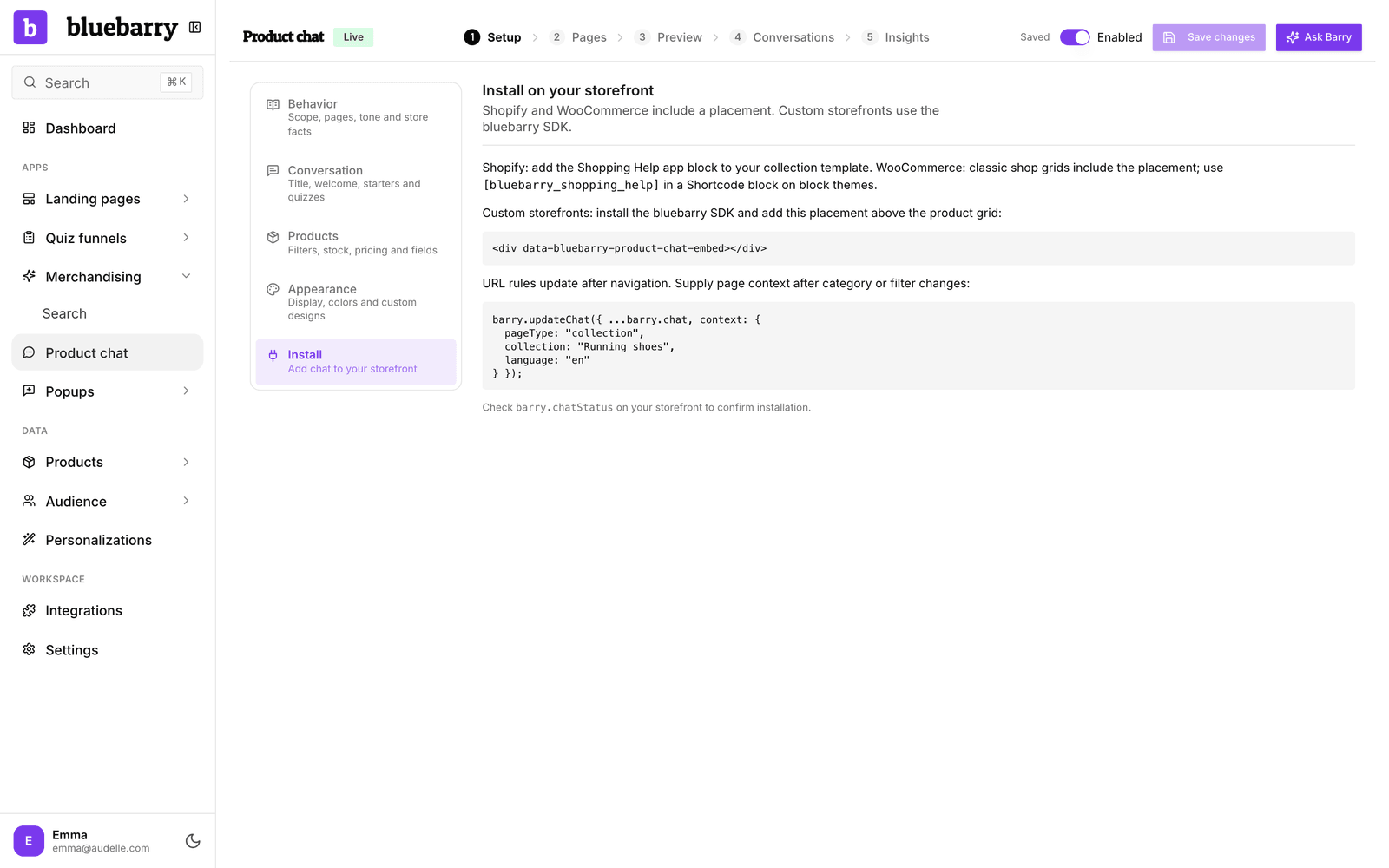
On any other platform, add the bluebarry script to every page. It is the same script you use for quizzes, described in Adding your quiz funnels to your store. For inline or embedded chat, paste this one line above your product grid:
<div data-bluebarry-product-chat-embed></div>Two things are worth handing to your developer. On product pages, the chat needs to know which product the shopper is viewing. On category pages, passing the category name and active filters lets the assistant start from what the shopper sees, and lets your page rules match. The same setup works on Lightspeed and custom storefronts.
Check that it's running
- In Studio, check that Enabled is on and the header says Saved.
- Open your store in a private browser window and go to a page where the chat should appear.
- Look for the chat button or the placement, and ask a real question.
No chat? Check these first:
- Where it appears under Setup → Behavior includes this kind of page.
- No page rule hides the chat here. The Preview step shows which rule a page uses.
- Inline and embedded chat have a placement on the page.
- With Answer questions about the current product, the chat only appears on product pages.
Your developer can also type barry.chatStatus in the browser console. The state reads ready when the chat is running, disabled when it is off for this page, missing_target when inline or embedded chat has no placement, and error when something else went wrong.