
bluebarry works from your Shopify catalog. Quiz recommendations, search results, product chat answers and popup targeting all read the same product data, so a clean sync improves every one of them. Once product sync is on, it runs by itself.
How the sync works
- The first sync imports your whole catalog: products, variants with their images, prices, stock and the fields you choose.
- After that, changes follow automatically when you edit products, stock or collections in Shopify. A regular background sync catches anything that slipped through, and sales figures are added too.
- New stores switch the sync on in the setup wizard, on the Select fields to sync step. You can change it at any time on the app home.
Turn on or change product sync
- In Shopify, open Apps → Bluebarry Product Quiz.
- Find the Product sync card. If you connected an existing bluebarry account, it's called Step 2: Sync your products to bluebarry.
- Tick Enable product sync.
- Check the Bluebarry API key. New stores get one automatically. If you connected an existing account, create a key in bluebarry under Integrations → Developer area → API keys and paste it here.
- Under Configure which fields to sync, tick the fields you want in bluebarry. Unticked fields are left out.
- Click Save. The button Sync all products now appears. Click it to run a full sync right away.
- In bluebarry, go to Products to check that your catalog arrived.
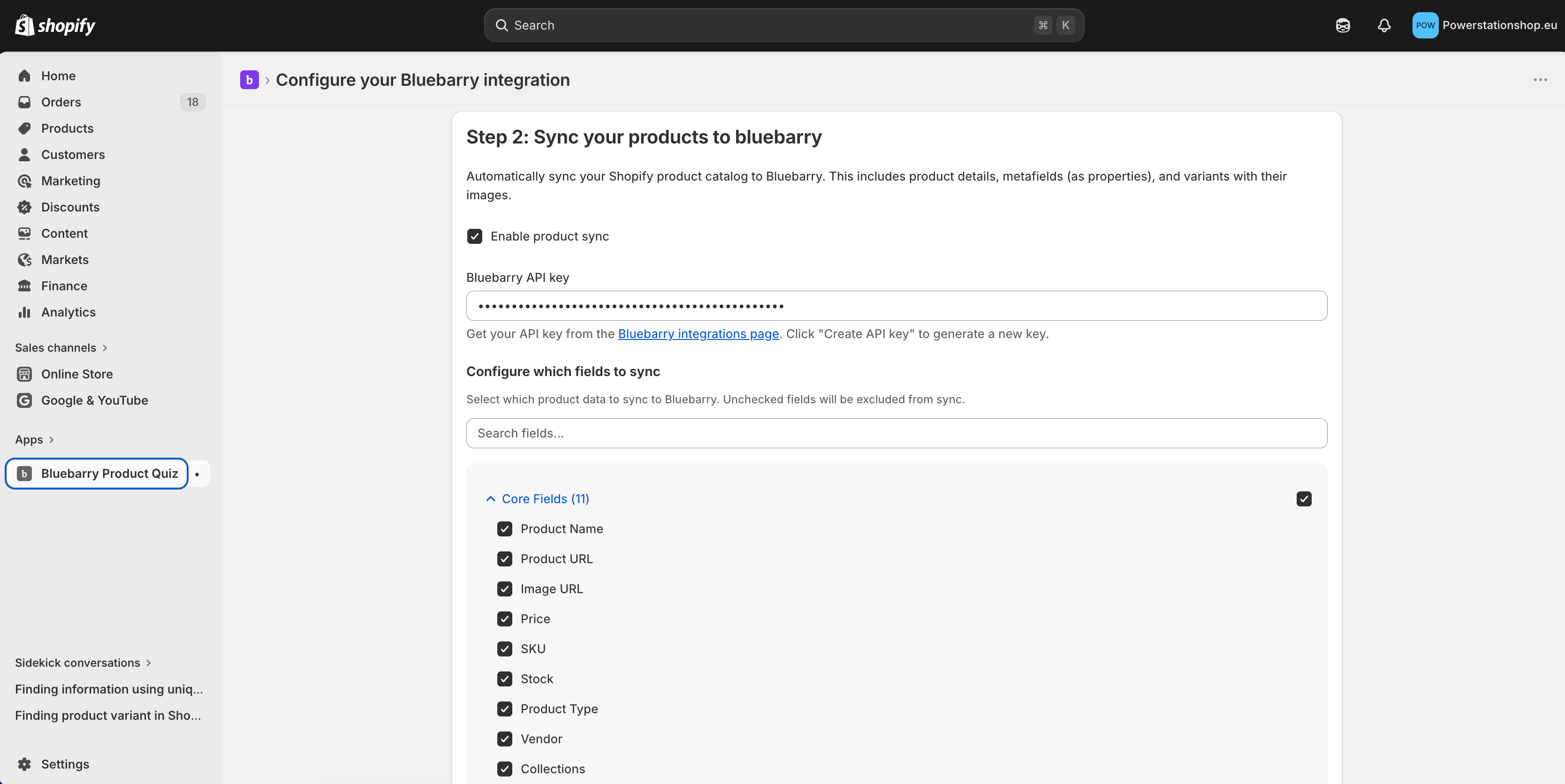
Fields you can sync
| Group | What's in it |
|---|---|
| Core Fields | Product Name, Product URL, Image URL, Price, SKU, Stock, Product Type, Vendor, Collections, Tags, Description and Inactive Status. |
| Variant Options | Your Shopify options, such as Size or Color. |
| Product Metafields | Metafields on the product, grouped by namespace. Each one becomes a product property. |
| Variant Metafields | Metafields on individual variants, grouped by namespace. |
Variant options and metafields only show up after the app has looked at your store. If you see the note to save first, click Save and the lists fill in.
Tips
- Use metafields for attributes. Metafields arrive as separate product properties, which makes them easy to use for quiz matching and search filters.
- Tags stay together. All tags land in one Tags property. A tag like
gender:womenstays a single value and isn't split into its own attribute. If you need a separate attribute, store it in a metafield. - Hidden products stay hidden. Draft and archived products, and products not published to your online store, are marked inactive so bluebarry won't recommend them.
- Description is for display. It's used for text on result pages, not for matching.