
The end of your quiz is where shoppers decide to buy. It has three parts: an optional loading screen (the pre-result page), the result page itself, and the result cards that each show one product. This article walks through the settings for all three.
You find them in the quiz editor: go to Quizzes, click Edit on your quiz, and open Design quiz. On the Content tab, expand the Result page section.
Pre-result page
The pre-result page shows for a moment after the last question, while bluebarry picks the products. It builds a little anticipation. Click Pre-result to set it up:
- The Pre-result switch ("Display a loading screen before results") turns the page on or off.
- Under Content, show or hide the Image and the Description. Type the text itself in the preview, such as "Finding your best match...".
- With an image, choose a Layout for mobile and desktop and set the Image focal point.
- Colors live on the Design tab, under Page styles → Pre-result page.
Result page
Heading and text
Click the heading or the text under it in the preview and type. You can insert variables such as the shopper's name, for example "Great choice, @name! Here's your match".
Prices, reviews and extras
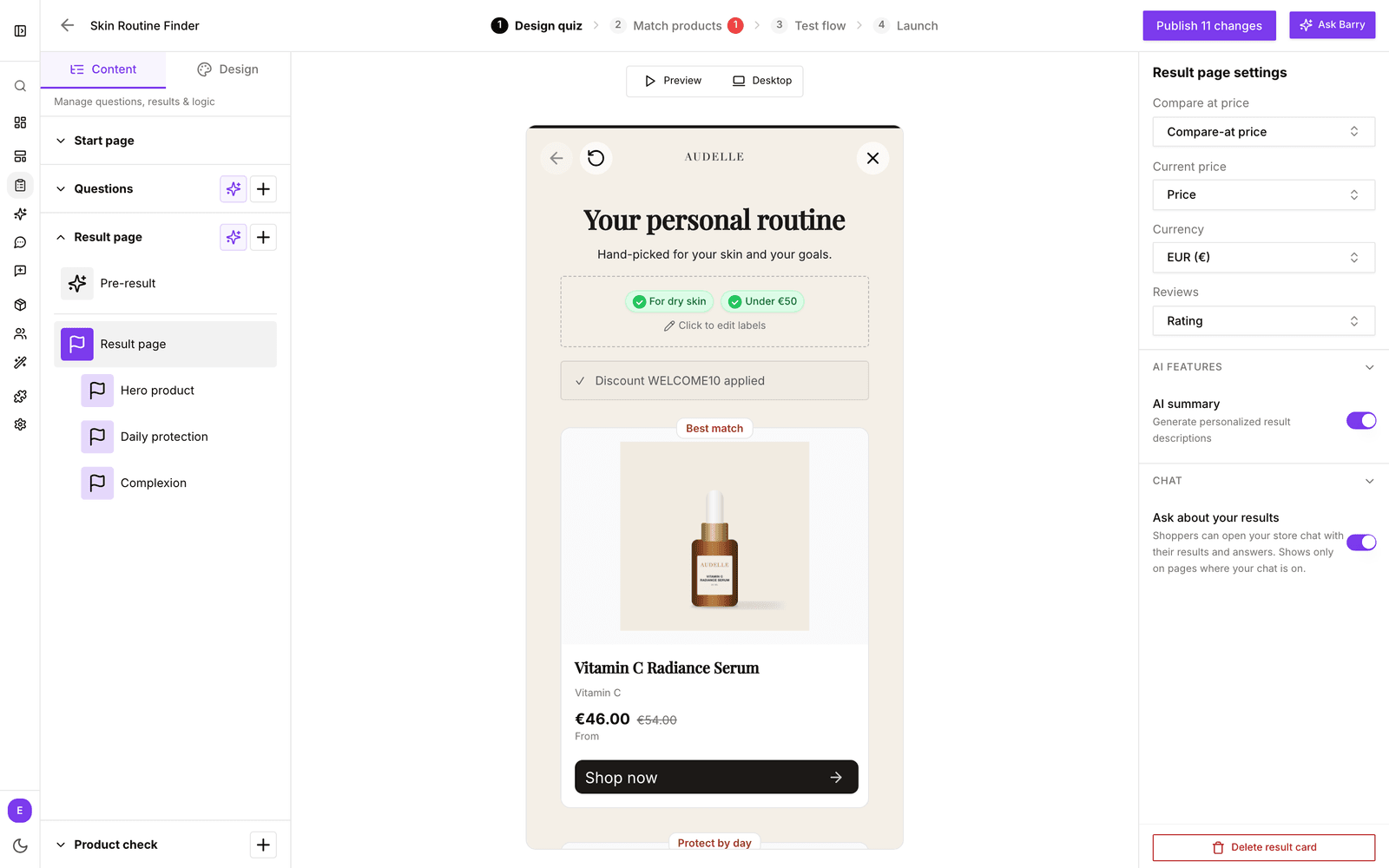
Click Result page to open these settings. They apply to every card:
- Current price: the Numeric property with the price the shopper pays.
- Compare at price: the original price. When it is higher than the current price, it shows struck through.
- Currency: the currency sign to show with prices.
- Reviews: a Numeric property with the star rating.
- AI summary ("Generate personalized result descriptions") writes a short, personal explanation of why these products fit the shopper's answers.
- Ask about your results lets shoppers continue in product chat with their answers and results. It only shows on pages where your product chat is on.
Want a line like "Excluding VAT" next to the price? Click the pricing text on a card in the preview ("Add pricing text...") and type it.
Write your own AI summary prompt (beta)
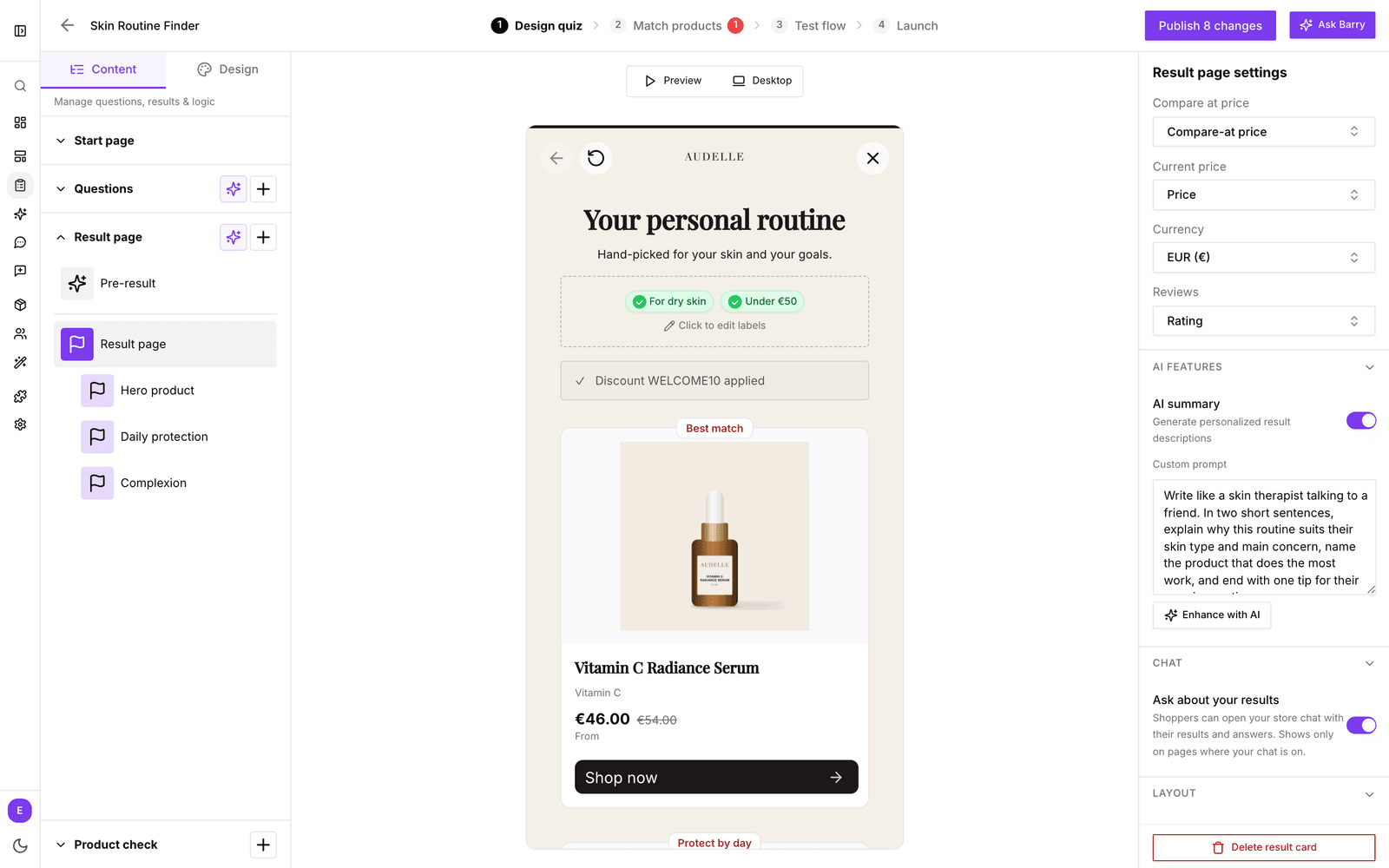
With beta features on, a Custom prompt box appears under AI summary. Tell the AI how to write, in your own words: the tone, what to mention and what to leave out. For example, "Write like a skin therapist, name the product that does the most work and end with one tip."
Not sure how to phrase it? Click Enhance with AI. You get a sharper version with a short explanation, and choose Apply or Dismiss. Leave the box empty to use the standard summary.
Result card settings
Each result card shows one product. Click a card under Result page to open its settings. To add cards, see Build quiz result cards.
Which product the card shows
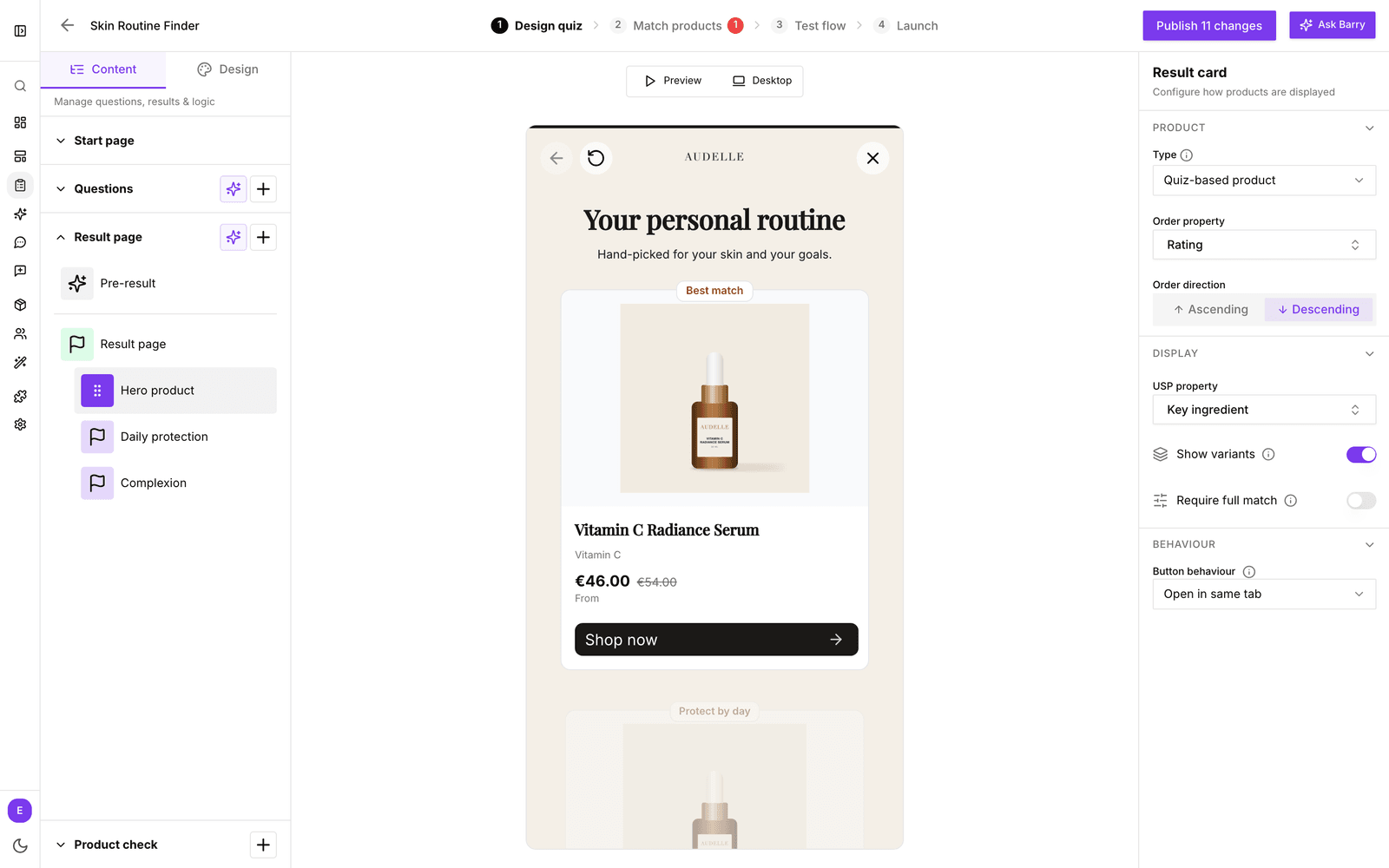
Under Product, Type decides where the product comes from:
- Quiz-based product shows the product that best matches the shopper's answers. This is the right choice for most cards.
- Add an Order property to choose between equally good matches, with Order direction set to Ascending or Descending. For example, sort by rating descending for a "Top rated" card, or by price ascending for a "Best value" card.
Why a high match sometimes doesn't show
Cards fill in order, and a product only appears once. If card 1 takes the best match, card 2 gets the next one. An order property, a card filter or a fixed product can also lead a card to a product with a lower match score than one you saw in testing.
Fixed product
Set Type to Fixed product and pick a product under Force product. That product always shows in this card, whatever the shopper answered. Handy for a promotion, a bestseller or a bundle you always want to suggest.
What the card shows and does
- Card label: click the label above the card in the preview and type, for example "Best match" or "Budget pick".
- Button text: click the button in the preview and type, for example "View product".
- USP property: a property shown as a selling point on the card, such as delivery time or a key feature.
- Show variants: shows the product's variants as swatches. See Show product variants in quiz results.
- Require full match: see Use full-match requirements.
- Button behaviour: open the product in the same tab or a new tab, run your own code, or add the product straight to the cart. Add to cart is available when Shopify, WooCommerce, CCV Shop or Magento is connected.
Try your changes on the Test flow tab, then publish the quiz. See Preview and test a quiz.