
Many products come in several colors, sizes or shades. On a quiz result card, bluebarry can show those variants as small swatches, so shoppers pick the exact version they want right there instead of hunting for it on the product page.
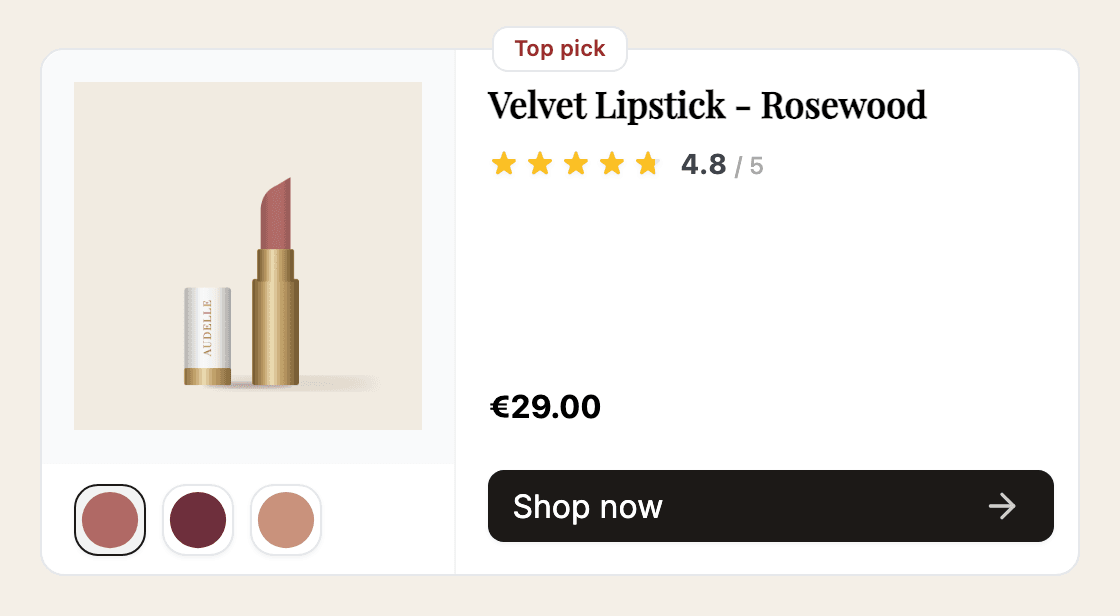
How variants show on a result card
- The card shows one product with its variants as swatches below the image.
- Only variants that fit the shopper's answers (and the card's own filters) are shown.
- The cheapest matching variant is shown first, so the card opens on the lowest price.
- When a shopper clicks a swatch, the image, name, price, selling point and link switch to that variant. Add to cart adds that variant too.
Make sure bluebarry knows your variants
Variants are separate products that share a Parent ID (shown as Group ID in the products table).
- Store sync: the Shopify app and the other store integrations group variants for you.
- Feed: give every variant its own row, add a column with a shared parent ID and map it to Parent ID. Optionally map a column with a small swatch image to Variant Icon URL. Without it, the swatch uses the variant's main image.
To check, open a product under Store data → Products. Related variants lists the other variants of that product.
Turn variants on or off per card
- In the sidebar, go to Quizzes and click Edit on your quiz.
- On Design quiz, expand Result page on the Content tab and click a result card.
- Under Display, use Show variants. It is on by default.
- Publish the quiz.
Don't see the switch? Then your catalog has no products with a Parent ID yet.
Variants as separate results
Sometimes the variant is the whole point, for example a foundation finder where each shade is its own recommendation. Then go to Match products → Global Filters and turn on Treat variants as separate products. Each variant becomes its own result, and cards no longer show swatches. See Set global filters for a quiz.