
Beta features are new tools we are still polishing. They work and you can use them in your live store, but screens and names can still change. If you like being early, you can switch them on yourself.
Switch on beta features
- Open search in Studio: press ⌘K on a Mac or Ctrl+K on Windows, or click Search at the bottom of the sidebar.
- Type enable beta.
- Turn on the Enable beta features switch. The beta settings appear right away.
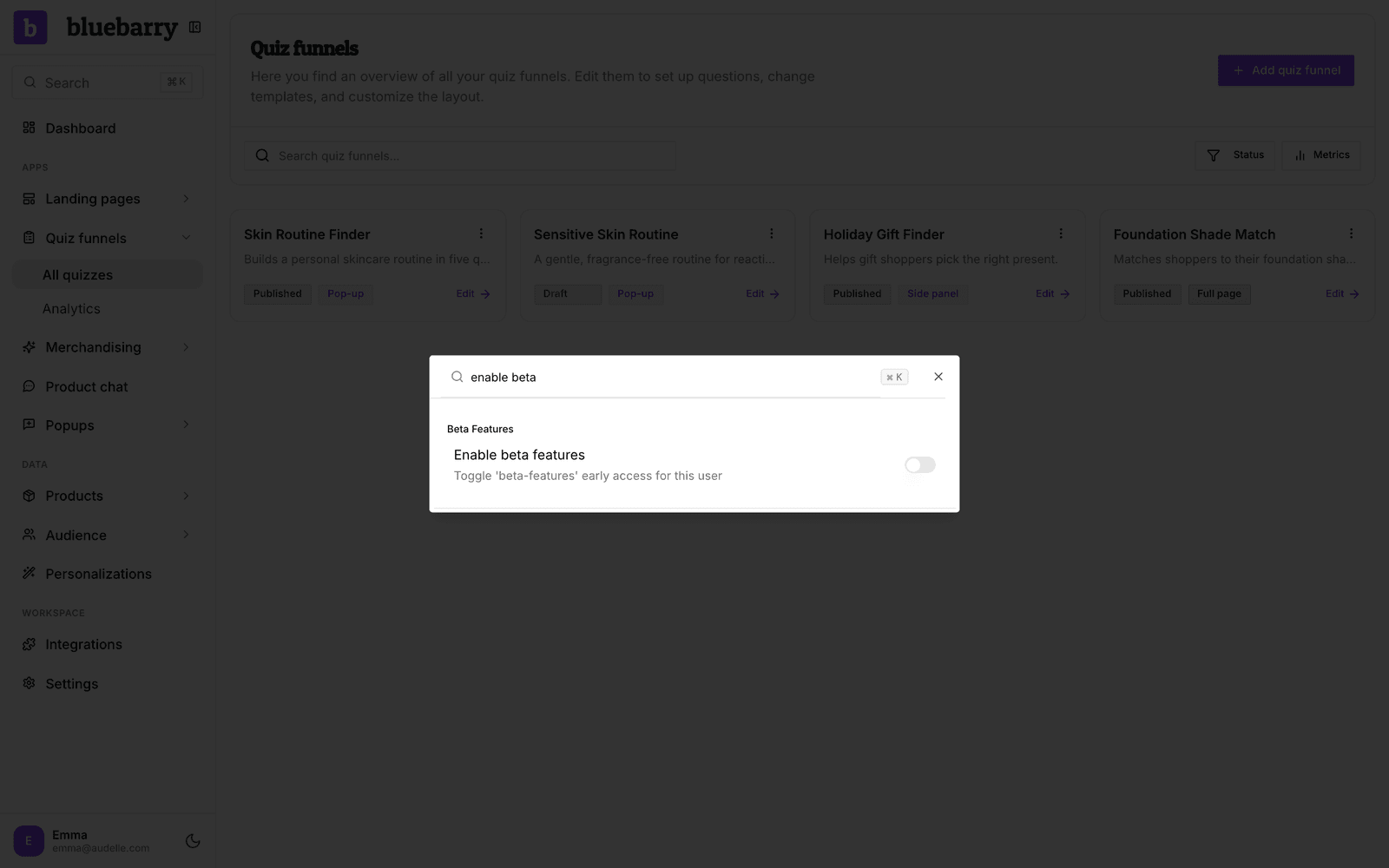
To switch beta off again, do the same and turn the switch off. Anything you built with a beta feature stays saved.
What's in beta right now
- Custom result pages: design your own quiz result page, such as a step-by-step routine with one button to add it all to the cart. See Build a custom quiz result page.
- Custom AI summary prompt: tell the AI how to write the personal summary on your result page. See Working with quiz result settings.
Good to know
- The switch is personal. It turns beta on for you, not for everyone in your team. Teammates who want to see beta settings switch it on the same way.
- Your shoppers see what you publish, whether or not beta is on for you. Switching beta off doesn't change your live quiz.
- Found something odd, or have an idea? Tell us through contact. Beta feedback shapes what ships.