
Your store defaults apply on every page. Page rules change the chat on specific pages: a different greeting on your running shoes collection, extra guidance for bundles, or no chat at all on your blog. Everything a rule does not change keeps the store default.
How rules work
- The first matching rule wins. bluebarry checks your rules from top to bottom and uses the first enabled rule that fits the page. Later rules are not combined with it.
- Order matters. Put specific rules above broad ones. Drag a rule in the list, or select it and use the arrows.
- Rules only override. Each field shows From store defaults until you change it. Click Use store default to undo an override.
- Rules cannot loosen your defaults. A rule cannot turn on a chat that is switched off, show the chat on page types you left out under Where it appears, or drop a store-wide stock requirement.
Add a rule
- Go to Product chat and open the Pages step.
- Click Add page rule (or Add rule when you already have rules).
- Give it a clear Rule name, such as “Running shoes”.
- Under Matching, choose the pages it applies to.
- Change what you need under Conversation, Products and Appearance.
- Click Save changes in the header.
From the rule list you can also duplicate a rule, switch it off without deleting it, or delete it. You can have up to 30 rules.
Choose where a rule applies
On Shopify
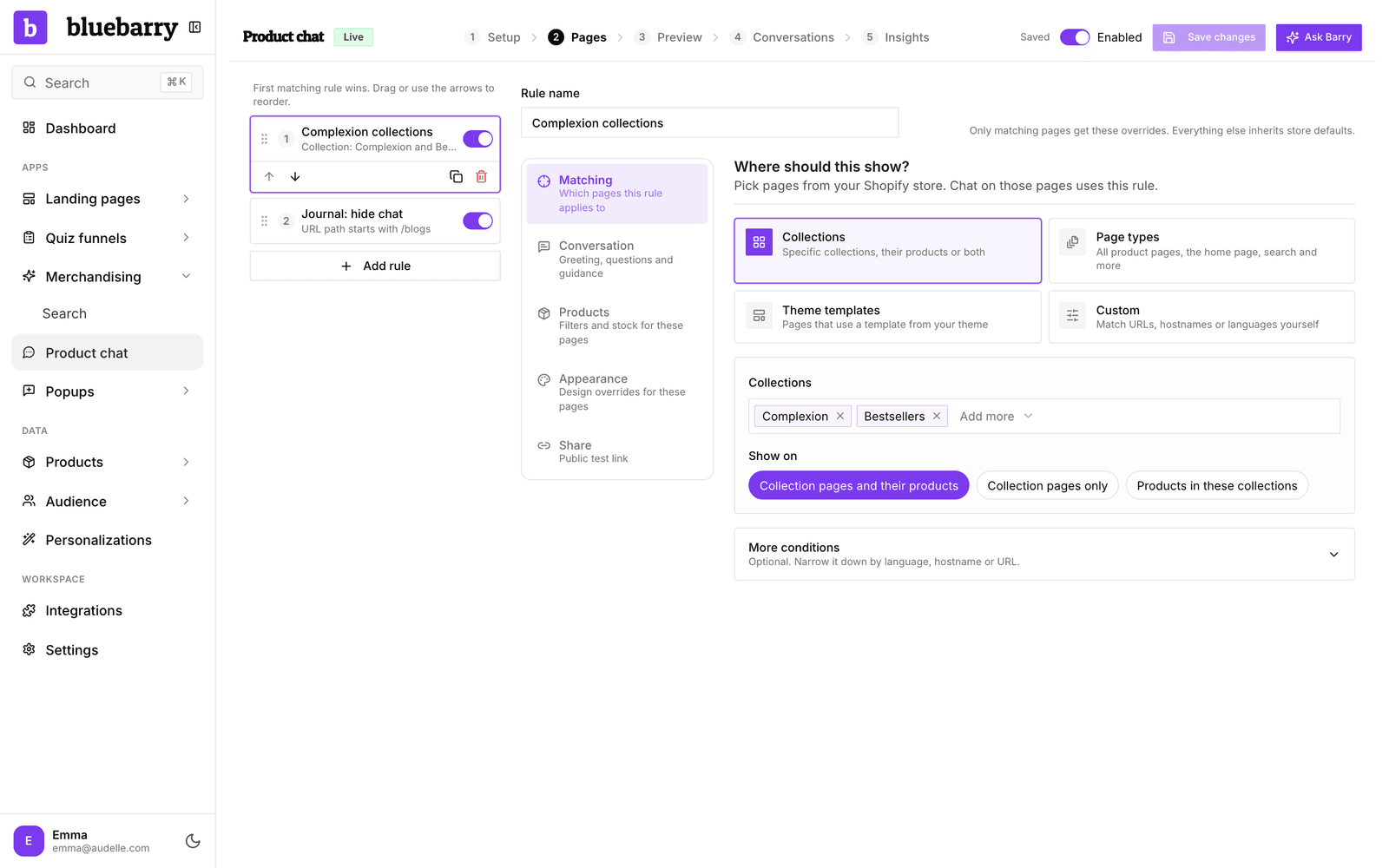
Shopify stores pick pages from their store under Where should this show?
- Collections: pick one or more collections, then choose Collection pages and their products, Collection pages only or Products in these collections. Renaming a collection in Shopify keeps the rule working.
- Page types: for example Home page, Product pages, Search results, Content pages or Blog posts.
- Theme templates: pages that use a template from your live theme, such as a separate product template for bundles.
- Custom: type your own URL, hostname or language conditions.
Open More conditions to narrow a rule further by language, hostname or URL. Studio warns you when a combination can never match, for example collection pages picked with a page type that leaves them out.
On other platforms
Other stores build the rule from conditions. All conditions in a rule must match. Click Add condition and pick URL path, Full URL, Hostname, Page type, Category or Language. Then choose equals, starts with, contains or matches wildcard *, and type the value. A rule can have up to eight conditions.
URL matching ignores anything after a ? or #. Paths and categories are case-sensitive, so /collections/Shoes and /collections/shoes are different. Category and page type only match when your storefront passes them to the chat, which the Shopify app, the WooCommerce plugin and the Magento module do for you.
Change the conversation
Under Conversation, a rule can change the Widget title, Welcome message, Starting questions and Linked quizzes. To hide the chat on these pages, set Show chat on matching pages to Hide chat.
Page guidance
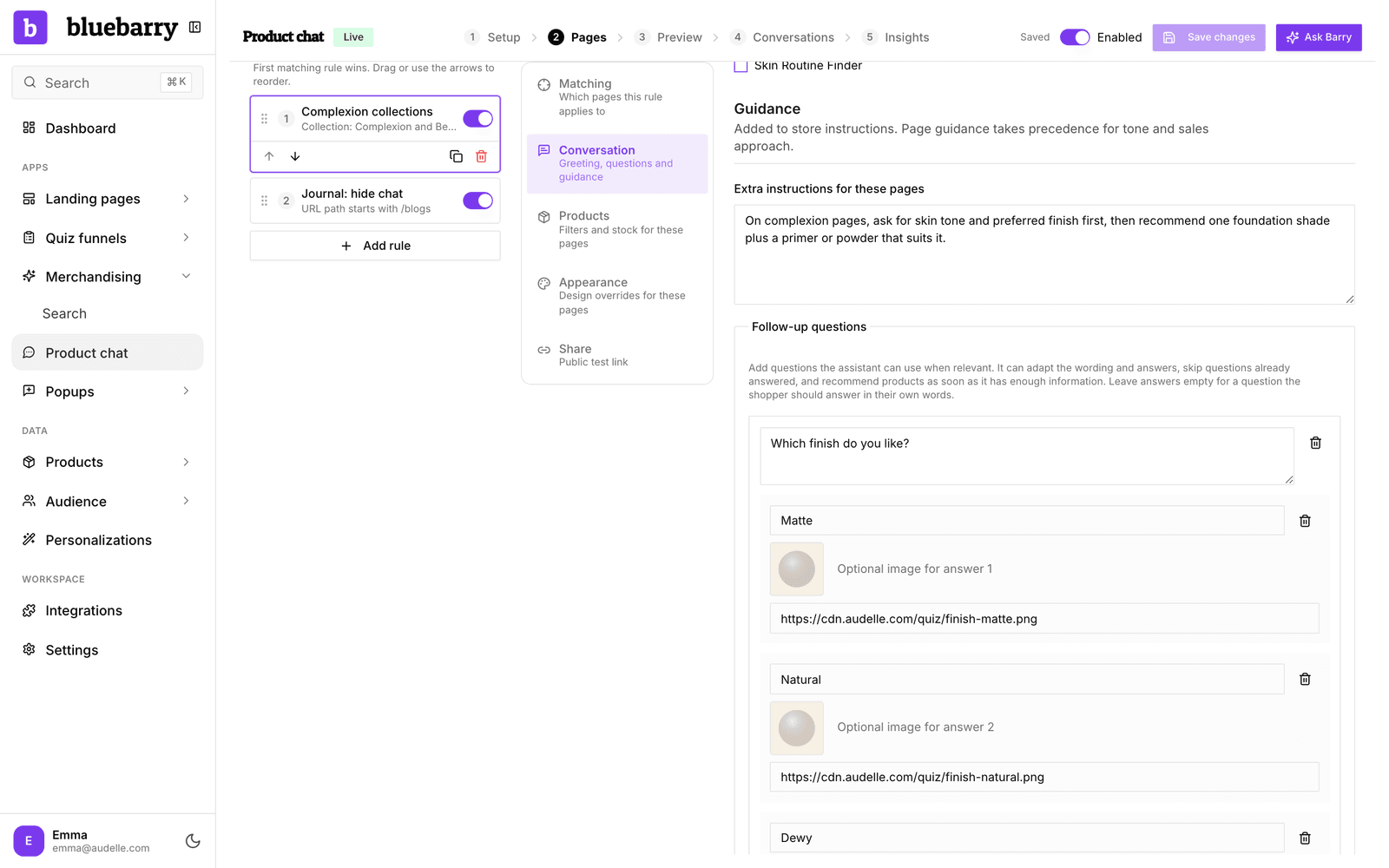
Extra instructions for these pages are added to your store instructions. When the two disagree on tone or sales approach, the page guidance wins. For example: “Ask about running distance and terrain. Explain cushioning differences before recommending a shoe.”
Follow-up questions
Follow-up questions give the assistant a set of questions it can ask on these pages. Add up to 12 questions, each with up to six answers. Answers can have an image, which shoppers see on the answer button. Leave the answers empty when shoppers should reply in their own words.
This is a library, not a fixed script. The assistant uses the questions when they are relevant, adapts the wording and language, skips what the shopper already told it, and recommends products as soon as it knows enough.
Linked quizzes
A rule can link its own quizzes, for example a shoe finder on your shoe collections and a skincare quiz on your skincare pages. Linked quizzes use their own product filters.
Products on these pages
Under Products, a rule can require confirmed stock and add Product chat filters. These add to your store filters and stay in force when a shopper selects Search the whole store. Use them to keep the assistant on topic, for example only recommending running shoes on your running pages.
Appearance
Under Appearance, a rule can use a different design or display, colors, logo and feedback text. For example, use Embedded on collection pages and Chat popup everywhere else.
Share a test link
Want a colleague to try a rule before you go live? Each rule can have a public test link. Anyone with the link can test the rule without signing in, even while your storefront chat is off. Test conversations do not count in your analytics.
- Select the rule and open Share.
- Turn on Public test link and click Save changes. The link always uses your saved settings.
- Choose a product to test on, or keep testing the whole store. When the chat only answers questions about the current product, a product is required.
- Click Copy link to share it, or Open test to try it yourself.
To stop the link working, turn the switch off and save again.
Check your rules
Use the Preview step to see which rule a page gets and to chat with it before you save. See Review product chat conversations and insights.