
The Setup step holds your store defaults: what the assistant helps with, how it greets shoppers, which products it can recommend and how it looks. Every page uses these settings unless a page rule changes them.
Open product chat
- In the Studio sidebar, go to Product chat under Live on your store. Not in the sidebar yet? A module only shows under Live on your store once it is live or has a draft. Click + Add a module and then Add next to Product chat, and Barry sets it up with you.
- Stay on Setup, the first of the five steps along the top: Setup, Pages, Preview, Conversations and Insights.
- Work through the sections on the left: Behavior, Conversation, Products, Appearance and Install.
Nothing goes live until you save
Product chat works differently from the quiz and search editors, which save as you go. Here, your edits form a draft. The header shows Unsaved changes until you click Save changes, then Saved. Click Discard to throw the draft away. Your storefront keeps the last saved version the whole time.
If Barry changes the chat settings while you have unsaved edits, a banner lets you choose Load Barry's changes or Keep editing and save over them.
Behavior
Under What it helps with, pick a Scope:
- Help shoppers choose across the catalog: the assistant discovers, compares and recommends products from your whole catalog.
- Answer questions about the current product: the assistant helps on product pages only, with questions about that product and its variants.
A third option, Use existing storefront scope, keeps older installations working as they were. New stores do not need it.
Under Where it appears, tick Product pages, Category and collection pages or Other pages. Leave all three unticked to show the chat everywhere.
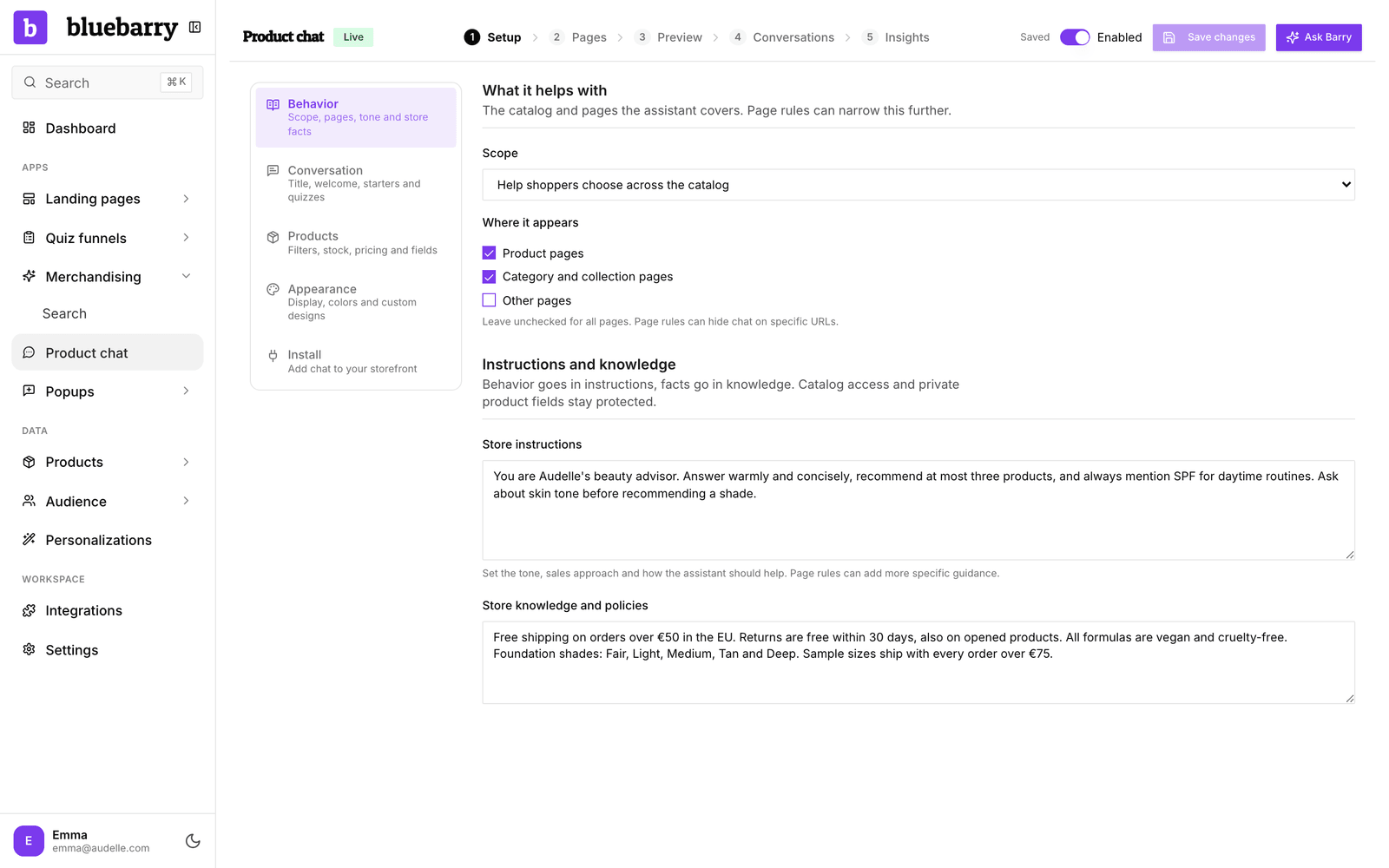
Instructions and knowledge has two fields. Keep them apart: behavior goes in instructions, facts go in knowledge.
- Store instructions set the tone and sales approach. For example: “Be friendly and concise. Ask about budget before recommending a product.”
- Store knowledge and policies hold facts shoppers ask about that are not in your product data: delivery times, returns, guarantees.
Instructions shape how the assistant talks. They cannot give it access to private product fields or let it invent facts.
Conversation
- Widget title: the name in the chat header. The chat button uses it too.
- Welcome message: the first thing shoppers read.
- Starting questions: up to six ready-made questions shoppers can tap. Leave it empty and shoppers type their own.
- Linked quizzes: published quizzes that run inside the chat. One linked quiz starts automatically. With several, shoppers choose. A quiz needs to be published before the chat can use it.
Products
This section decides which products the assistant may recommend and what it knows about them.
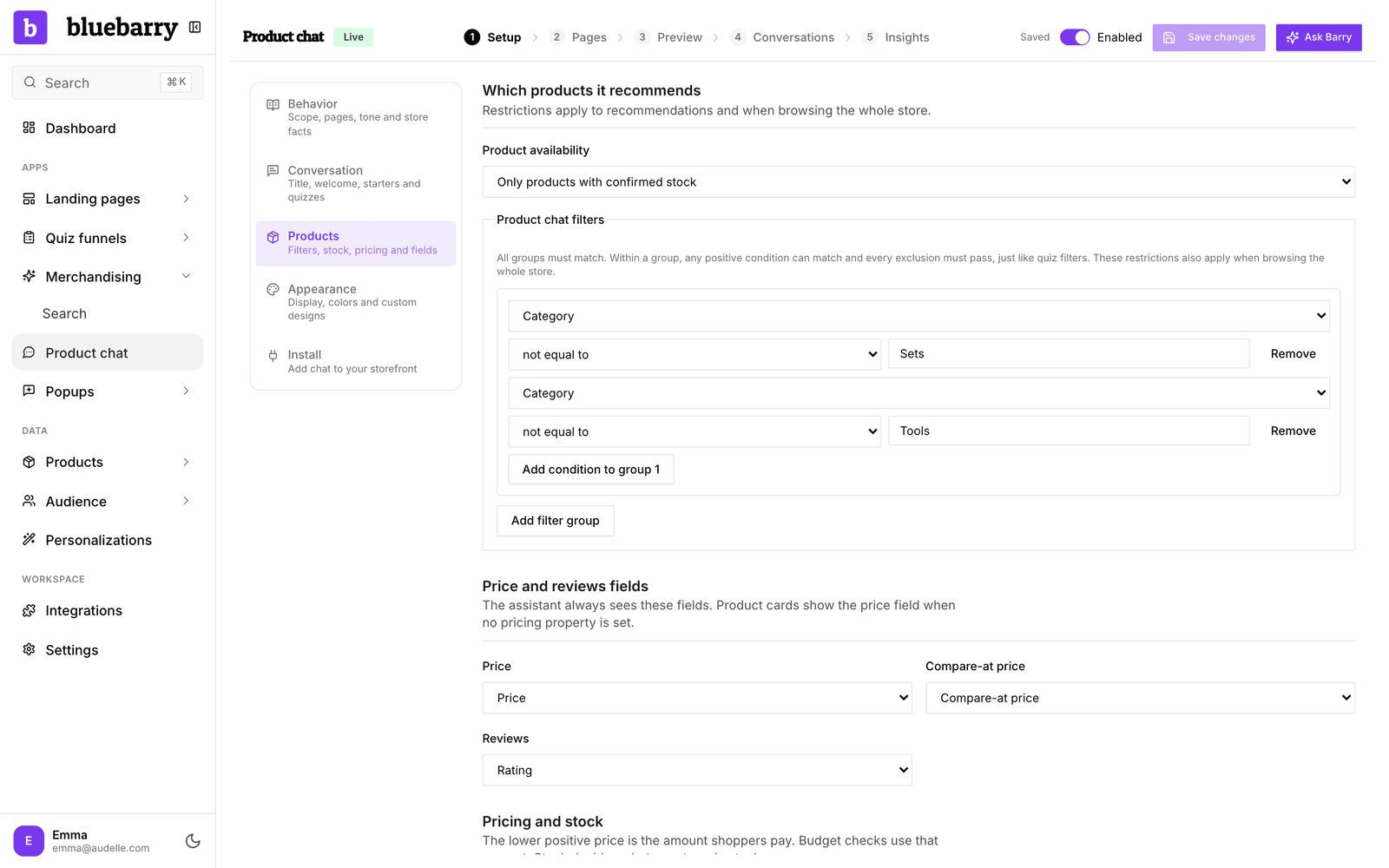
- Which products it recommends: set Product availability to Use catalog availability or Only products with confirmed stock. Add Product chat filters to leave out products, for example a brand you do not want recommended. These filters work like quiz filters and still apply when a shopper searches the whole store. When quizzes are linked, the quizzes use their own product filters instead.
- Price and reviews fields: choose which fields hold the Price, Compare-at price and Reviews.
- Pricing and stock: choose the Pricing property, Sales pricing property, Stock property and the three-letter Currency. When there is a regular and a sale price, the lower one is what shoppers pay, and budget questions use that amount.
- Product knowledge: tick the product fields the assistant may read. Descriptions, price, stock and reviews are always available. Margin and unit cost are always excluded, so the assistant can never share them.
- Display names: give fields a shopper-friendly name for product cards, comparisons and answers. Leave a name empty to use the catalog name.
Better product data means better answers. If shoppers often ask about something the assistant cannot answer, add that field to your catalog and tick it under Product knowledge.
Appearance
- Design: keep the bluebarry layout, or switch Design style to Custom and describe the look you want to Barry. Barry builds the chat, product cards and comparison views for you. Save your changes before you ask Barry.
- Widget appearance: the Display (Inline shopping help, Chat popup or Embedded), the Accent color, the Accent text color (automatic contrast when empty), an optional Logo or icon, and the Feedback question with its Supporting text that shoppers see below an answer.
Inline and embedded chat need a placement above your product grid. The Install section and Install product chat on your store explain how to add one.
Turn it on
- Test the chat under Preview. It uses your unsaved draft and works while the chat is off.
- Switch on Enabled in the header. The badge next to the title changes from Off to Live.
- Click Save changes. The switch is part of your draft, so the chat only goes live once you save.
Good to know
- Product chat has one set of store defaults per account. Use page rules for anything that should differ by page, such as a greeting for one collection.
- Scope and Product knowledge are store settings. Page rules cannot change them.
- Press Cmd+J (or Ctrl+J) to open Barry beside the editor and ask for changes in plain language.