
Your order history tells bluebarry what sells and who buys it. Import it once, and search can show your best sellers, profiles show what each customer bought, and segments can target buyers, lapsed customers and big spenders.
What your orders power
- Units sold. Your products get Units Sold (30 days), (60 days) and (90 days) properties, whatever platform you use. Search uses them for popularity and merchandising rules.
- Best sellers in search. The Best sellers row that search can show before a shopper types ranks products by the property you pick under Rank best sellers by, or by Store trending: the most units sold in the last 30 days.
- Purchase history on profiles. Each profile shows orders, revenue, average order value and the last purchase, and you can filter Audience → Profiles on Purchased only.
- Purchase-based segments. Rules such as Purchases, Total customer revenue (EUR) and No purchase after latest matching quiz only work with order history. See Build segments.
- Measured revenue. The Incremental column under Analytics → Personalizations counts the extra orders and revenue a personalization brought in.
- Recommendations. Products bought in the same order become the pairings behind complementary recommendation blocks. See Recommendations overview.
Import from Shopify, WooCommerce, CCV Shop or Magento
With Shopify, WooCommerce, CCV Shop or Magento connected, importing is one click.
- Go to Store data → Orders.
- Click Import from Shopify, Import from WooCommerce, Import from CCV Shop or Import from Magento. The label follows the store you connected.
- Leave the page if you like. The import runs in the background and orders appear as they arrive. A large store can take a while.
Shopify imports all the order history your connection allows. WooCommerce, CCV Shop and Magento import the last 12 months. On WooCommerce and Magento the plugin or module sends them from your store in small batches, so your shop stays fast. On WooCommerce you can also start it in WordPress under Bluebarry → Orders. The line under the page title shows when the last import ran and the date of your newest order.
After that you rarely need the button again. New and updated Shopify, WooCommerce, CCV Shop and Magento orders arrive on their own as they happen (on WooCommerce and Magento, once they are paid). A CCV Shop store connected before the app could read orders gets new orders every few hours instead, until you install the app again. Running an import again is safe: it tops up and never creates duplicates.
Import orders from a CSV file
On another platform, or bringing in history from an older store? Upload a CSV file.
- On the Orders page, click Import CSV.
- Click Download template and example to get the columns bluebarry expects.
- Under Store / source, choose Another store, via CSV, Existing Shopify store or Existing CCV Shop store, and enter a Store name (or your Shopify domain). Reuse the exact same name for later uploads from that store.
- Choose your file under Orders CSV and click Preview import.
- Check the counts of new, updated and skipped orders and any row errors. Tick I confirm replacement of the included orders and click Confirm import.
Use one row per line item and repeat the order and customer details on every line of the same order. A file can hold up to 5,000 lines and 8 MB, and every date needs a timezone. Orders in the file replace their earlier version. Orders missing from the file stay as they are.
Read the orders list
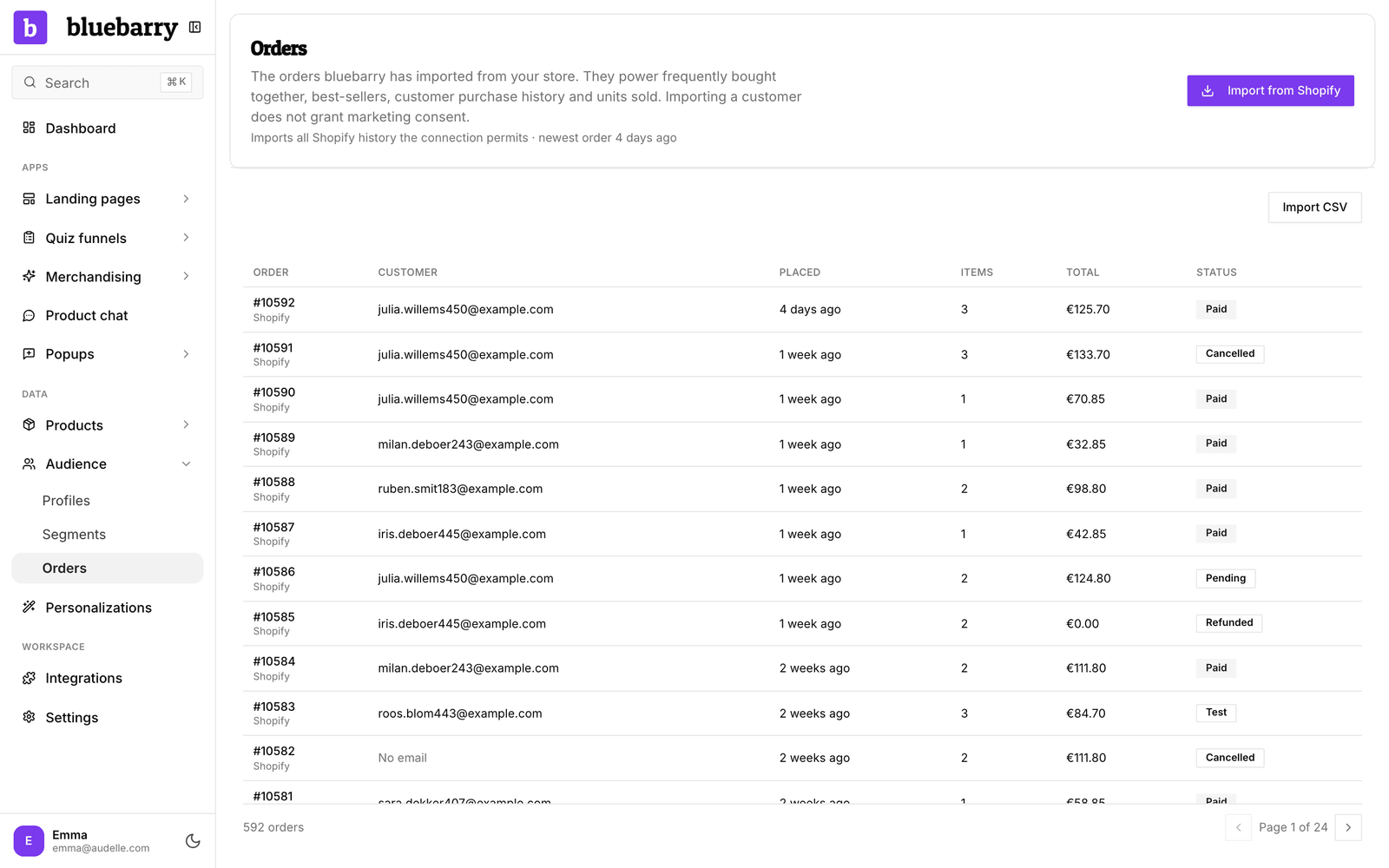
- Order: the order number and where it came from (Shopify, WooCommerce, CCV Shop, Magento or CSV).
- Customer: the email address on the order, which links it to a profile.
- Items: the number of lines. “Not in catalog” means a line did not match a product in bluebarry, so it cannot count toward best sellers.
- Status: the payment status, or a Cancelled or Test badge. Cancelled and test orders never count as purchases.
Imported customers and consent
Importing orders links purchases to the people who made them, and can create profiles for customers bluebarry had not seen before. That does not opt anyone in to marketing. A customer only counts as consented when they accepted your consent question, or when you import that consent explicitly, for example in a customer CSV. Segments synced to Meta only ever include people with marketing consent.
Good to know
- The import button needs a connected Shopify, WooCommerce, CCV Shop or Magento store. Without one it reads “No store connected yet.” and you can still use Import CSV. On WooCommerce and Magento the plugin or module also needs your API key.
- If an import stops, the page shows why. Start it again: nothing is imported twice.
- Orders are read-only in bluebarry. Make changes and refunds in your store. Shopify, WooCommerce, CCV Shop and Magento send updates on their own. For a CSV store, upload the file again to pick up changes to older orders.