
When a customer emails you, or you want to understand who is buying, open their profile. It shows what they told you, what they did on your store and whether you may market to them.
Find a profile
- Go to Audience → Profiles.
- Type in Search email, phone or name… to find one person.
- Or narrow the list with the filters below.
- Click a row to open the profile.
| Filter | Shows |
|---|---|
| All consent, Consented, Declined, Unknown | Profiles by their current marketing consent. |
| Purchased only | Shoppers with at least one order. |
| Show anonymous | Also visitors who never shared an email, phone number or name. Off by default. |
| Conflicting identifiers | Profiles that carry more than one email or phone number, for example after a shared device merged two people. |
| Sync failed | Profiles a connected tool rejected. Only shown when Klaviyo, Omnisend or Spotler Activate is connected. |
Read a profile
The profile opens in a panel on the right. From top to bottom:
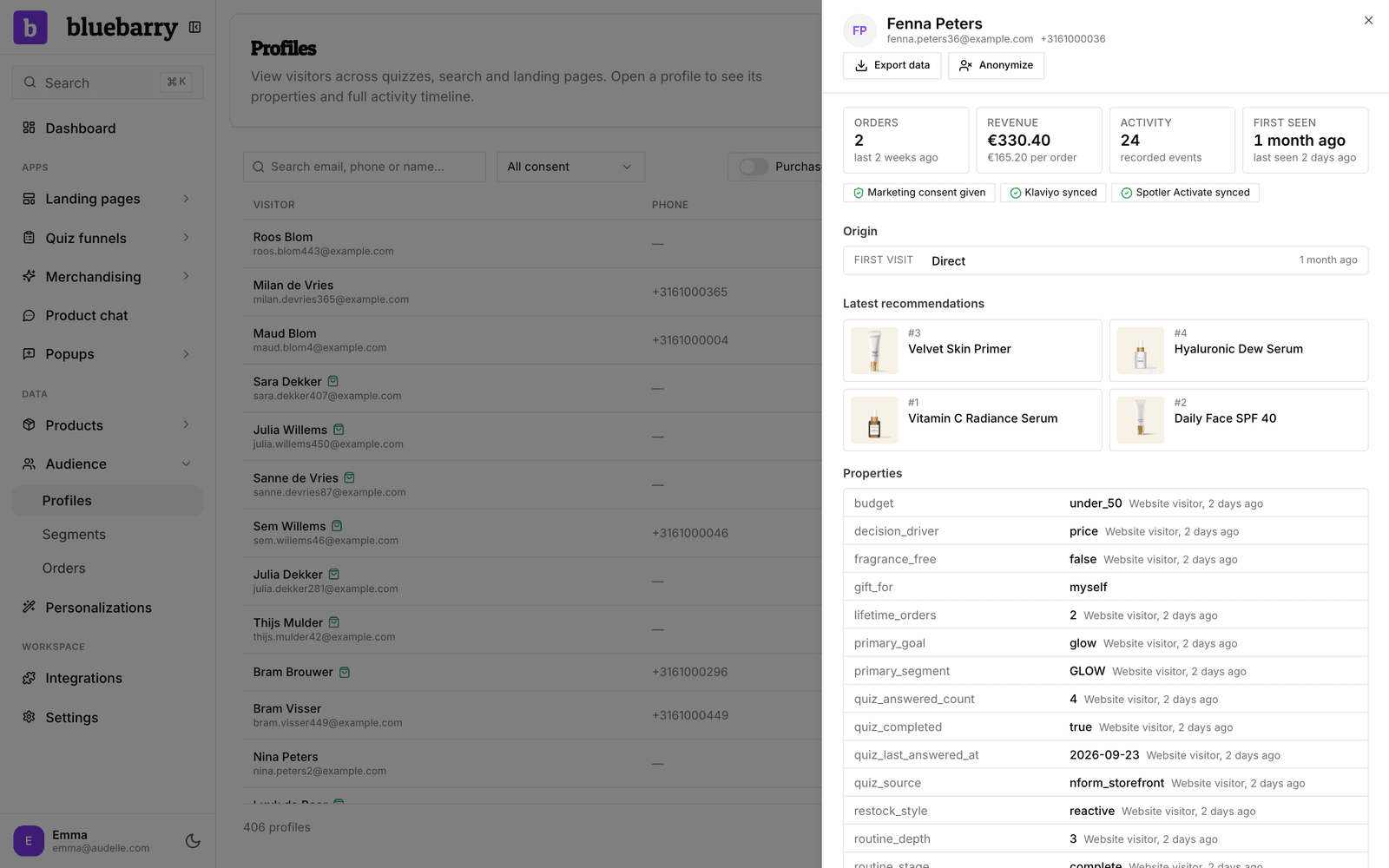
- Summary: orders, revenue, how many events were recorded and when the shopper was first and last seen. Badges show marketing consent and sync status.
- Origin: where their first visit came from and their last campaign.
- Latest recommendations: the products bluebarry last recommended to them.
- Properties: what the shopper shared, such as quiz answers and popup fields, with where and when each value came in.
- Segments: the segments they are in, and past ones with dates.
- Consent history: each time they accepted or declined marketing, with the source (quiz, popup, checkout, import) and the consent text they saw.
- Identifiers and Sources: shown when a profile was built from more than one record. More on this below.
- Activity: a day-by-day timeline. Click an item for details, like the answers of a quiz, the products shown for a search or the items of an order.
Fix a profile that mixes two people
bluebarry joins records that share an email, phone number or visitor cookie. Now and then that joins two people, for example a couple shopping on one laptop. Such a profile gets the Conflicting identifiers badge.
- Open the profile and look at Identifiers to see which emails or phone numbers it carries.
- Open Sources. Each row is one record, with why it joined this profile.
- Click Split off on the record that does not belong, then confirm.
The record becomes its own profile with its own activity. The two will not merge again, even if a later visit links them.
Export or anonymize a shopper
When a shopper asks for their data or wants to be forgotten, use the buttons at the top of their profile. They work for shoppers with an email address or an external customer id.
- Export data downloads everything bluebarry holds about the shopper.
- Anonymize removes their email, phone number, name and typed contact answers everywhere in bluebarry, including orders and popup submissions. Quiz answers, searches, views and purchases stay as anonymous activity. This cannot be undone.
Connected tools such as Klaviyo keep their own copy, so remove the shopper there too. Click Privacy requests on the Profiles page to see every export and anonymization, including requests Shopify sent on the customer's behalf. Exports stay downloadable for 30 days.
On WooCommerce, WordPress's own privacy tools include bluebarry. Tools, Export Personal Data adds everything bluebarry holds about the shopper to the export file, and Tools, Erase Personal Data anonymizes them in bluebarry too. This needs your API key in the bluebarry plugin, and these requests show under Privacy requests as WooCommerce. Uninstalling the plugin erases nothing in bluebarry.