
A product feed brings your catalog into bluebarry from a CSV link and keeps it up to date. Once it is in, the same products power your quizzes, search, product chat and popups. This article walks you through connecting a feed, from pasting the link to the first sync.
Where your feed comes from
bluebarry needs a live link to a CSV file, so it can fetch the latest products, prices and stock on every sync. Most stores get that link from one of these:
- Your shop system, which can often export a product feed as CSV.
- A feed tool such as Channable. See Building bluebarry feeds in Channable.
- Google Sheets, published as CSV. See Use Google Sheets as a feed.
On Shopify, WooCommerce, CCV Shop or Magento you usually don't need a feed at all: the integration syncs your products. A feed is still useful for data your store doesn't hold, such as extra attributes.
The quick way: connect a feed in one step
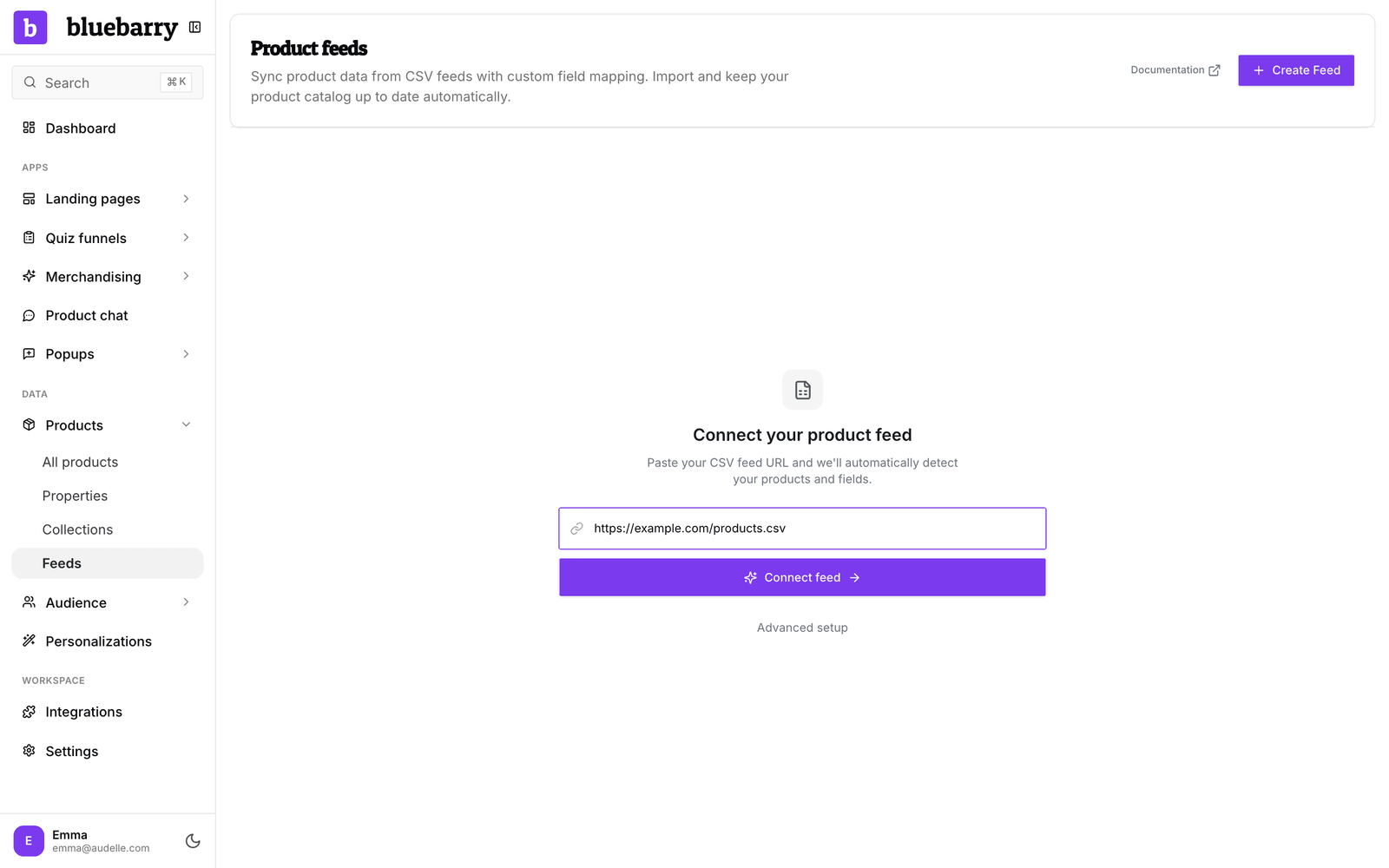
- In the sidebar, go to Store data → Feeds.
- If you have no feeds yet, you see Connect your product feed. Paste your CSV link.
- Click Connect feed.
bluebarry fetches the file, uses AI to work out what each column means, creates the properties it needs and starts the import. The products appear in the background. When it can't find an ID or name column, it asks you to use Advanced setup instead.
Set up a feed step by step
Use this route when you already have a feed, or when you want full control over how each column is used.
- Go to Store data → Feeds and click Create Feed (or Advanced setup on the quick setup screen).
- Enter a Feed name you'll recognise, such as "Main catalog", and paste the link into URL. bluebarry loads the columns.
- Pick the Product identifier column (more on that below).
- Under Column Mapping, click Auto-map columns. bluebarry suggests a mapping for every column based on its name and sample values.
- Check each row under Map to and change what's wrong. At least one column must map to Name.
- Optionally add Import filters to skip products you don't want (see below).
- Click Create Feed, then Sync Now to import the products.
What you can map a column to
| Option | Use it for |
|---|---|
| Name | The product title. Required. |
| URL | The link to the product page. Strongly recommended. |
| Image URL | The main product image. Strongly recommended. |
| Parent ID | A shared ID that groups variants of one product. |
| Variant Icon URL | A small swatch image for a variant. |
| Create Text, Numeric or Boolean property | Turns the column into a new property of that type. |
| Map key/value properties | Picks separate text properties out of a column that holds several key/value pairs, such as color and size together. |
| An existing property | Fills a property you already have, for example one created by another feed. |
| Do not import | Skips the column. |
Price isn't a separate field. Map your price columns to Numeric properties, then pick them as Current price and Compare at price in the quiz's result page settings.
Choose a unique product identifier
The identifier is how bluebarry recognises a product from one sync to the next. Pick a column that is unique per row and never changes, such as a SKU, the product ID from your shop system or an EAN.
With a stable identifier, a sync updates existing products (new prices, stock, properties) and adds new ones. Without it, bluebarry can't tell an existing product from a new one, and you end up with duplicates.
Import only the products you need
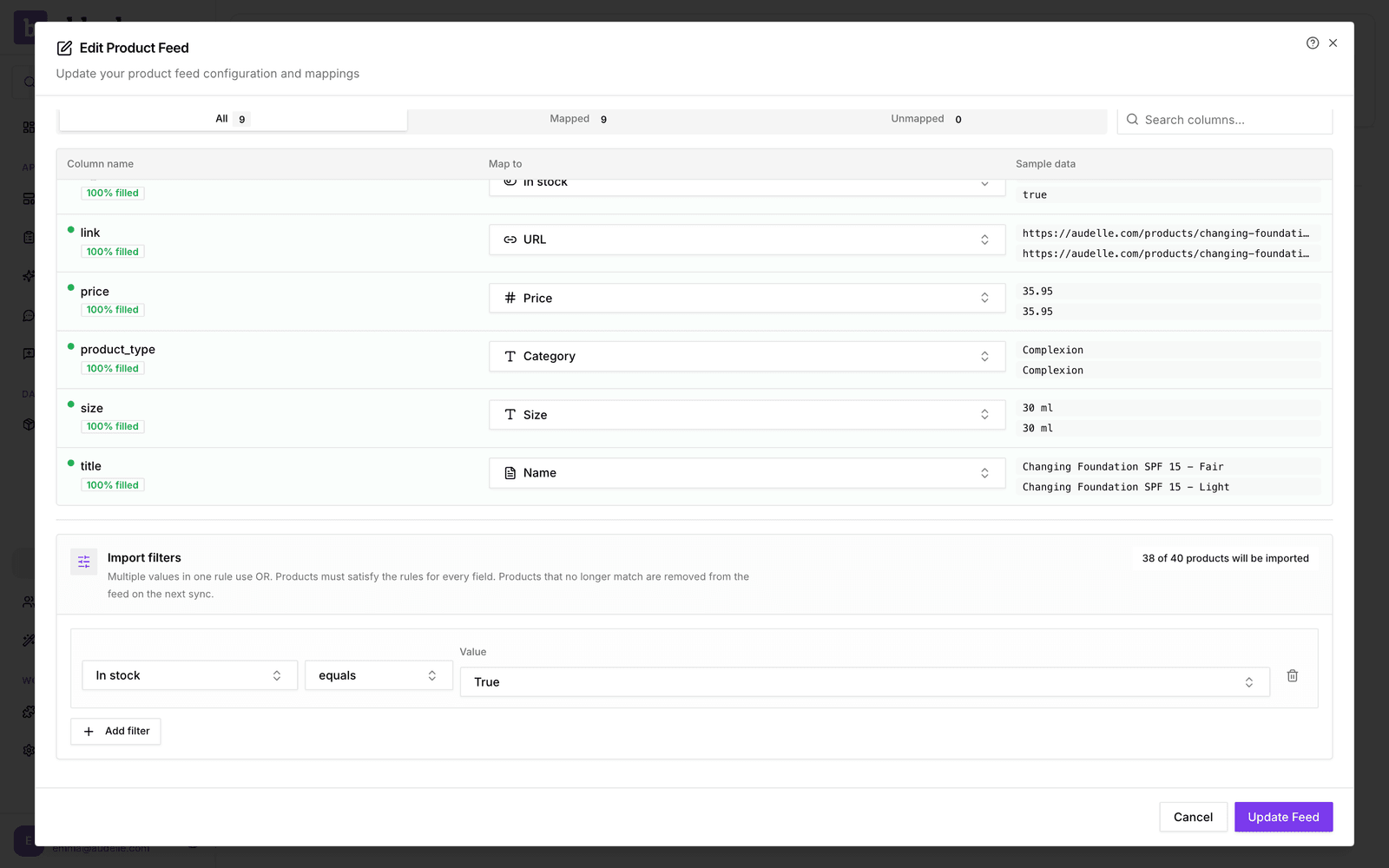
Import filters keep products out of your catalog, for example discontinued items or another brand. Add a rule per field. Several values in one rule mean "any of these", and a product has to pass every rule. The badge shows how many products will be imported. Products that stop matching are removed on the next sync.
Adding columns later
When you add a column to your feed, bluebarry doesn't use it until you map it:
- Go to Store data → Feeds and click the edit icon next to the feed.
- Map the new column, for example to a new Text or Numeric property.
- Click Update Feed, then Sync Now.
Good to know
- Feeds sync automatically once a day. Use the sync icon next to a feed to run one straight away.
- Deleting a feed also deletes the products that came from it.
- A sync that fails shows Failed in the status column. See Sync and troubleshoot live feeds.