
Three steps in Product chat help you check and improve the assistant. Preview lets you chat with it before shoppers do. Conversations shows what shoppers actually asked. Insights shows what happened next.
Test the chat in Preview
Preview runs your current draft, including unsaved edits, and works while the chat is off. Test conversations never count in your analytics.
- Go to Product chat and open Preview. It opens on a product page from your store with the assistant ready for your questions.
- To test another page, describe it. Shopify stores pick a Page type, Theme template, Collection or Product. Other stores type a Page URL and choose the Page type, plus a Product, Category or Language where it matters.
- Click Test.
- Read which rule matched (or Store defaults), then ask the chat questions like a shopper would.
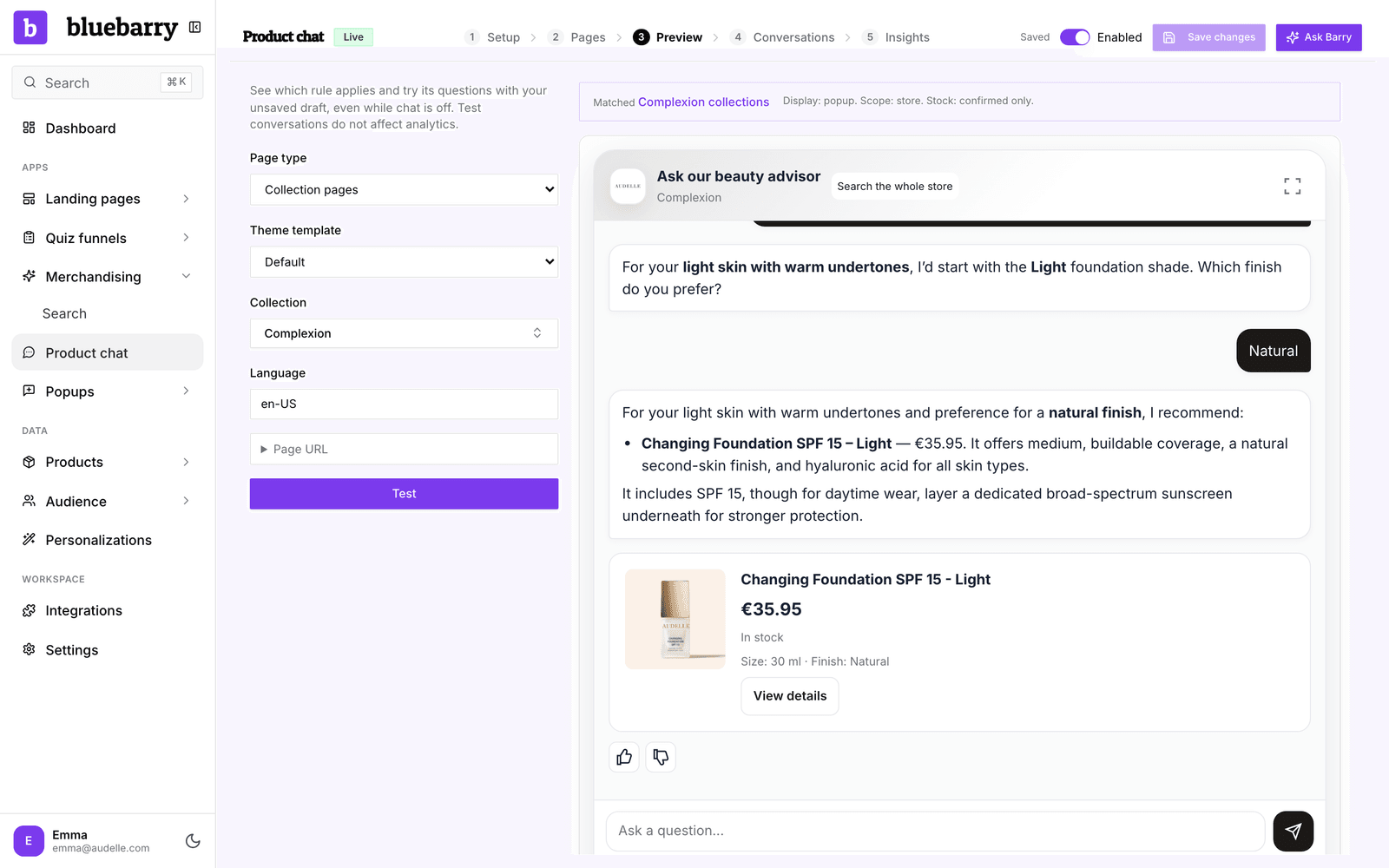
Open Effective instructions and settings to see the combined store and page instructions the assistant received for this page. Testing a URL does not visit the page, it only checks your rules against it. After you change the draft, click Test again to refresh the preview.
If the preview says the chat is hidden on this page, check Where it appears under Setup and the rule that matched.
Read shopper conversations
Conversations lists recent shopper chats, most recently active first. Each one is marked PDP chat (a product page) or Full-site chat, with a thumbs up or down when the shopper left feedback. Select a conversation to read the full transcript, including the product cards the shopper saw and a link to the page where it started.
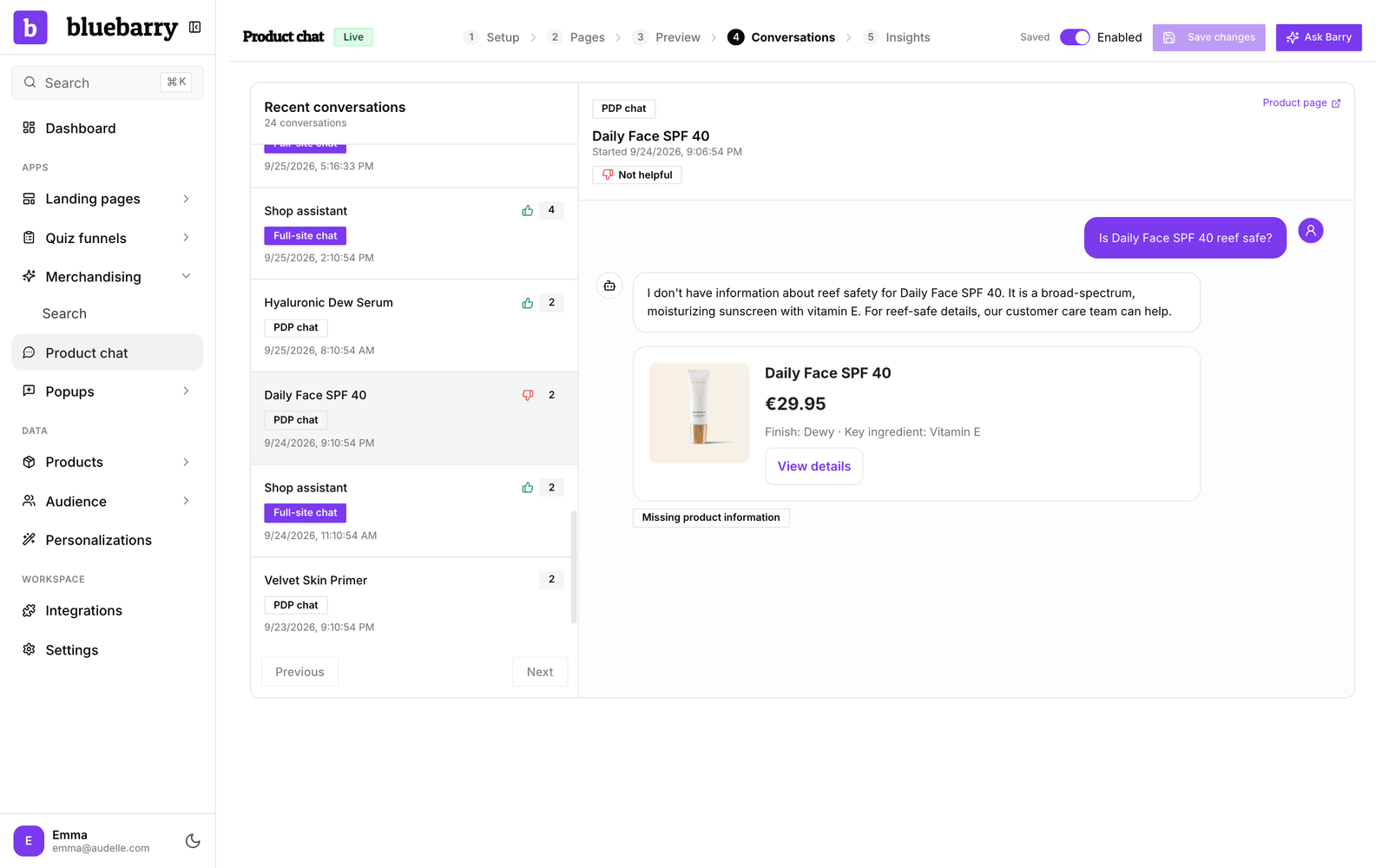
Under each answer you can open two details:
- Facts used for this answer: the product data the assistant looked up. Handy when an answer surprises you.
- Page rule & configuration version: which rule applied and which version of your settings was live.
Fix missing product information
An answer marked Missing product information means the shopper asked something your catalog could not answer, so the assistant said it could not confirm it rather than guess. These are the most useful conversations to read. Usually the fix is in your product data, not in the chat settings:
- Check whether the information exists in your catalog. If not, add it to your products or your feed, for example as a new product property.
- If it exists, make sure the field is ticked under Setup → Products → Product knowledge.
- For store-wide facts such as delivery or returns, add them to Store knowledge and policies under Setup → Behavior.
- Save, then ask the same question in Preview.
You can also ask Barry to read your transcripts and point out recurring questions.
Insights
Insights shows assisted shopping over the last 30 days. Preview and test link sessions are left out.
| Number | What it counts |
|---|---|
| Product clicks | Clicks on product cards the assistant showed. |
| Cart additions | Recommended products added to the cart through bluebarry's add-to-cart, for example from a quiz or search. Your theme's own add-to-cart button only counts if your developer connects it. |
| Assisted orders | Orders by the same shopper that include a recommended product, within seven days of their chat. Each order counts once. |
Assisted orders need order tracking on your store. See Understand conversion attribution if the number stays at zero.
To be straight with you: assisted orders show where the chat was involved, not how many extra sales it created. Some of those shoppers would have bought anyway. Use the number to spot trends, not as proof of added revenue.
Below the numbers, Questions missing product information groups the questions the assistant could not answer, with how often each was asked. Start at the top of that list when you improve your product data.