
Product chat is an AI shopping assistant on your storefront. Shoppers ask questions in their own words and get answers from your product catalog, with product cards they can open and compare. It works like a knowledgeable shop assistant who knows every product you sell.
Two kinds of help
You choose what the assistant helps with. Most stores pick one of these two.
Questions about one product
On a product page, the chat answers questions about that product and its variants. Think of sizing, materials, what is in the box, or how two colors differ. It stays with that product and does not recommend other items from your store.
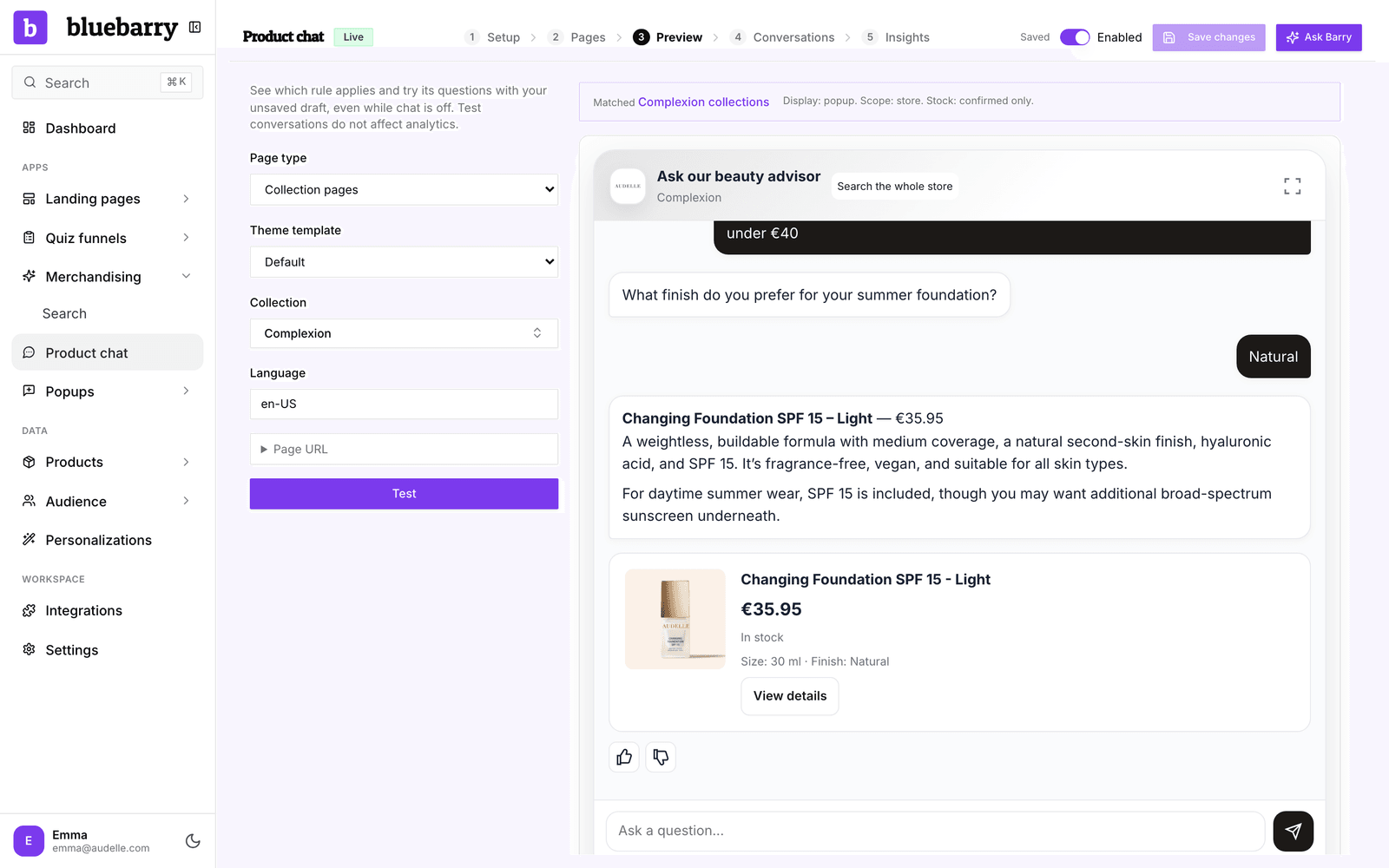
Help across your catalog
The assistant helps shoppers discover, compare and choose across your whole catalog. It suggests products as cards, and shoppers can open a side-by-side comparison. On a category page it starts from that category and the filters the shopper already chose. Shoppers can select Search the whole store to look beyond the page. On a product page, the product gives context without limiting the conversation.
How it answers
- Only from your catalog. Product facts come from your product data and the store knowledge you add in Studio. When a fact is missing, the assistant says what the store needs to confirm instead of guessing. You see those questions in Studio, so you can fill the gap.
- It asks before it recommends. When the answer depends on intended use, measurements or budget, it asks a short clarifying question. It aims to reach good suggestions within a few questions, sooner when it already knows enough.
- In the shopper's language. Answers, questions and suggestions follow the language the shopper writes in.
- Private fields stay private. You decide which product fields the assistant may read. Cost and margin fields are never shared.
- Conversations continue across pages. In catalog-wide mode, the conversation follows the shopper as they browse, and it stays in their browser for 30 days.
Display modes
The chat can appear in three ways. You pick one under Setup → Appearance, and page rules can use a different one on specific pages.
| Display | What shoppers see | Placement needed |
|---|---|---|
| Chat popup | A floating chat button that opens the chat panel. | No |
| Inline shopping help | A compact button above your product grid that opens the chat panel. | Yes |
| Embedded | The chat panel sits open on the page, above your product grid. | Yes |
Closing the panel keeps the conversation, so shoppers can pick up where they left off.
Working with your quizzes
Product chat and quizzes share the same catalog, and they hand shoppers to each other.
- Linked quizzes. Link a published quiz and it runs inside the chat. With one linked quiz, it starts automatically. With several, shoppers choose one. The questions, images and product matching come from your published quiz, so guided answers use no AI. Shoppers can type a question at any point for extra advice. When they finish, the assistant explains why the products fit their answers.
- Ask about your results. When a shopper finishes a quiz on a page where the chat is live, the result page shows an Ask about your results button. It opens the chat with the shopper's answers and results, so they can ask follow-up questions. You can turn it off per quiz in the result page settings, under Chat.
The cart
On Shopify, the chat knows which products are already in the shopper's cart, so it can take them into account. The chat does not add products to the cart itself. Shoppers open a product card to go to the product page and buy from there.
Under Insights, bluebarry counts product clicks, cart additions and orders that include a recommended product. Read Review product chat conversations and insights for what each number means.