
Connect Klaviyo and the shoppers who leave their email in a quiz or popup show up in Klaviyo with their answers. You can then segment on what they told you and start flows the moment they finish a quiz, with the products bluebarry recommended to them.
What bluebarry sends to Klaviyo
- Profiles. Every shopper who leaves an email address or phone number through bluebarry (in a quiz, in a popup or at checkout on your store) is added to Klaviyo. Their name and phone number come along, and their answers become custom properties.
- Answers as properties. Each quiz answer is stored under the question's internal name, the name you see on the Test flow tab. Several answers to one question are joined with commas. Popup fields use the property key you set on the field.
- List membership. If you choose a list in the settings, profiles are added to that list.
- Marketing subscription. Whether bluebarry subscribes a profile to email and SMS marketing depends on your Marketing subscription setting, explained below.
- Events. A Quiz Completed event when someone reaches their results, and Product Check Matched or Product Check No Match after a product check. The events carry the recommended products. See Trigger email flows based on quiz events.
Customers who only reach bluebarry through an order or customer import are sent once they have given marketing consent.
Before you start
To collect emails in a quiz, add a question and choose the Email display type under Question settings. Switch on Ask consent if you want a consent checkbox. See Consent and Klaviyo subscriptions.
Connect Klaviyo
- In bluebarry, go to Store data → Integrations and find the Klaviyo card under Marketing & analytics.
- Click Connect. Klaviyo asks you to sign in and approve access. Check you're in the right Klaviyo account, then click Allow.
- You return to bluebarry and the card shows Connected.
Choose your settings
Click the settings icon on the Klaviyo card to open Klaviyo settings.
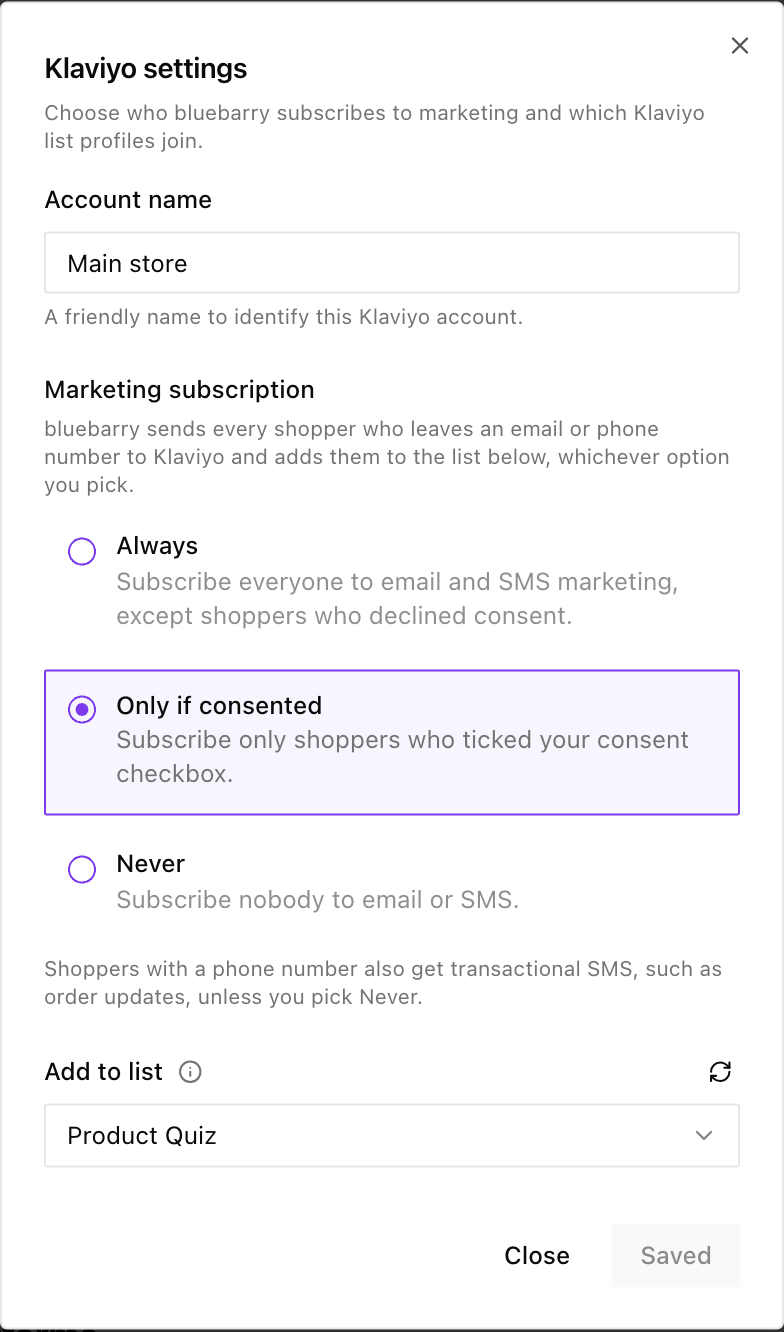
- Account name: a label for this connection, handy when you connect more than one account.
- Marketing subscription: decides who bluebarry subscribes to your email and SMS marketing in Klaviyo. bluebarry sends the profile and its answers to Klaviyo with every option:
- Always subscribes everyone, unless they left your consent checkbox unticked.
- Only if consented subscribes only people who ticked your consent checkbox.
- Never subscribes nobody. Profiles arrive without a marketing subscription.
- Add to list: adds new profiles to the list you pick. In Klaviyo, list membership and marketing consent are two separate things: being on the list doesn't make someone subscribed.
Click Save changes. For shoppers with a phone number, bluebarry also subscribes them to transactional SMS, such as order updates, unless you chose Never. SMS only works once SMS is set up in your Klaviyo account.
Check that it works
- Take your published quiz on your store and enter a real email address. The preview in the quiz editor doesn't send anything.
- In bluebarry, go to Audience → Profiles and find your email. After about a minute the Synced column shows a green check. Hover over it to see the status per tool.
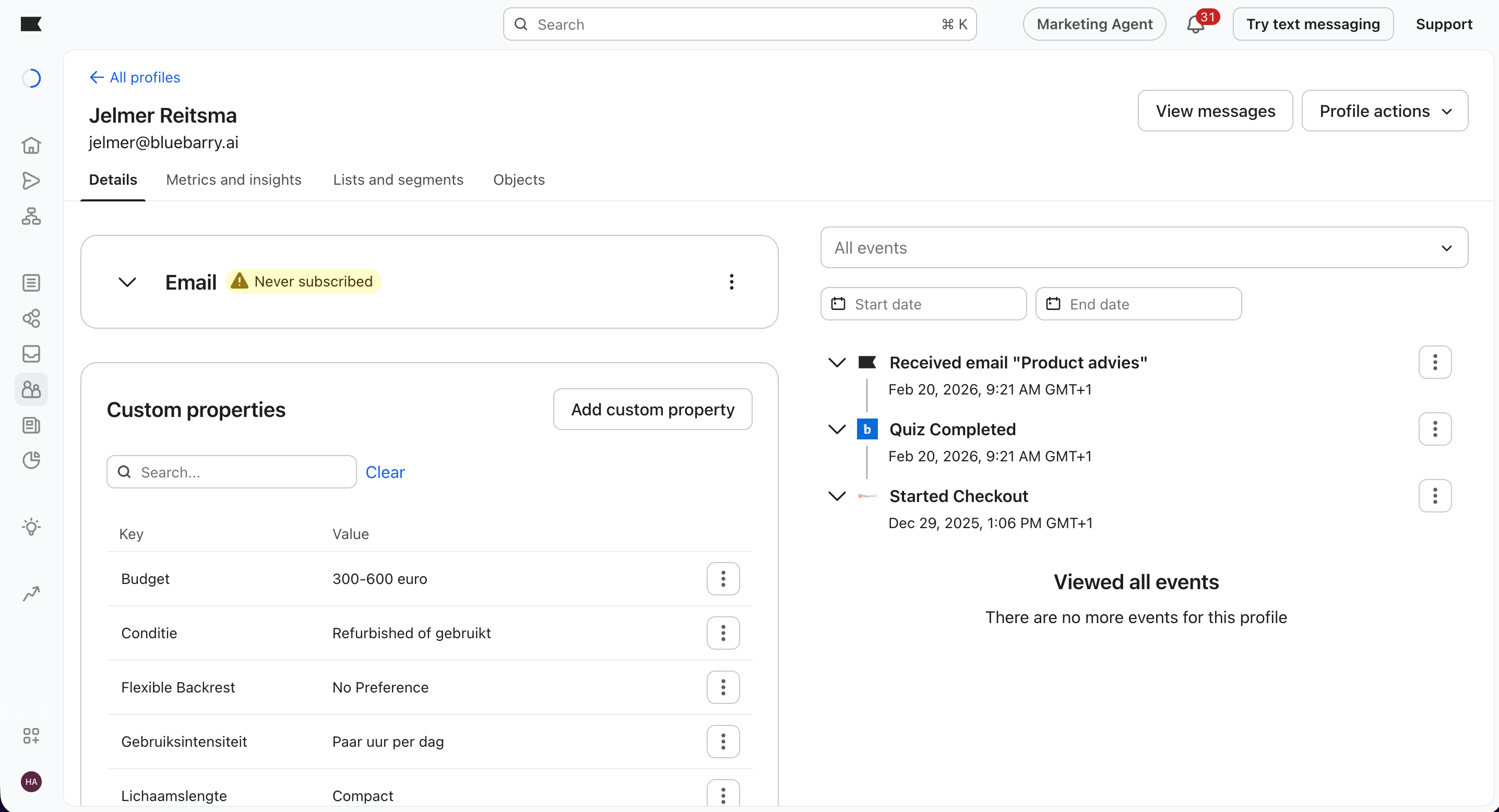
- In Klaviyo, open the profile. Your answers are under custom properties, and the activity feed shows Quiz Completed.
Shoppers who give their email at checkout
A shopper doesn't have to type their email in the quiz. On Shopify, WooCommerce and Magento, bluebarry links the checkout email to the shopper's earlier quiz visit. Their profile, including the quiz answers, is then sent to Klaviyo.
A quiz taken before the email was known doesn't send a Quiz Completed event afterwards. So a flow triggered by that event won't start for these buyers. To reach them, build on the profile properties instead, for example in a segment.
Connect more than one Klaviyo account
Selling in several markets with separate Klaviyo accounts? Click Add account on the Klaviyo card to connect another one. Each account has its own settings. Then pick the account per quiz: open the quiz, go to the Launch tab and choose it under Klaviyo account. Quizzes set to Default use the account you connected first.