bluebarry.
ReviewsPricingResources
Sign inBook demoBook a 15 min demo
Help Center/Integrations and automation/Consent Settings & Profile Sync in Klaviyo

Consent Settings & Profile Sync in Klaviyo

Martijn Douma
Martijn Douma · Co-founder bluebarry
Updated April 17, 2026

GDPR and ePrivacy regulations require that you only add visitors to your marketing lists when they have explicitly agreed to receive marketing emails. Bluebarry handles this directly inside the quiz builder: add an Email question, turn on the Ask consent toggle, customise the checkbox text, and bluebarry takes care of the rest — no code required.

Step 1: Configure your sync settings

If you only want to sync profiles to Klaviyo when visitors have given consent, go to Integrations > Klaviyo and click the gear icon to open Settings. Enable Only if consented to ensure that only profiles with explicit consent are synced to Klaviyo.

Klaviyo integration settings dialog in bluebarry with the Only if consented option highlighted

Step 2: Add an Email question to your quiz

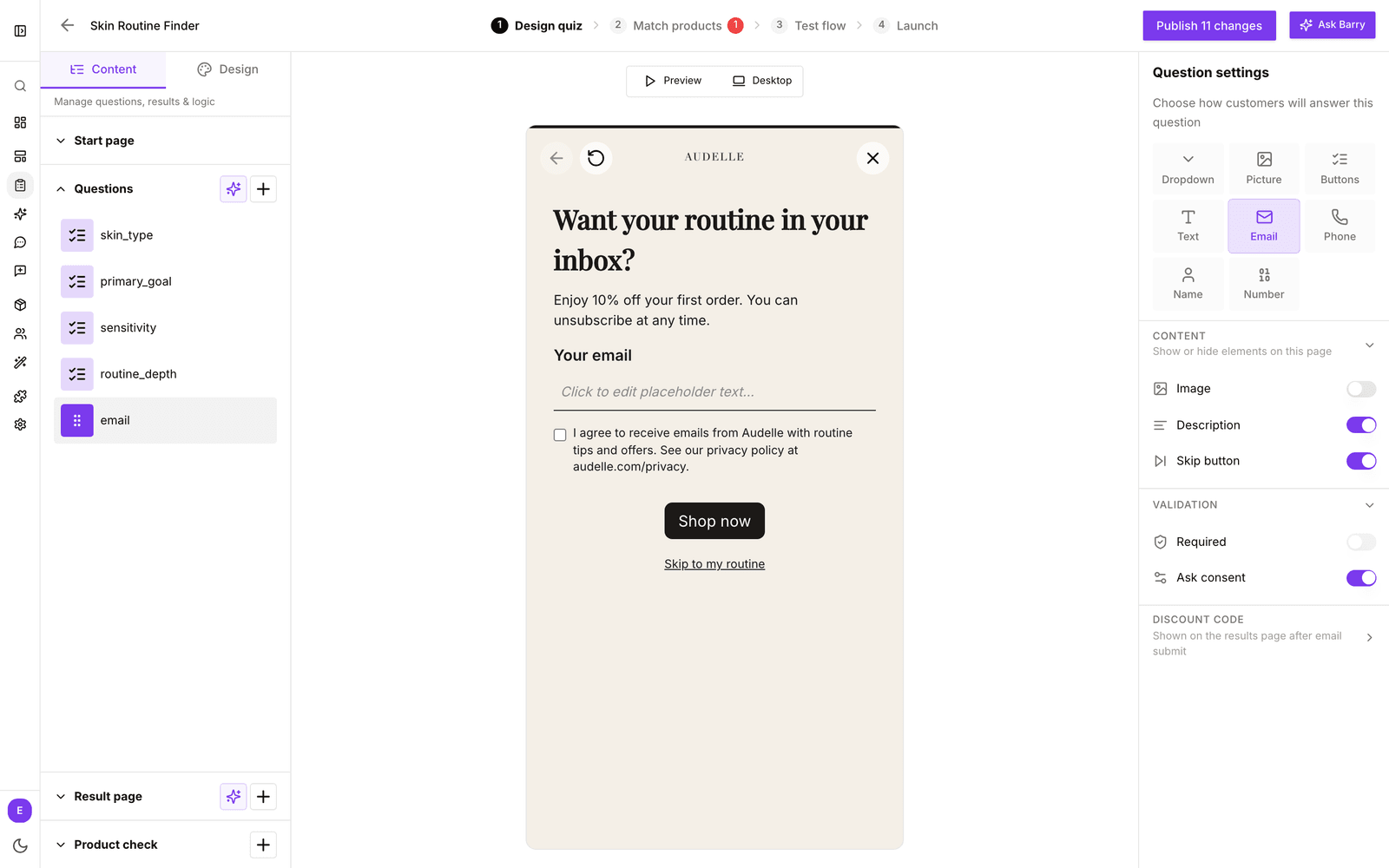
Open your quiz in the bluebarry builder and click Add question in the Questions section. Give the question a display text such as "Enter your email address" and set the Internal name to email. In the Question settings panel on the right, click Email as the question type. The preview updates immediately to show the email input field.

Quiz builder with the email question selected and the Email type highlighted in the Question settings panel

Step 3: Enable the Ask consent toggle

In the same Question settings panel, scroll down to the Validation section and turn on the Ask consent toggle. The quiz preview immediately shows a consent checkbox below the email input with the default placeholder text: I agree to receive updates, type '@' to insert links.

Question settings panel with the Ask consent toggle turned on and the consent checkbox visible in the quiz preview

Step 4: Edit the consent checkbox text

Click directly on the consent text in the quiz preview. A blue underline appears confirming the field is now editable. Select all and replace the placeholder with your own consent copy, for example: "Yes, I agree to receive personalised product recommendations and marketing emails." Keep the copy concise and specific so visitors know exactly what they are agreeing to.

The consent text field active and editable in the quiz preview, shown with a blue underline

Step 5: Open the variable picker to insert a link

With the consent text field active, type @ anywhere in the text. A variable picker dropdown appears with two sections: Quiz Links for inline hyperlinks you create yourself, and Result Card Products for dynamic product variables. Use the Quiz Links section to embed a clickable link — ideal for pointing visitors to your privacy policy directly inside the consent text.

Variable picker dropdown showing the Quiz Links section with a Create new link option, and the Result Card Products section below

Step 6: Create a privacy policy link

Click Create new link in the Quiz Links section. An inline form expands inside the picker with two fields: Link title (the visible text, e.g. "Privacy policy") and Destination URL (e.g. bluebarry.ai/privacy-policy). Fill in both fields and click Create link. The link is inserted at the cursor position in your consent text and becomes clickable for quiz visitors.

Create new link form inside the variable picker with Privacy policy as the title and bluebarry.ai/privacy-policy as the destination URL

Verifying consent in Profiles

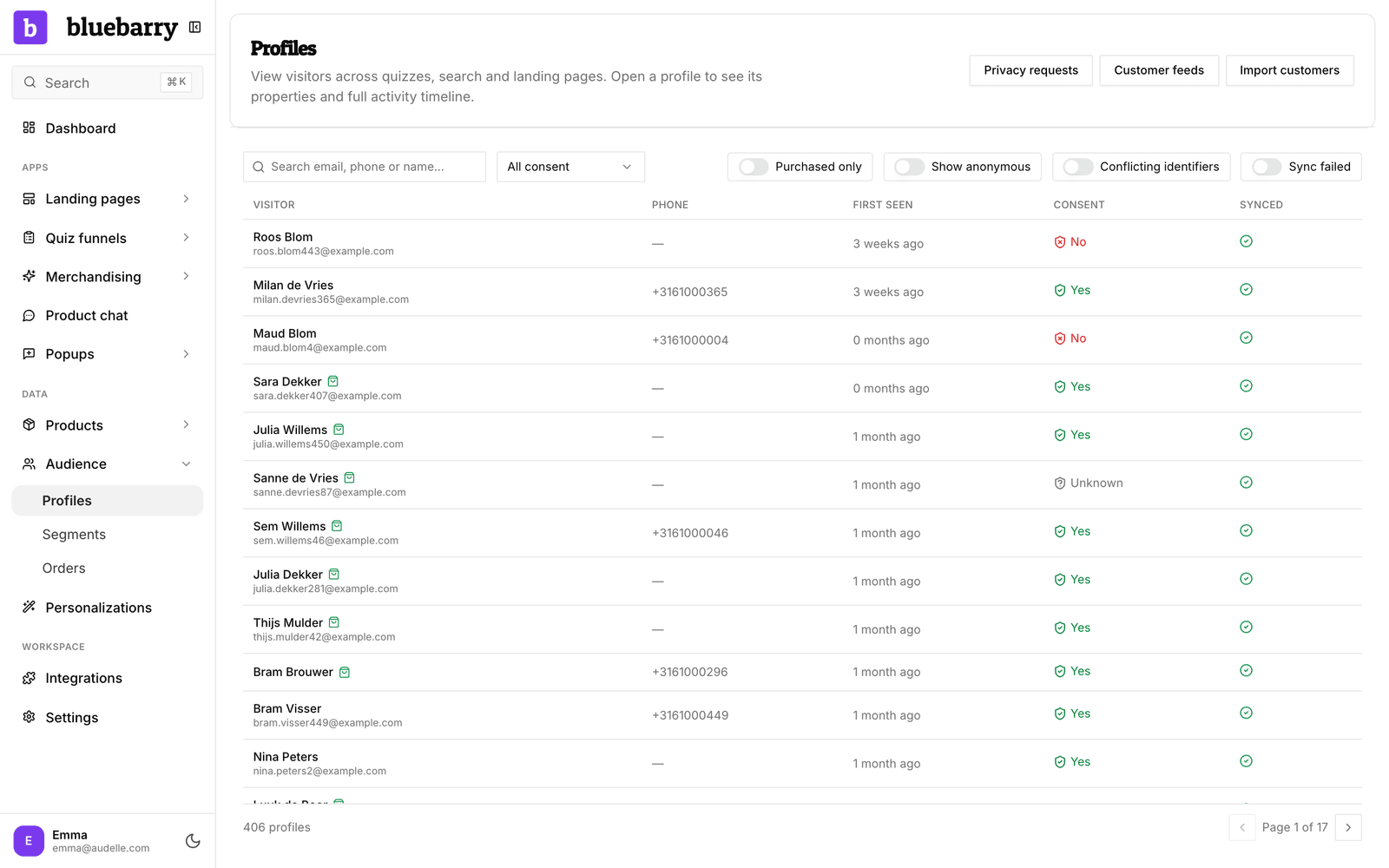
After publishing your quiz, run a test session and navigate to Profiles in bluebarry. The profiles list shows a Synced column (indicating whether the profile was pushed to Klaviyo) and a Consent column (showing Yes or blank based on whether the visitor ticked the checkbox). A visitor who submitted their email address without ticking the consent checkbox will appear in Profiles but will not be synced to Klaviyo — protecting you from sending to contacts who did not opt in.

Profiles page in bluebarry showing the Synced indicator and Consent column for each visitor

To test the full consent flow: run through the quiz twice — once without ticking the checkbox, once with it ticked. Refresh the Profiles page after each run and compare the Synced and Consent values. Only the session where consent was given should show a Synced status in Klaviyo.

Next steps

With consent handling in place, you are ready to build out the rest of your Klaviyo automation:

  • Klaviyo Quiz Integration — connect bluebarry to Klaviyo and configure profile creation and list subscription
  • Trigger Email Flows Based on Quiz Events — fire automated sequences right after quiz completion
  • Segmenting Your Audience Based on Quiz Results — build segments from the quiz properties bluebarry syncs

Related articles

Klaviyo Quiz Integration for e-Commerce

Step-by-step guide to connecting bluebarry with Klaviyo for email marketing automation.

Read article →

Trigger Email Flows Based on Quiz Events

Set up automated Klaviyo flows that fire when a visitor completes your bluebarry quiz. Use trigger filters for highly targeted email sequences based on quiz answers.

Read article →

Segmenting Your Audience Based on Quiz Results

Create powerful Klaviyo segments based on quiz answers, product recommendations, and profile properties synced by bluebarry to send the right message to the right person.

Read article →

Can’t figure it out? We probably can.

Every article here was written by the people who built the product. If one of them still leaves you stuck, tell us and we’ll fix it.

Contact usJoin Discord, free forever
bluebarry.

Helping beauty, health and outdoor brands reach their dream AOV

[email protected]+31 6 57 16 10 87De Ried 10, 9285KK Buitenpost (The Netherlands)
Martijn DoumaStan van RooyAnco PostmaJelmer Reitsma

The guys that are increasing your AOV.

Platform
Quiz funnelsLanding pagesProduct QuizRecommendationsSearchIntegrationsPricing
Resources
CasesHelp centerFAQCompare
Company
Contact usPartners & affiliateReviewsRequest demo
Book a 15 min demo
© 2026 bluebarry. All rights reserved.
Privacy PolicyCookie PolicyTerms & Conditions
English/Deutsch
bluebarry