
A complementary block can do more than suggest: it can let shoppers add the product they are viewing and everything that pairs with it in one click. Add a discount and the complete set becomes an easy yes.
What shoppers see
On a product page, a bundle starts with the product the shopper is viewing, marked "This item" and shown at its normal price. The recommendations follow, each with a checkbox. Everything starts ticked. Below the products, shoppers see the total for what is ticked, what they save, and one button that adds the whole selection to the cart.
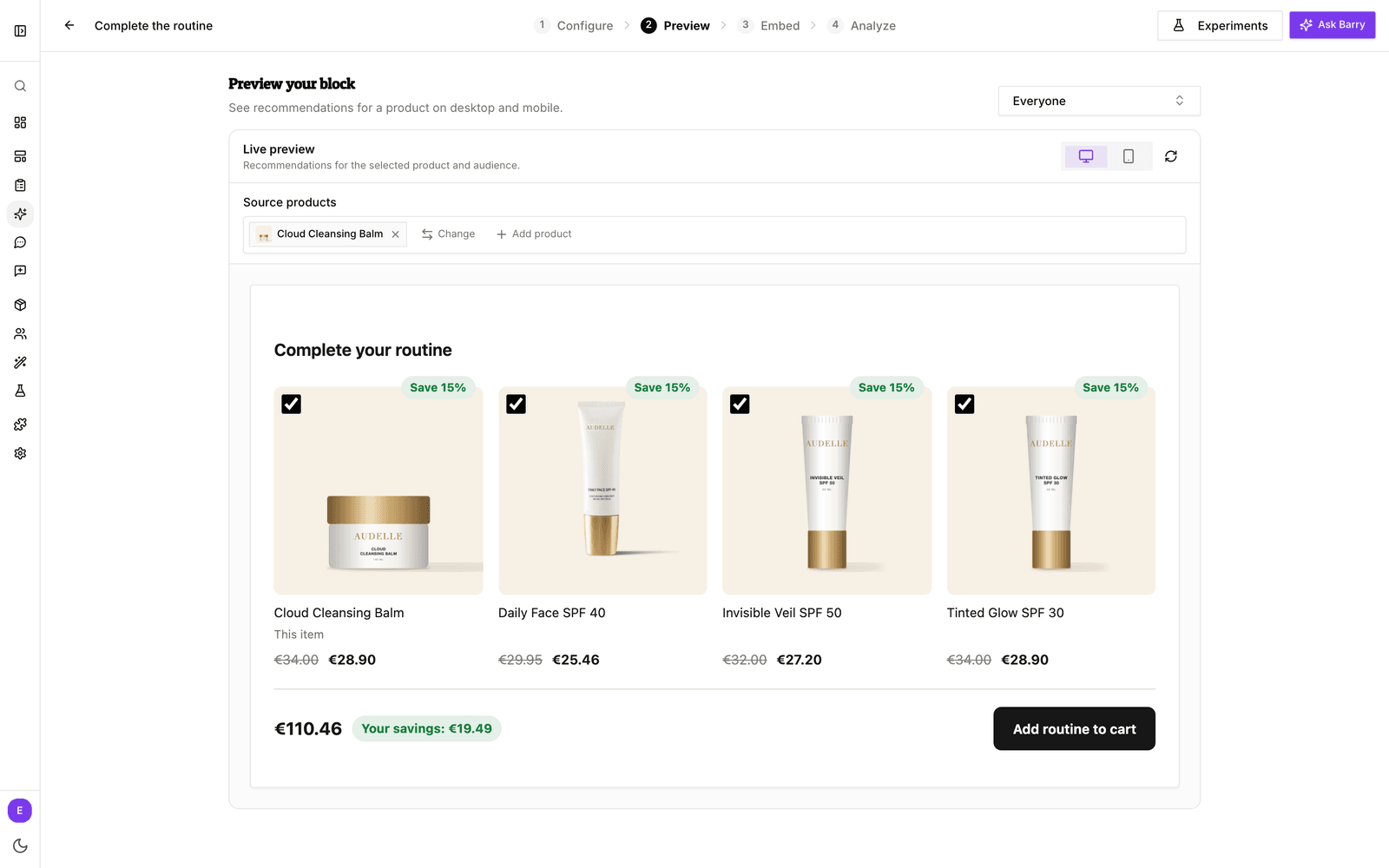
Untick a product and the total, the prices and the savings update on the spot. If a bundle discount is lost that way, the block says how to get it back, for example "Add all 4 to save €12.50". Once the viewed product is in the cart, it leaves the bundle, so it is never added twice.
Turn on bundle selection
- Open the block and go to Configure → What to recommend. The use case must be Complementary products.
- Under Bundle shopping, switch on Enable bundle selection.
- Change the Button label if you like. It reads "Add selected to cart" by default.
Switching the block to another use case turns bundles off. Frequently viewed together and alternatives give each card its own add to cart button instead.
Add a discount
There are two kinds of offer. You can use one, both or neither.
| Offer | Comes off | Available on |
|---|---|---|
| Product discount | Each recommended product, once it is in the cart | Any block |
| Bundle discount | The recommended products, only once the whole bundle is in the cart | Complementary blocks with bundle selection on |
- For a bundle discount, switch on Bundle discount under Bundle shopping. For a product discount, switch on Product discount in the Discount section below it.
- Choose % for a percentage or your currency for a fixed amount, and enter the value. A new discount starts at 10%.
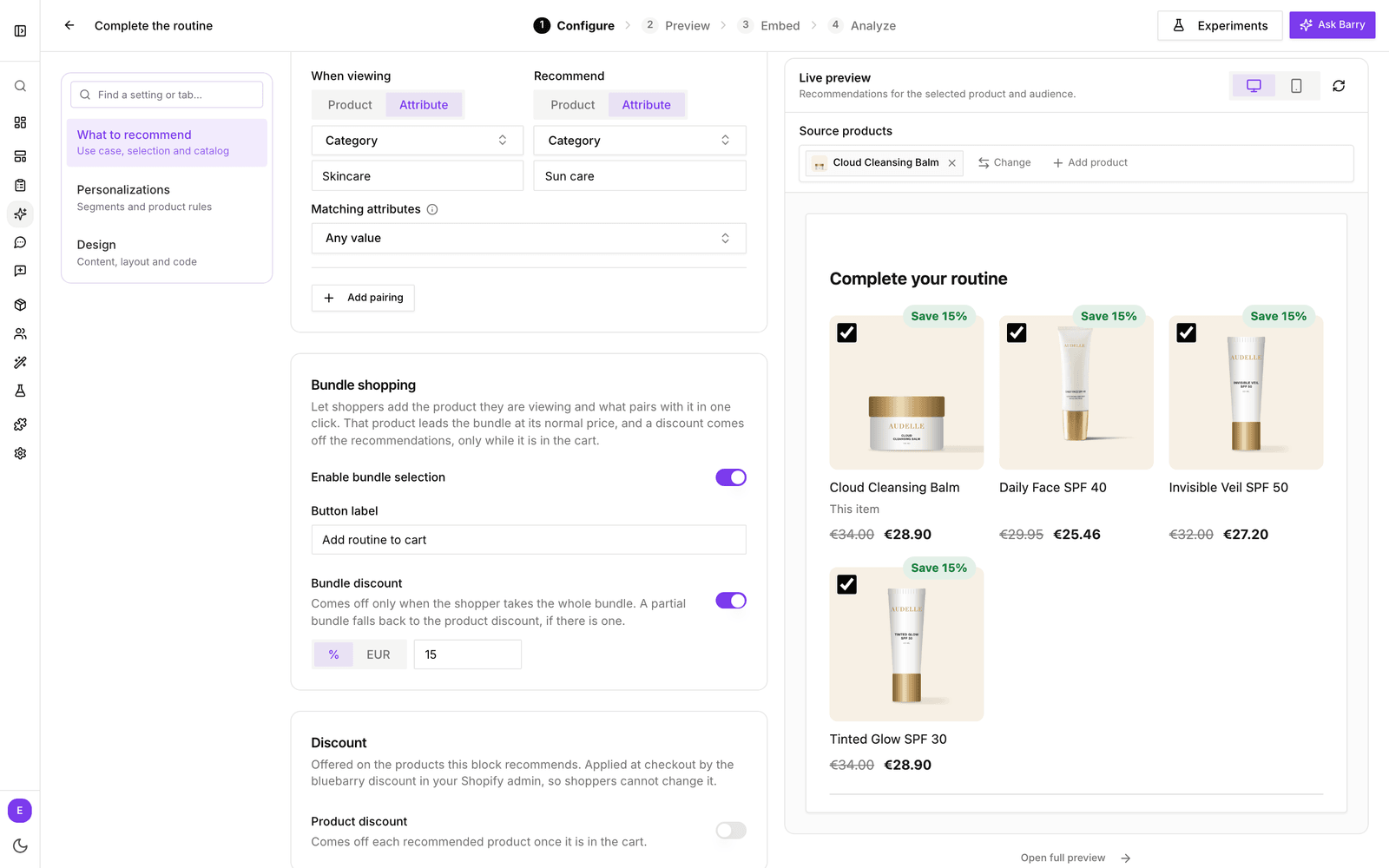
When a shopper takes only part of a bundle, the product discount applies instead, if you set one. With the built-in design, discounted products get a "Save 10%" badge and a struck-through price, and the bundle shows the money saved.
How the discount reaches checkout
The price on the page is only a promise. On Shopify, the discount itself is added to the shopper's cart in a form they cannot change, and Shopify applies it at checkout. The first time you save a block with an offer, bluebarry creates an automatic discount called bluebarry recommendation discount in your Shopify admin. Leave it active: it is what takes the money off.
- The product a bundle starts with is never discounted, but it has to stay in the cart. Remove it and the bundle's discount no longer applies.
- The offer applies to shoppers who were shown the block. Someone who adds the same product from elsewhere without seeing the block pays the normal price.
- bluebarry's discount is set to combine with your other product, order and shipping discounts. Whether they stack also depends on the combination settings of your own discounts.
On WooCommerce, CCV Shop and Magento
These stores have no checkout step that can check an offer, so the discount becomes a one-time discount code instead. When a shopper adds a product the offer covers, bluebarry checks the offer, creates a coupon that only works for those products and puts it on the cart. There is nothing to set up, and no code for the shopper to type.
- Adding the whole bundle at once gives the bundle discount. Adding part of it gives the product discount, if you set one.
- On WooCommerce you need version 2.3.0 or later of the bluebarry plugin, and coupons switched on in WooCommerce. See Connect WooCommerce.
- On CCV Shop the app needs access to discount codes. See Connect CCV Shop.
- On Magento you need version 2.1.0 or later of the bluebarry module. A Magento cart takes one coupon code, so a shopper who entered a code of their own keeps that one. See Connect Magento.
- The coupons show up in your store's own coupon list. Leave them as they are: a shopper who was shown the offer loses it when you edit or delete its coupon.
Different offers for different shoppers
A segment can get its own offer, for example a bigger bundle discount for first-time visitors. Open Personalizations, pick the segment and use the Discount tab. See Personalize recommendations for segments.
Good to know
- Discounts work on Shopify (with the bluebarry app and its app embed), WooCommerce, CCV Shop and Magento. On other platforms the block shows without an offer. Bundle selection works on every store.
- A percentage can be at most 100.
- Mention the offer in your title or description if you want it to stand out, for example "Complete your routine and save 15%".
- Discount not coming off? See Troubleshoot recommendations.