
One block can behave differently for different shoppers. It can reorder itself for each shopper based on what they looked at, and you can give a segment its own products, rules, message and discount. Both are measured against a control group, so you can see whether they really sell more.
Let each shopper's activity reorder the block
In Configure → What to recommend, the switch Personalize recommendations is on by default. With it on:
- Products a shopper viewed recently or several times move ahead of other recommendations, as long as they fit the block. Recent and repeated views count most.
- Products that a shopper's quiz matched can move forward too.
- Shoppers without any history see the usual order.
- Your product rules still apply, and products you chose by hand keep their order.
To measure the effect, bluebarry keeps 10% of shoppers who do have history on the usual order. You find the result on the Analyze step as Behavioural re-rank impact.
Give a segment its own version
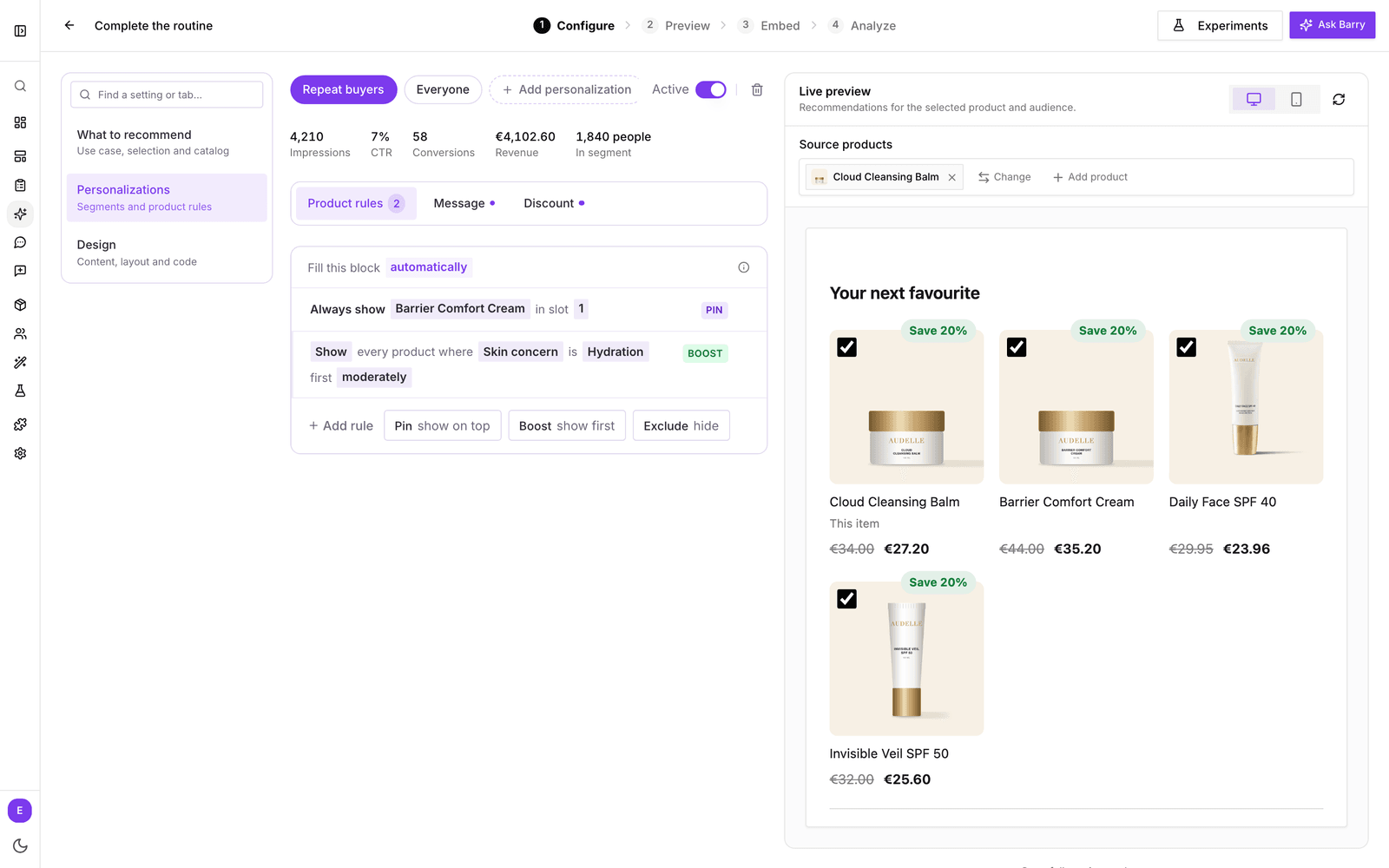
Open the block and go to Configure → Personalizations. Each row is a version of this block for one group of shoppers. Everyone else, the last row, is the default that all other shoppers get.
- Click Add personalization and pick a segment. Need a new one? Click New segment, or build it under Audience → Segments. See Build segments.
- With the segment selected, set up its products, message and discount in the three tabs below.
- Check the result on the Preview step by choosing the segment in the audience picker.
Rows are tried from top to bottom, and a shopper gets the first one they fit. Use the arrows on a row to change the order. The switch in an open row pauses it without deleting it; paused, those shoppers get the next row that fits. Remove deletes the version and its rules.
- Each row shows how many of your orders of the last 90 days it would have taken. An order counts at the first row that takes it, and the line under the rows says how many orders no row takes.
- This order marks the row the products in the preview get, so you can check the order of your rows.
- A row says in red what keeps it from reaching anyone, such as a removed segment or no segment and no condition.
Each row also shows how its version performed over the last 30 days.
Product rules
The first line reads Fill this block automatically. Click automatically to switch to With chosen products and show a fixed set in your order. Below it, add rules. Each rule reads as a sentence:
- Pin: "Always show [product] in slot 1".
- Boost: "Show [product, or every product where an attribute has a value] first", gently, moderately or strongly.
- Exclude: "Hide [product or attribute value]".
Complete the sentence and click Add rule. Rules run after the products are picked: pins take their slot, boosts reorder the rest, and hidden products never show. Removed a rule by mistake? Click Undo in the message that appears.
Message
Give the segment its own Title, Description and, for bundles, Button label. Leave a field empty to use the block's default text. For example, "Complete your routine" for repeat buyers and "New here? Start with these" for first-time visitors.
Discount
Switch on Replace the product discount or Replace the bundle discount to give this segment a different offer. Off does not mean no discount: it means these shoppers get the block's own offer, and the tab tells you which one that is.
How segment versions are measured
bluebarry shows 10% of the shoppers who match a segment the Everyone version instead. That control group makes the difference measurable: the Analyze step shows it as Segment targeting impact, and every segment version appears as its own row under Analytics → Personalizations, next to the block's Behavioural re-rank. See Measure recommendation performance and Measure personalizations.
Tips
- Start with one or two segments that clearly shop differently, such as repeat buyers or shoppers who finished your quiz.
- Segment changes reach the store within about a minute.
- If you delete a segment, its version stops serving anyone and shows as a deleted segment. Remove it from the block.
- Ask Barry in the editor, for example "Change the title and boost products for a specific audience".