
A recommendation block is one set of product recommendations that you can place on your store. You answer a few questions, Barry prepares the block and checks it against your real catalog, and you fine-tune it in the editor.
Set up a block with Barry
- Go to Recommendations → Blocks and click Create block. Not in the sidebar yet? A module only shows under Live on your store once it is live or has a draft. Click + Add a module and then Add next to Recommendations, and Barry sets it up with you.
- Goal. Choose Complete their purchase to recommend products that go with the one a shopper is looking at, or Find the right product to show similar alternatives.
- Products. Choose All products, Collections or categories or Selected products. For complementary products this is where Barry looks to work out the pairings. It is a starting point, not a limit: the finished block can recommend accessories from anywhere in your catalog. For alternatives, this is the set the block compares within, so pick products a shopper would weigh against each other.
- Preferences. For complementary products, choose Yes, offer a bundle or Let them explore. For alternatives, choose Yes, explain the differences or Keep the cards simple. You can also write Merchandising rules or pairing instructions in plain words, for example "Always pair cleansers with our muslin cloth, and never recommend samples." Leave it empty to rely on your catalog and purchase history.
- Click Prepare block. Barry checks real product matches, reviews the design against your storefront on desktop and mobile, and fixes what it finds. If Barry needs one more detail, it asks. Add your answer and try again.
- Summary. Read what Barry prepared and click Create block. The editor opens.
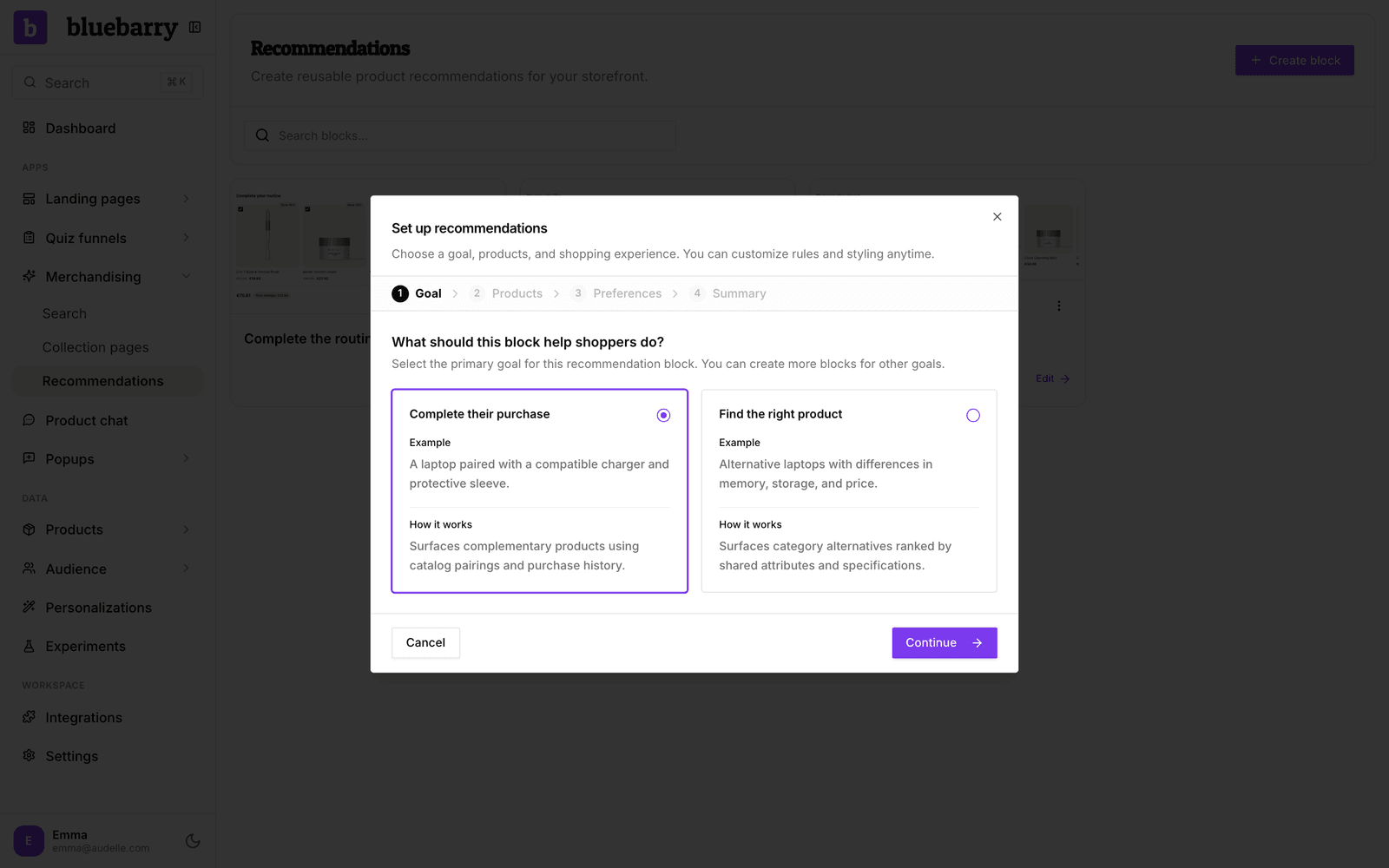
Barry names the block, writes a short title in your store's language, suggests pairings or comparison attributes, and matches the buttons to your brand colors. The summary only lists what Barry actually verified, for example how many recommendations it checked for a sample product. Nothing is on your store yet: a block shows only where you place it.
Choose what the block recommends
In the editor, open Configure → What to recommend.
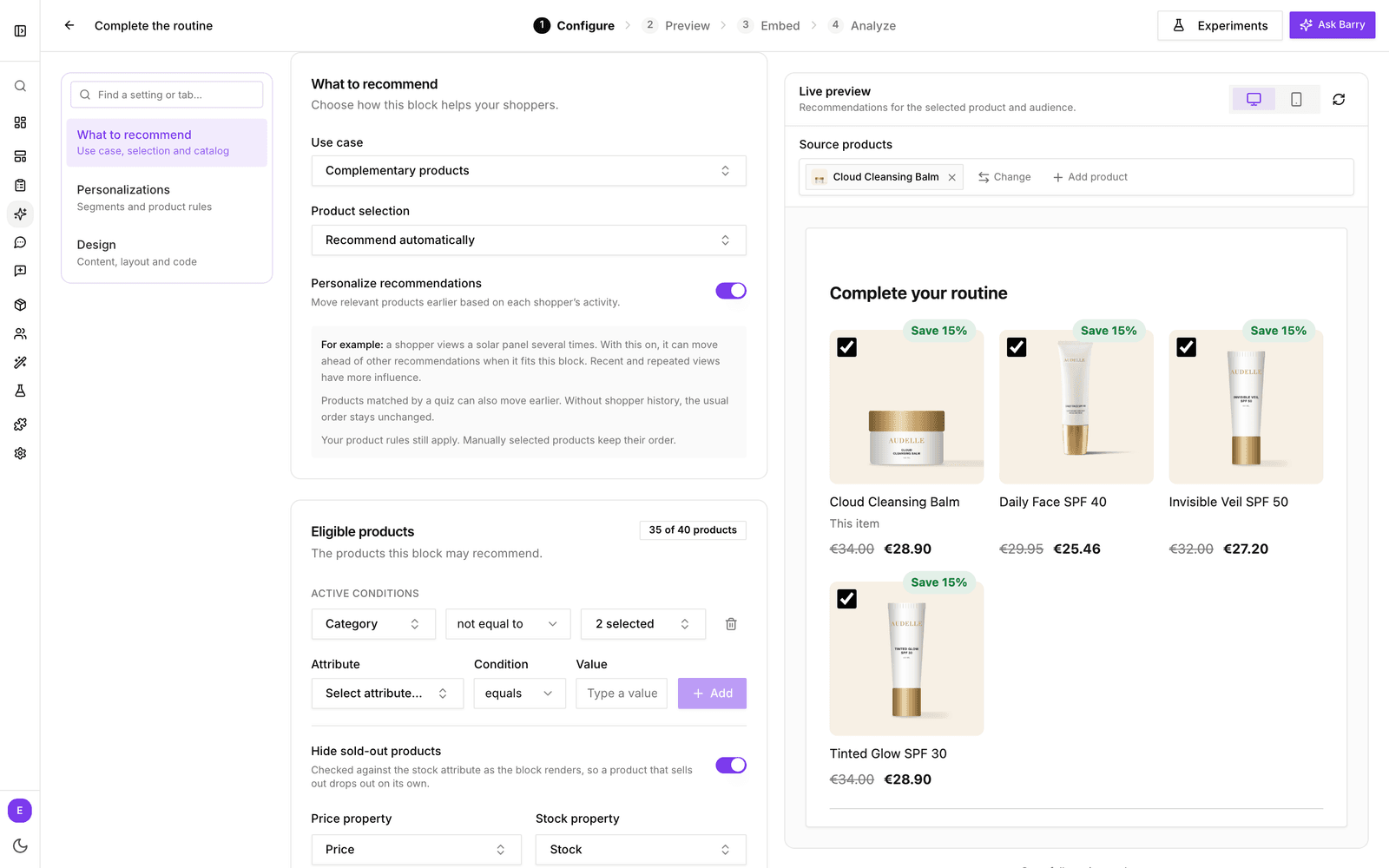
- Use case: Complementary products, Frequently viewed together or Similar alternatives. Frequently viewed together is only available here, not in the setup. If you have not changed the title, it follows the use case ("Pairs well with", "Shoppers also viewed", "You may also like").
- Product selection: Recommend automatically, or Choose specific products to always show the same products in the order you pick them.
- Product type (alternatives only): Variants of the same product compares options such as shade or SPF within the product being viewed. Pick an attribute, such as product type, to compare with other products that share its value.
- Personalize recommendations: on by default. Products a shopper viewed recently or several times, or that their quiz matched, move earlier when they fit the block. Shoppers without history see the usual order.
- Show product differences (alternatives only): each card shows the price difference and up to three attributes that differ, such as finish or size. Pick those under More options → Compare attributes. Missing facts are left out, never guessed.
Limit which products can be recommended
Under Eligible products you add conditions on product attributes, the same ones you know from search and quizzes. A badge shows how many products are left, such as "412 of 450 products". Use this for block-wide exclusions like samples, gift cards or a brand you do not want to promote. If no products match, the editor warns you, because the block would stay empty.
- Hide sold-out products: on by default. Stock is checked every time the block shows, so a product that sells out drops out by itself.
- Price property: the price shown on each card. Set it to None to hide prices.
- Stock property: the stock quantity the sold-out check reads. 0 or less counts as sold out.
Teach the block what goes together
For complementary products that are recommended automatically, the Product pairings section lets you add pairings next to what your order history already shows. Barry's suggestions from the setup appear here too.
- Click Add pairing.
- Under When viewing, choose Product and pick one product, or choose Attribute and pick an attribute and value, such as Category is Serum.
- Under Recommend, do the same for what should appear, such as Category is Moisturiser.
- Optional: with attributes on either side, set Matching attributes to only recommend products that share those values with the viewed product, for example the same skin type or brand.
One attribute pairing covers your whole catalog, so you rarely need a pairing per product.
Set what alternatives compare against
For similar alternatives, the Comparisons section holds Compare within: All products, Collections or categories or Selected products. Alternatives are only chosen from this set. Collections stay in sync with your Shopify store.
How a block fills its slots
- Complementary products start from products bought together with the viewed product (or the cart), plus your pairings.
- Frequently viewed together starts from products viewed on the same day. Until a product has enough browsing data, the block fills up with products often bought with it. Each card gets its own add to cart button.
- Similar alternatives rank products of the same type by how many compared attributes they share, then by how close the price is.
After that, personalization reorders the list for the shopper and your product rules run last: pinned products take their slot, boosts move products up and hidden products never show. Complementary and viewed-together blocks show each product once, not once per variant.
Good to know
- Changes save on their own and are live on your store straight away. To try a bigger change safely, Duplicate the block from the list and place the copy instead.
- Rename a block by clicking its name at the top of the editor.
- Barry is available in the editor (⌘J or Ctrl+J), for example to choose comparison attributes or restyle the block.