
Once a block recommends the right products, make it look like part of your store, check it in the preview and place it in your Shopify theme. This takes a few minutes and needs no code.
Match the block to your store
Open the block and go to Configure → Design.
- Content: the Title and an optional Description shoppers see above the products.
- Display: Grid, Carousel, Checklist (compact rows for a cart drawer or a narrow column), Steps (numbered rows that lead to the free gift), Breakdown (rows at full price with each saving listed above the total), Tiles (small tiles with the total in the button) or Price first (the set price leads). Every display but Grid and Carousel shows a free gift as a product of its own, with its price struck through, and says the saving once, in the total.
- Products to show: 1 to 24, 4 by default. In a grid, Columns sets how many sit side by side (2 to 6). On narrow screens the grid wraps onto more rows, so cards stay readable.
- Image corners: sharp, rounded or extra rounded.
- Currency: the currency prices are shown in. It starts as your Shopify currency.
- More options → Spacing: the space between products, 0 to 80 pixels.
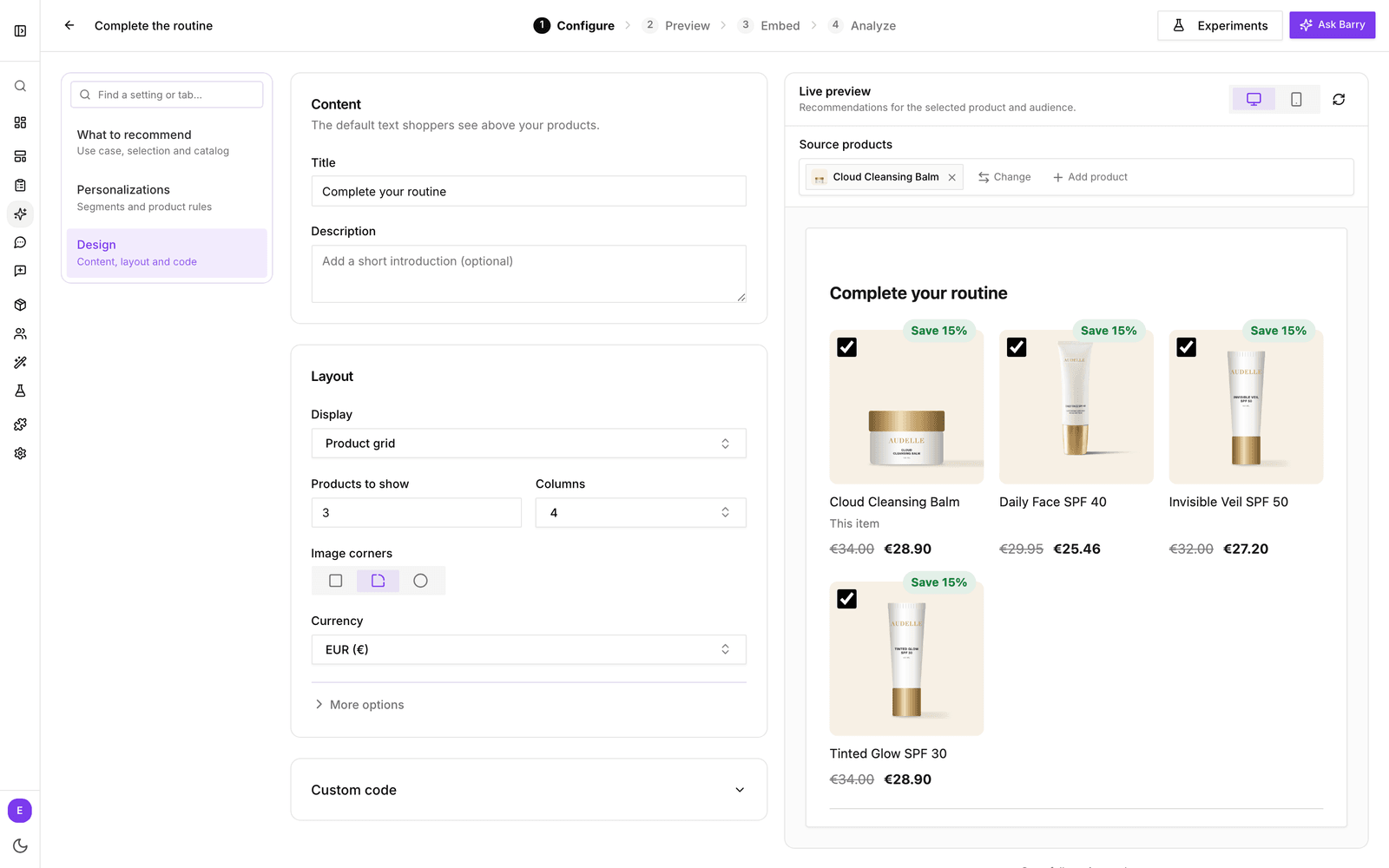
The block inherits your store's fonts. Labels the block writes itself, such as "This item" or "Your savings", follow the shopper's language in English, Dutch, German, French, Spanish, Italian, Swedish, Romanian and Polish. Your title and description are shown as you typed them.
Custom code
For full control, open Custom code at the bottom of the Design section. Add CSS to restyle the built-in design. The CSS only affects this block, never the rest of your store. Click Customize the HTML to take over the markup as well; it starts from the current design. Use the built-in design removes your HTML and CSS again, and cannot be undone. If a developer edits the HTML, they should keep the data-bb- attributes, because clicks, bundle selection and add to cart rely on them.
Prefer not to touch code? Open Barry (⌘J or Ctrl+J) and ask "Style this block to match my brand".
Preview the block
The live preview sits beside your settings on the Configure step. Under Source products, pick the product a shopper is viewing, or several products to act as a cart, and see what the block recommends. Switch between desktop and mobile, or click Open full preview for a larger view.
You can only pick products the block can show on in the market you preview, so a bundle never offers a sold-out product. When shoppers would see no block, the preview says why, for example how many products were sold out or left out by your rules.
The Preview step has an audience picker at the top: choose Everyone or one of your segments to see exactly what those shoppers get. Buttons in the preview work, but nothing is added to a real cart.
Add the block to your Shopify theme
Before you start, make sure the bluebarry app is installed and Bluebarry Core Script is switched on under App embeds. See Install the bluebarry Shopify app.
- In the block editor, open Embed and click Copy ID under Add to Shopify.
- In Shopify, go to Online Store → Themes and click Customize.
- Open the template you want, for example your default product page or the cart page.
- Click Add block or Add section, open Apps and choose bluebarry recs.
- Paste the ID into Block ID, move the block to where you want it and click Save.
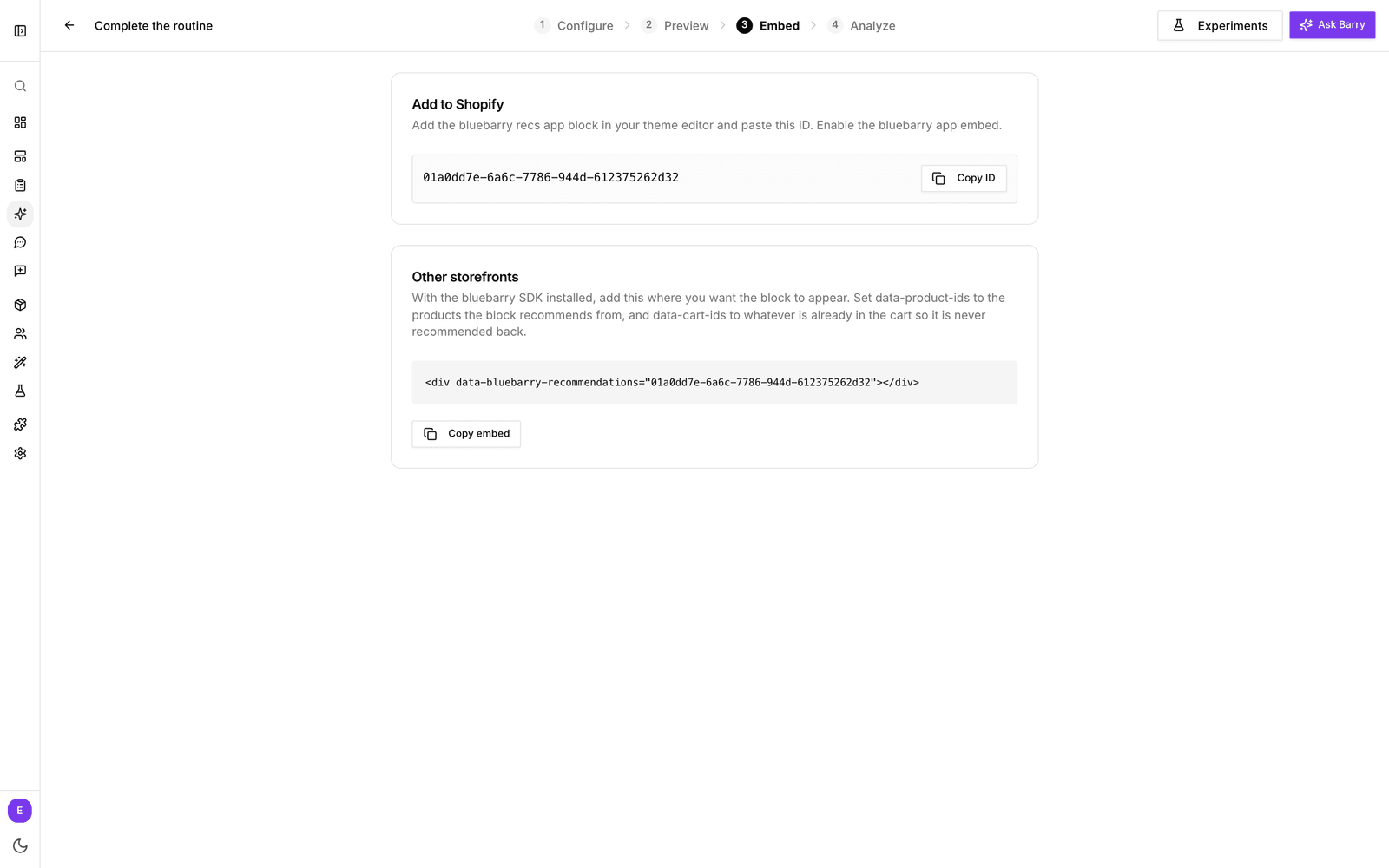
Until you paste an ID, the theme editor shows a short reminder in the block's place. Shoppers never see it. You can place the same block on several templates, and different blocks on the same page.
Add the block to your WooCommerce store
With the bluebarry plugin connected, there is nothing to edit in your theme. In bluebarry, go to Recommendations → Placements, open Product page or Cart page, switch on Show a block on product pages or Show a block in the cart and pick the block. To place a block anywhere else, open Embed and click Copy shortcode under Add to WooCommerce. It copies [bluebarry_recommendations block="BLOCK ID"] with the block's ID filled in. See Connect WooCommerce.
Add the block to your CCV Shop store
With CCV Shop connected, bluebarry places the block for you. Go to Recommendations → Placements, open Product page or Cart page, switch on Show a block on product pages or Show a block in the basket and pick the block. Does it land in the wrong spot in your theme? Enter a CSS selector under Place somewhere else (optional). See Connect CCV Shop.
Add the block to your Magento store
With the bluebarry module connected, there is nothing to edit in your theme. In bluebarry, go to Recommendations → Placements, open Product page or Cart page, switch on Show a block on product pages or Show a block in the cart and pick the block. To place a block anywhere else, open Embed, click Copy ID under Add to Magento and paste it into the bluebarry recommendations widget, which you insert in a page or block in Magento Admin. This needs version 2.1.0 or later of the module. See Connect Magento.
Choose the right page
The block works out what to recommend from the page it sits on:
| Where you place it | What it recommends from |
|---|---|
| Product page | The product the shopper is viewing. The block follows the variant they pick, so a bundle always starts with the right shade or size. |
| Cart page and other pages | The products in the cart. The block updates when the cart changes. With an empty cart, a block that recommends automatically has nothing to start from and stays hidden. |
Products already in the cart are never recommended, wherever the block sits. For your homepage, a block with Choose specific products is usually the better fit.
Custom and headless storefronts
If your store does not run on Shopify, WooCommerce, CCV Shop or Magento, the Embed step has a one-line snippet for your developer under Add to your store. On those platforms it is under Other storefronts. With the bluebarry script on the page, they add it where the block should appear and fill in the products to recommend from and the products in the cart:
<div data-bluebarry-recommendations="YOUR-BLOCK-ID"></div>Changes go live straight away
There is no publish button. Every change you make in the editor is live on your store within moments. To prepare a bigger change without affecting shoppers, duplicate the block, work on the copy, and swap the Block ID in your theme when it is ready. Deleting a block makes its placements disappear from your store, so remove the app block from your theme as well.