bluebarry.
ReviewsPricingResources
Sign inBook demoBook a 15 min demo
Help Center/Shopify/Add product check to Shopify product pages

Add product check to Shopify product pages

Jelmer Reitsma
Jelmer Reitsma · Co-founder at bluebarry
Updated September 25, 2026

Product check puts an Is this right for me? button on your product pages. A shopper answers a few of your quiz questions and sees whether the product they're looking at fits them, with better matches if it doesn't. On Shopify you choose the products in bluebarry and place the button once in your theme.

Before you start

  • Product check is switched on in your quiz. See Configure product check.
  • The bluebarry Shopify app is installed and Bluebarry Core Script is switched on.

Choose where the button shows

  1. In bluebarry, open the quiz and go to the Launch tab.
  2. Scroll to the Shopify section and find the Product check button card. It only appears when your Shopify store is connected and product check is on for this quiz.
  3. Choose Per product or Per collection, search, and switch on the products or collections you want.
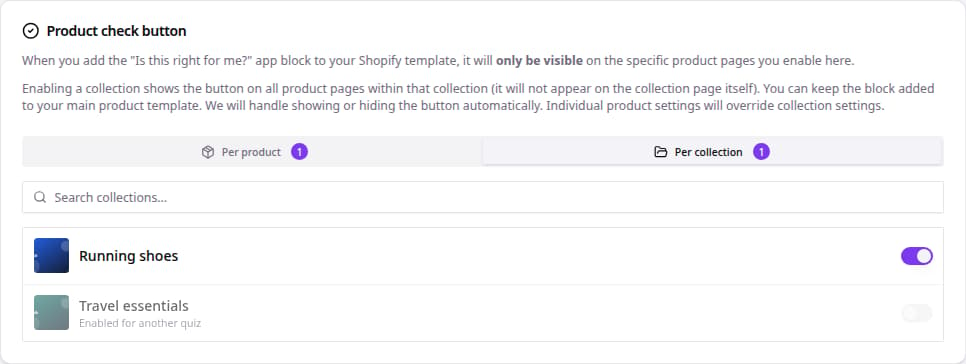
Product check button card with the Per product and Per collection tabs and a collection switched on
Switch on product check per product or per collection.

Switching on a collection shows the button on every product page in that collection, not on the collection page itself. A setting on a single product wins over its collection. Each product can use one quiz: items already linked to another quiz are marked Enabled for another quiz.

Add the button to your product template

  1. In Shopify, go to Online Store → Themes and click Customize.
  2. Open a product page, click Add block, go to Apps and choose Product Check Button. Place it near the add-to-cart button.
  3. Change the Button text if you like (it starts as Is this right for me?) and style the colors, font, corners and padding.
  4. Click Save.

In the theme editor the button is always visible so you can style it. On your live store it only appears on the products you switched on in bluebarry. You can leave the block on your main product template and manage everything else from bluebarry.

Test it

  1. Open one of the selected product pages in a private browser window.
  2. Click the button and answer the questions.
  3. Check that the result says whether the product matches and suggests alternatives.

Next steps

  • Configure product check
  • Open your quiz with a button or link

Related articles

Configure product check

Let shoppers ask "Is this right for me?" on product pages: turn on product check, set the match score, add cards and place the button on your store.

Read article →

Open your Shopify quiz with a button or link

Copy your quiz link and add it to a Shopify banner, button or menu, or use the Bluebarry Quiz Button and collection Quiz Button blocks instead.

Read article →

Install the bluebarry Shopify app

Install the Shopify app, finish the setup wizard or connect an existing account, turn on Bluebarry Core Script and see which theme blocks you get.

Read article →

Can’t figure it out? We probably can.

Every article here was written by the people who built the product. If one of them still leaves you stuck, tell us and we’ll fix it.

Contact usJoin Discord, free forever
bluebarry.

Helping beauty, health and outdoor brands reach their dream AOV

[email protected]+31 6 57 16 10 87De Ried 10, 9285KK Buitenpost (The Netherlands)
Martijn DoumaStan van RooyAnco PostmaJelmer Reitsma

The guys that are increasing your AOV.

Platform
Quiz funnelsLanding pagesProduct QuizRecommendationsSearchIntegrationsPricing
Resources
CasesHelp centerFAQCompare
Company
Contact usPartners & affiliateReviewsRequest demo
Book a 15 min demo
© 2026 bluebarry. All rights reserved.
Privacy PolicyCookie PolicyTerms & Conditions
English/Nederlands/Deutsch
bluebarry