
Answers are the choices shoppers click in a Buttons, Picture or Dropdown question. Good answers are short, cover every kind of shopper, and each lead to products that fit. Questions where shoppers type (Text, Email, Phone, Name and Number) show an input field instead of answers.
Add and edit answers
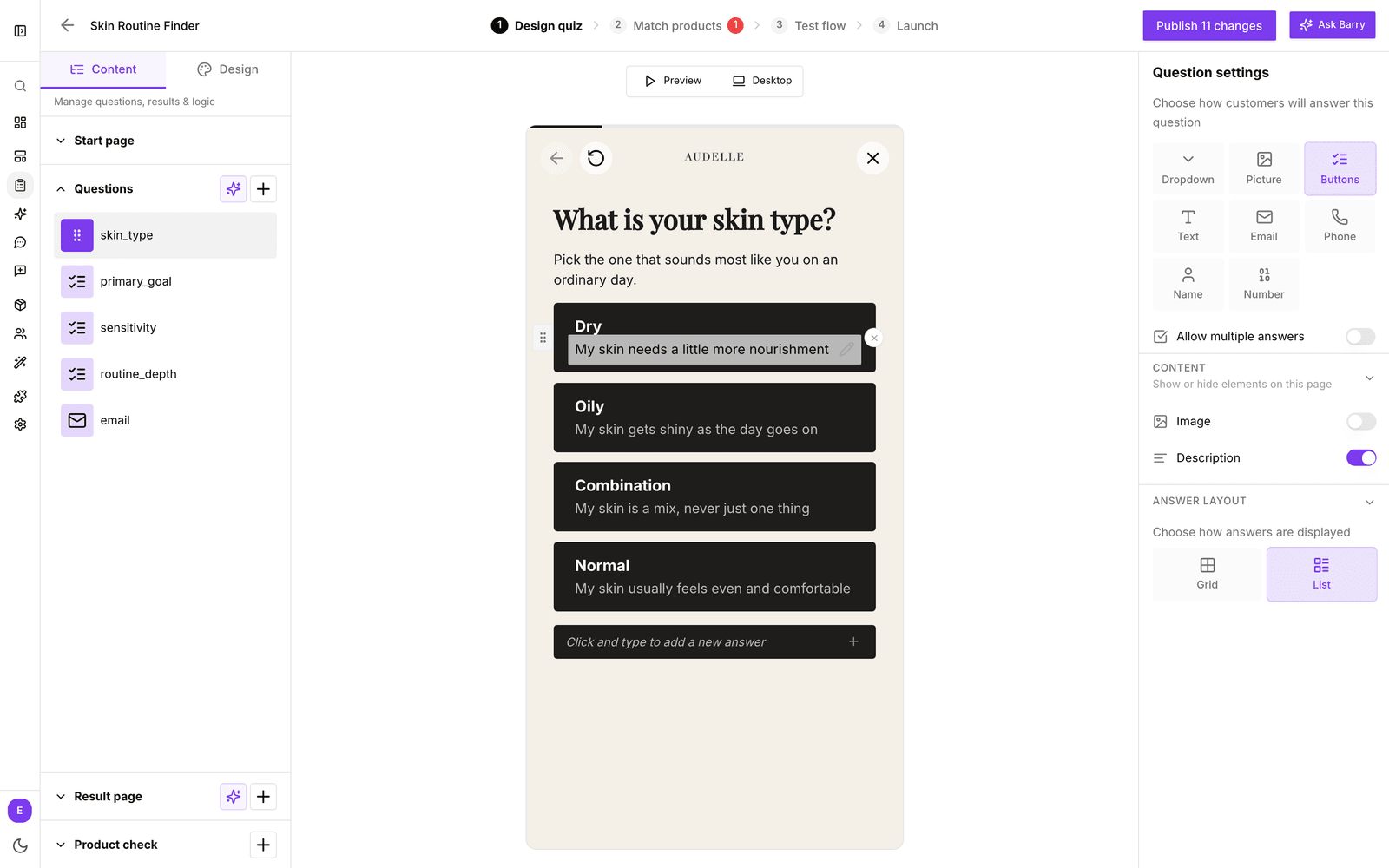
- In the sidebar, go to Quizzes and click Edit on your quiz.
- On Design quiz, click the question in the Questions list.
- To add an answer, click Click and type to add a new answer under the answers in the preview, type it and press Enter.
- To change an answer, click its text and type. Under each answer you can add a line of extra information.
- Drag the handle next to an answer to change the order, or use the delete button to remove it.
- For Picture answers, click or drop an image on each answer.
Changes are saved as you go. Shoppers see them after you publish.
How answers look
- Switch between Buttons, Picture and Dropdown in Question settings without losing your answers.
- Answer layout shows Buttons and Picture answers in a Grid or a List.
- Allow multiple answers lets shoppers pick more than one.
Internal names
When you add an answer, bluebarry gives it an internal name made from its first few words. Your team sees internal names on Match products, in analytics and in integrations, where the full text would be too long. Questions have one too, which you can change with Edit in the question's menu. The question's internal name is also the name the answer is saved under on the shopper's profile, so segments and other tools can use it.
Comparison labels on the result page
When a quiz shows several products, shoppers want to know why product A is ranked above product B. Comparison labels answer that. Each answer can have a short label, such as “Waterproof” or “Under €200”. On each result card the label turns green when the product matches that answer and gray when it does not.
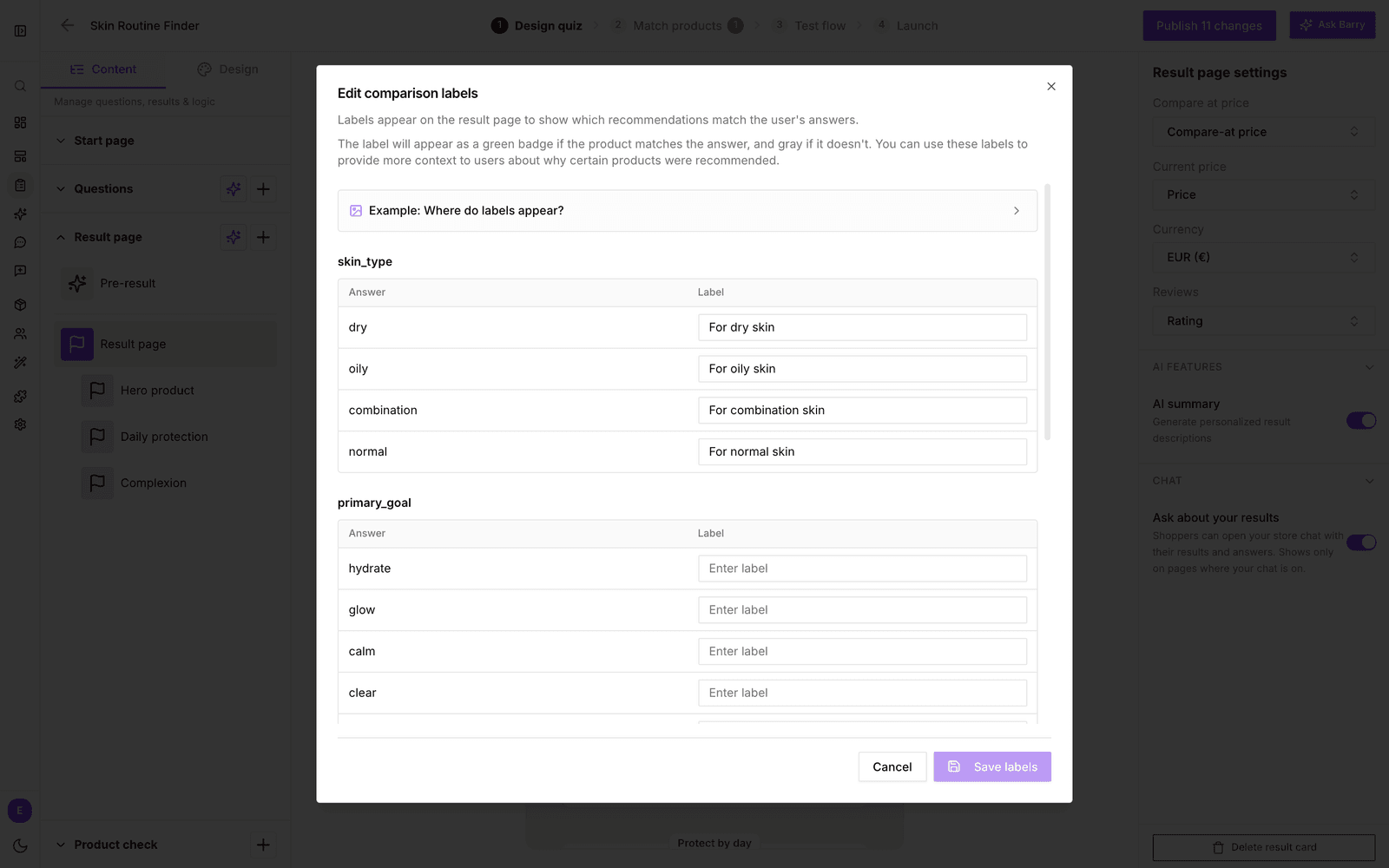
- Click Result page in the left panel.
- In the preview, click the labels box (Click to edit labels, or No comparison labels set when there are none yet).
- In Edit comparison labels, type a label next to each answer. Leave it empty to show no label for that answer.
- Click Save labels.
Labels are most useful for ranking questions. A filter question removes every product that does not match, so all its labels would be green. Learn more in ranking vs filtering questions.
Answer checklist
| Area | What good looks like |
|---|---|
| Wording | Each answer is short and written the way shoppers talk. |
| Coverage | Every shopper can find an answer that fits. Add an "I'm not sure" answer if many can't. |
| Images | Picture answers use images in the same style and crop. |
| Order | The most common choice comes first. |
| Matching | Each answer is connected to products on Match products. A red number on that tab means some answers match nothing. |
Next: connect answers to products or skip questions based on an answer.