
When your popup looks right and opens at the right moment, publish it from the Launch tab. Then follow how it does on the Insights tab, and find every answer on your shoppers' profiles.
Before you publish
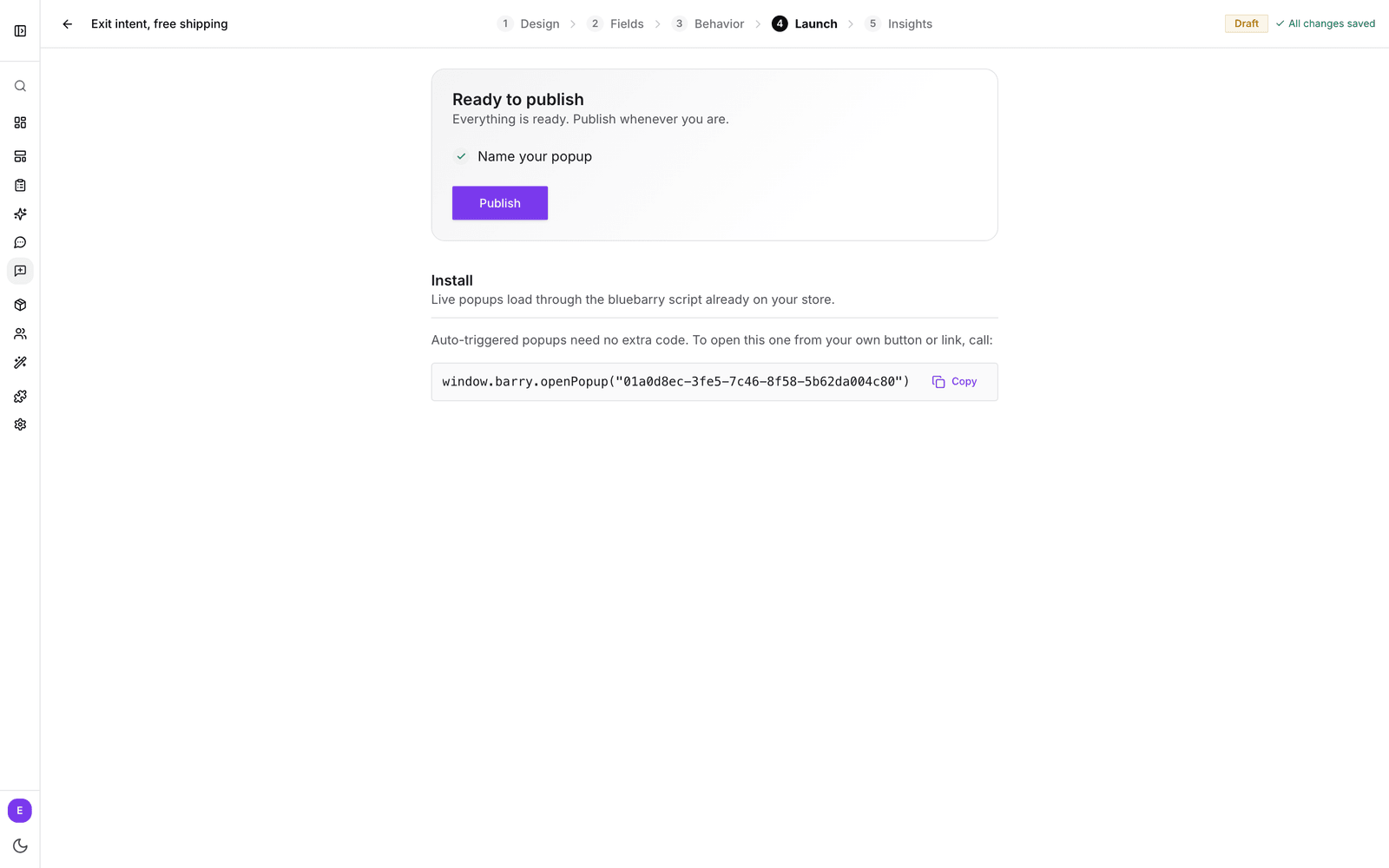
The Launch tab opens with a short checklist. It says Almost ready while something is missing and Ready to publish once everything is done.
- Name your popup: every popup needs a name.
- Write the consent note: only when marketing consent is set to On submit.
If you started from a template with an offer and haven't set a discount code, you also see "This popup mentions an offer, but no discount code is set." Click Add code to jump to the Fields tab, so shoppers actually get the discount you promise.
Before going live, open Full preview on the Design tab and click through the popup once on desktop and mobile.
Publish your popup
- Open the Launch tab.
- Click Publish, then confirm with Publish in the dialog.
- The status changes to Live and the popup starts opening on your store, following your Behavior settings.
Edit a live popup
You can keep editing a live popup. Your changes save to the draft, and shoppers keep seeing the published version until you click Republish on the Launch tab.
If an experiment is running on this popup, publishing replaces the version it compares against and pauses the experiment. Studio asks you to confirm first. See How experiments work.
Unpublish a popup
Click Unpublish on the Launch tab, or in the menu on the popup's card in the Popups list. Shoppers stop seeing it right away. Your draft is kept, so you can publish it again whenever you want. The popup is then marked Unpublished.
No install needed
Live popups load through the bluebarry script that already runs on your store: the Shopify app embed, the WooCommerce plugin, the CCV Shop integration, the Magento module or the script you added yourself. If your quizzes or search already work on your store, your popups will too. There is no extra code or theme block to add.
On Shopify, the theme editor also has a block called Bluebarry Popup Trigger. That block opens a quiz as a popup. You don't need it for the popups in this article.
Open a popup from your own button
Want a popup to open when shoppers click a banner, a menu item or a "Get 10% off" button? The Install section of the Launch tab shows one line of code with your popup's ID. Click Copy and have it run when the button is clicked, for example:
<button onclick="window.barry.openPopup('your-popup-id')">Get 10% off</button>- This works for any published popup, also when When it opens is set to Off.
- A click always opens the popup. Segment targeting from Who sees it and the How often limits only apply when the popup opens on its own.
Read insights
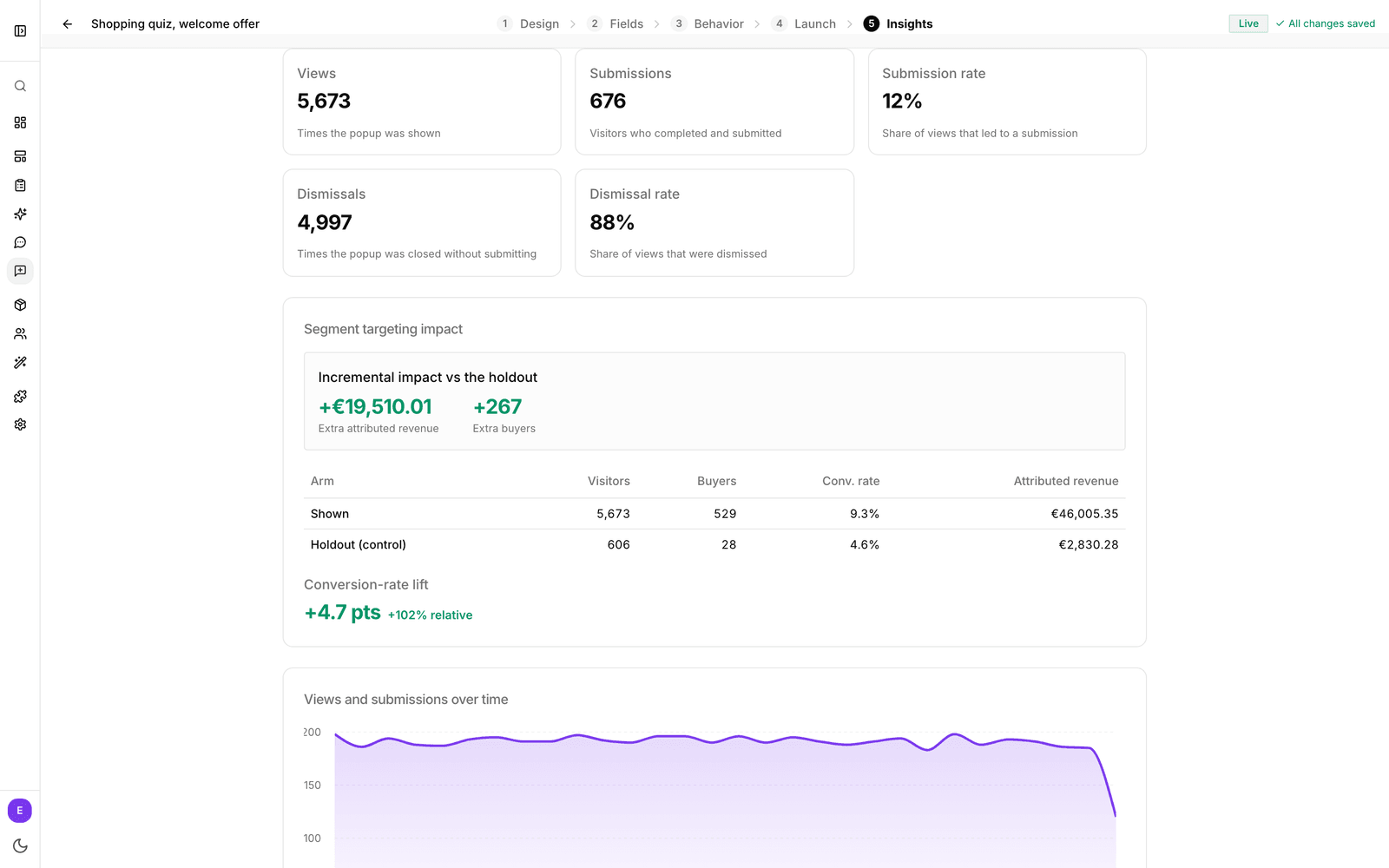
The Insights tab shows how this popup performs. Pick a date range at the top right. It starts at the last 30 days.
| Metric | What it tells you |
|---|---|
| Views | How often the popup was shown. |
| Submissions | How often a shopper completed and submitted it. |
| Submission rate | The share of views that led to a submission. |
| Dismissals | How often it was closed without submitting. |
| Dismissal rate | The share of views that were closed. |
- Views and submissions over time shows the trend day by day.
- By device splits views, submissions and rate between desktop and mobile. A low mobile rate often means the popup is too long or too big for a phone.
- Top pages lists the pages where shoppers see the popup most, with the submission rate on each.
- Segment targeting impact appears when the popup targets segments with a holdout. See Target popups to segments.
- Submitted answers lists every submission with the shopper's email (or "Visitor") and the time. Click one to see all answers. You get 25 per page.
Where submissions go
Each submission updates the shopper's profile in bluebarry, under Audience → Profiles. It is the same profile their quiz answers, searches and orders build on.
- Email, phone and name fill in the contact details.
- Every other answer is saved as a property under its Property key.
- Consent is added to the shopper's consent history, with the popup as the source.
- If you connected an email or data tool such as Klaviyo, Omnisend, Spotler Activate, BigQuery or a webhook, the updated profile syncs there too. Segments built on popup answers can also sync to Meta as a custom audience.