
Page rules decide where a popup shows. Segments decide who sees it. With Who sees it you can keep a welcome offer for first-time shoppers, stop asking subscribers to subscribe again, and measure what a popup really adds to your sales.
You need at least one segment for this. If you don't have one yet, see Build segments.
Choose who sees a popup
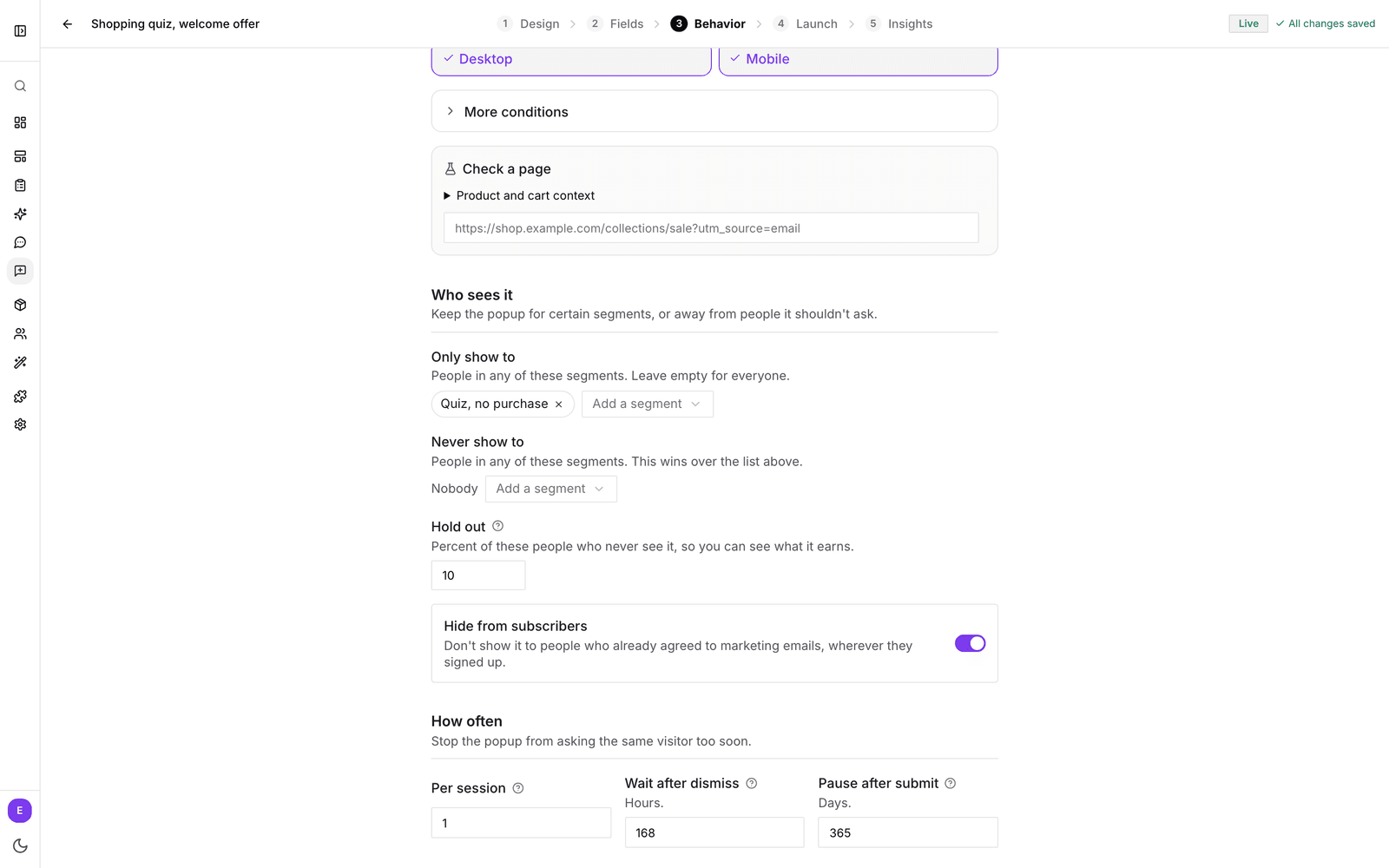
- Open your popup and go to the Behavior tab.
- Scroll to Who sees it.
- Under Only show to, click Add a segment and pick one. Add more if you like: a shopper in any of them qualifies. Leave it empty to show the popup to everyone.
- Under Never show to, add segments that should never see the popup. This list wins: someone in both lists does not see it.
- Switch on Hide from subscribers if the popup asks for an email address (see below).
A few ideas
- A welcome offer that only new shoppers see: add a segment of people who have ordered before under Never show to.
- A second chance for quiz takers who didn't buy: a segment such as "Quiz, no purchase" under Only show to, with a small discount.
- A follow-up for a question you asked earlier: if a first popup saved shopping_for, a segment of everyone shopping for skincare can get a skincare-specific offer.
Hide from subscribers
Hide from subscribers keeps the popup away from everyone who already agreed to your marketing emails, wherever they signed up: in a quiz, in another popup or anywhere else bluebarry records consent. A shopper who signs up in a popup counts as a subscriber from the next page on, so they are not asked twice.
Hold out a share to see what the popup earns
Here is the catch with measuring a targeted popup. Suppose you show a discount to "Quiz, no purchase" and a lot of them buy. Some of those people were going to buy anyway. Looking at buyers alone, you can't tell how many orders the popup added and how many it just discounted.
A holdout answers that question. bluebarry picks a random share of the people in your segments and never shows them the popup. Because the two groups are picked at random from the same people, the only real difference between them is the popup. If the group that saw it orders more, the difference is what the popup earned.
- Hold out appears once you add at least one segment under Only show to. It starts at 10 percent, and you can set anything from 0 to 50. Set it to 0 to show the popup to everyone in the segments.
- Each shopper stays in the same group on every visit, so nobody sees the popup one day and not the next.
- Every popup draws its own holdout, so the same shoppers are not left out of all your popups at once.
10 percent is a good place to start. A larger holdout gives you a clear answer sooner, but more shoppers miss the popup while you wait.
Read the results
Go to the Insights tab. Once both groups have visitors, Segment targeting impact compares them:
- Shown and Holdout (control), each with Visitors, Buyers, Conv. rate and Attributed revenue.
- Incremental impact vs the holdout: the extra revenue and extra buyers you can credit to the popup.
- Conversion-rate lift: how much more often the shown group orders. While numbers are small, the card says Too little traffic to trust yet. Give it time before you draw conclusions.
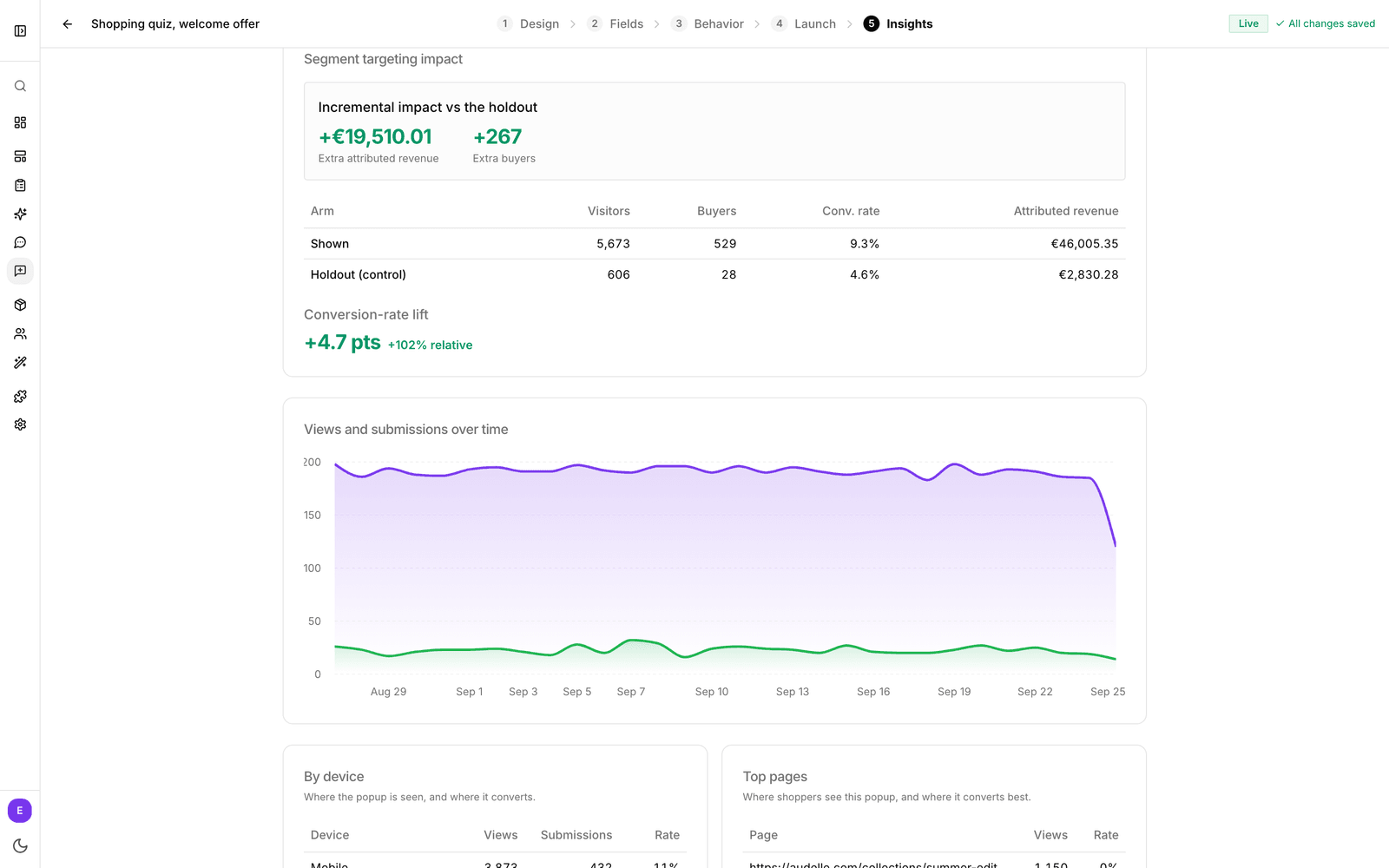
The card only appears for popups with segments under Only show to.
Good to know
- bluebarry checks segments right before the popup opens on its own, using the shopper's latest profile. When you edit a segment, the change reaches your store within about a minute.
- When you open a popup from your own button, Who sees it is skipped. The shopper clicked, so the popup opens.
- Segments can also use what shoppers browse, search and buy, so they work for visitors who have never given you an email address.