
Popups are small windows that open on your store to start a conversation with a shopper. Use them to grow your email list, give a first-time visitor a reason to buy, or ask one quick question so you learn what people are shopping for. Every answer lands on the shopper's profile in bluebarry, ready for segments and your email tool.
What popups are for
The template gallery is organized around three goals. Pick the one that matches what you want this popup to do.
- Grow your list. A newsletter signup, a warm welcome or an invite to early access for new drops. No discount needed.
- Drive a first sale. A welcome offer, free shipping, a flash sale or a last-chance offer for shoppers who are about to leave.
- Ask and segment. One quick question, a perk picker or a short shopping quiz, then the email. The answer tells you what a shopper wants, and you can build segments on it.
A popup does not have to collect anything. Without fields it works as an announcement with a link, for example to a sale collection or to one of your quizzes.
Create a popup
- In the Studio sidebar, go to Popups under Live on your store. Not in the sidebar yet? A module only shows there once it is live or has a draft. Click + Add a module and then Add next to Popups, and Barry sets it up with you.
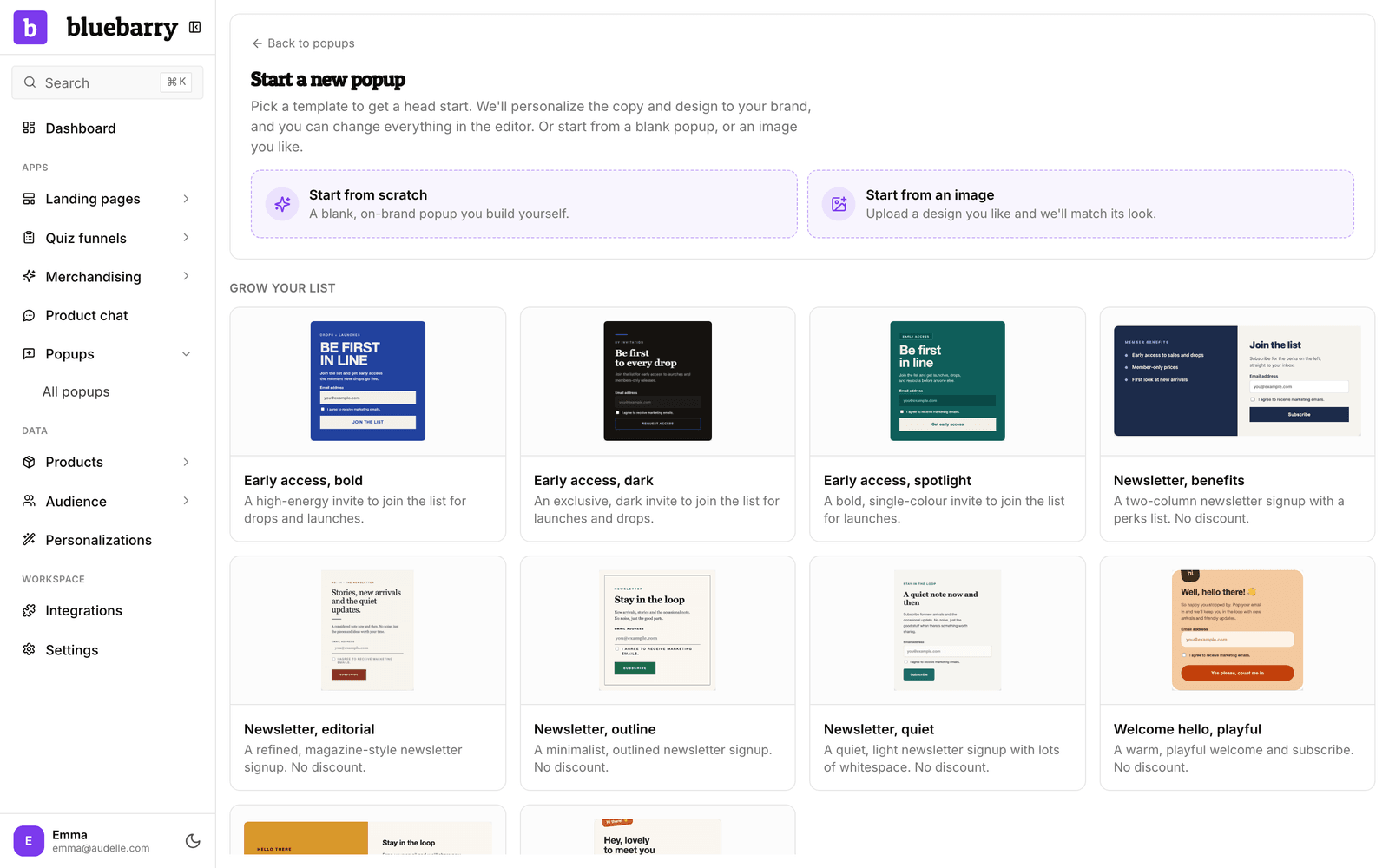
- Click Add popup. The Start a new popup gallery opens.
- Pick a starting point (see below). bluebarry creates the popup as a draft and opens the editor.
Pick a starting point
- Start from scratch gives you a blank popup in your brand's colors that you build yourself.
- Start from an image lets you upload a popup design you like, such as a screenshot from another store or a mockup from your designer. bluebarry matches its look and fills in copy and colors for your brand.
- Templates are grouped under Grow your list, Drive a first sale and Ask & segment. A badge such as 3 steps means the template has several screens, and offer means it is built around a discount. We adapt the copy and design to your brand when you pick one.
Find your way around the editor
The editor has five tabs. You can work through them in order, or jump straight to the one you need.
| Tab | What you do there |
|---|---|
| Design | Change the look and copy with Barry, and preview each screen. |
| Fields | Choose what the popup asks, consent, and an optional discount. |
| Behavior | Decide when it opens, where it shows, who sees it and how often. |
| Launch | Publish or unpublish, and get the line of code for your own button. |
| Insights | See views, submissions and the answers shoppers gave. |
To rename the popup, click its name at the top left. Your work saves automatically, and the header shows All changes saved once it has. Nothing reaches your store until you publish.
Design with Barry
The Design tab is a conversation with Barry, the bluebarry assistant. Tell it what you want in plain words, and it rewrites the copy, colors, layout and screens for you.
- On the left, the Screens list shows every screen of the popup plus the Success screen. Click one to work on it, or click Add screen.
- Type your request, such as "Build a 3-screen popup: a question, then email, then a thank-you" or "Match the colors and fonts to my brand".
- Barry makes the change and the preview updates. To undo it, open Applied changes under the conversation and click Revert.
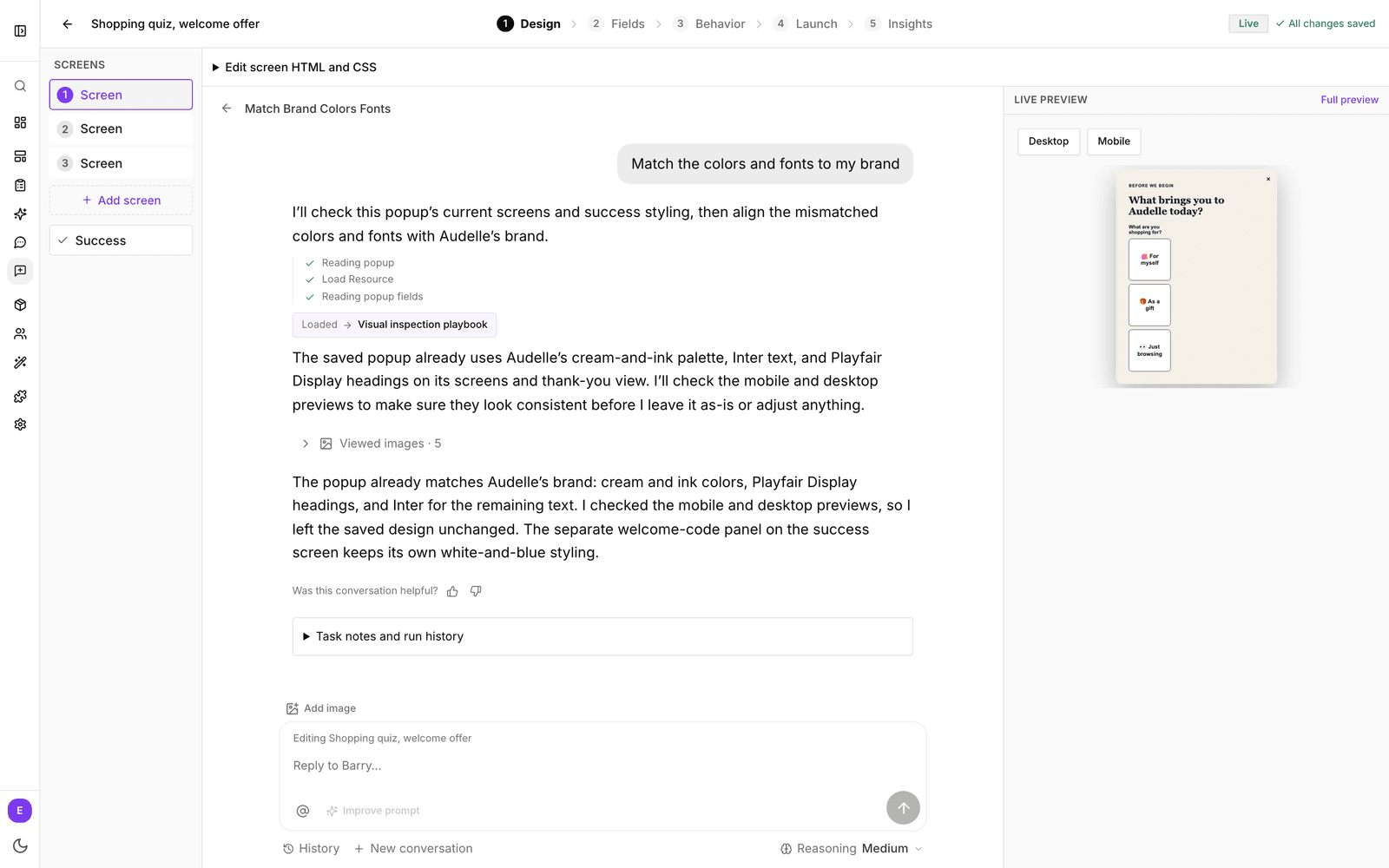
Specific requests work best. "Make the headline shorter and use our dark green for the button" gets you further than "make it nicer". If you or your designer prefer to edit by hand, open Edit screen HTML and CSS at the top of the tab, make your changes and click Apply design.
Preview on desktop and mobile
The Live preview next to the conversation shows the screen you are working on. Switch between Desktop and Mobile to check both. Click Full preview to open the popup the way a shopper sees it, click through every screen and submit the form. Nothing you type in the preview is stored. On a smaller laptop screen the side preview is hidden: use the Preview button at the top of the editor instead.
Next steps
- Build popup forms: add screens and fields, consent and a discount.
- Choose when and where a popup shows: timing, pages, devices and frequency.
- Target popups to segments: show a popup only to the right people.
- Publish a popup and read insights: go live and see how it performs.