
A template goes live in two steps. On the Assign tab you choose which Shopify collections use it. On the Launch tab you preview it on your real store and publish. Until then, your shoppers keep seeing your current collection pages.
Assign collections
- Open the template under Collection pages in the sidebar and click Assign.
- Tick the collections that should use this template. Use Search collections... to find one by name or handle, and Load more to see the rest of a long list.
- Untick a collection to take it off the template.
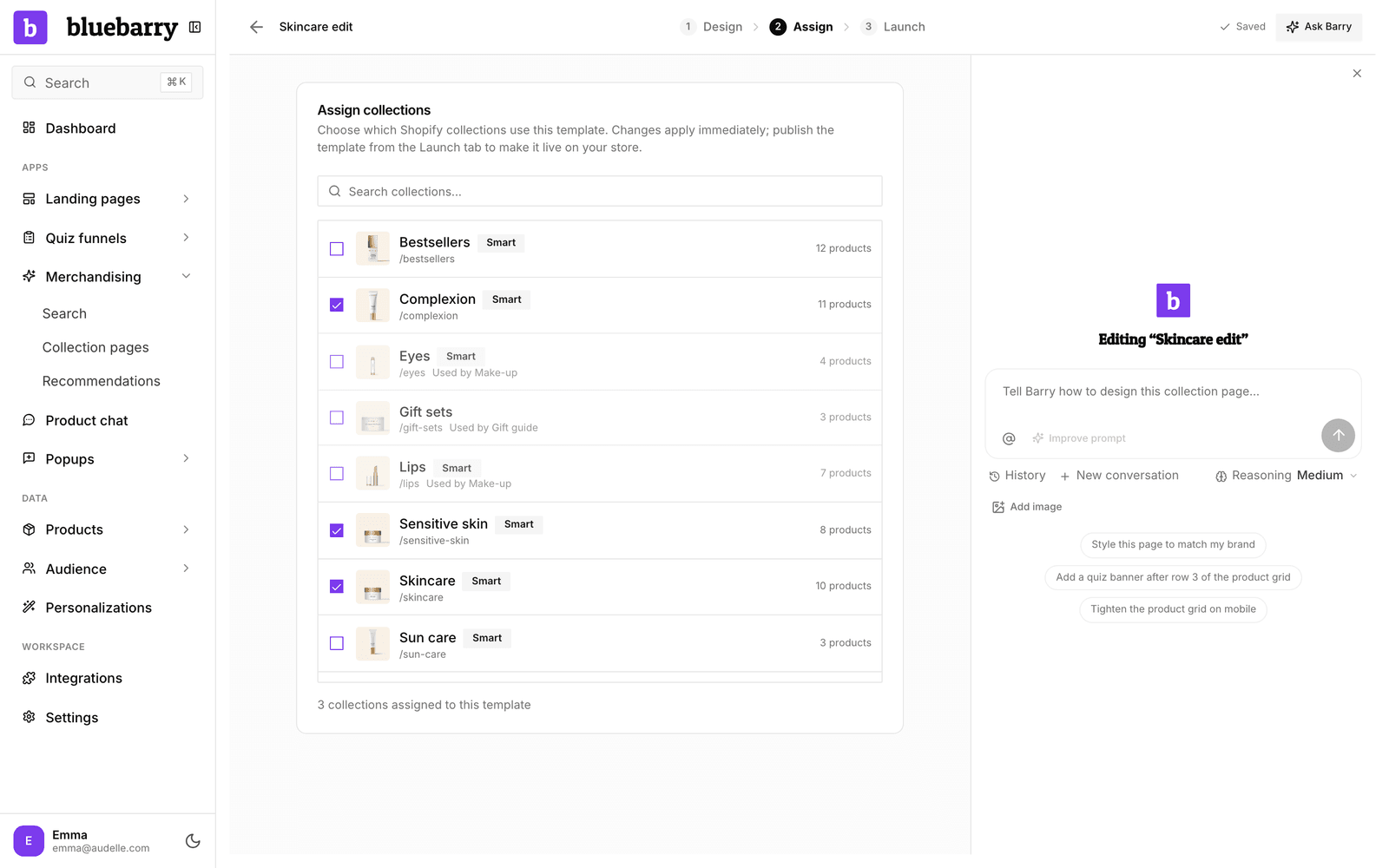
A few rules keep things tidy:
- A collection uses one template at a time. Ticking a collection that says “Used by” another template asks you to confirm with Move collection.
- A template always keeps at least one collection. To swap the last one, tick the new collection first, then untick the old one.
- On a published template, changes here apply to your store right away. A collection you tick switches to the template, and a collection you untick gets its previous layout back.
Check and preview
Click Launch. The Checks card reviews the template first. “All checks passed, this template is ready to publish.” means you are good to go. Otherwise it tells you what to fix, for example that you still need to assign a collection, or that a quiz banner has no quiz linked and won't be shown.
Under Assigned collections, click Preview next to a collection. Your store opens in a new tab, showing that collection with this template, in your own theme with its fonts and header. Only people with the preview link see it, so you can check it before anyone else does.
Publish
- Click Publish to Shopify. bluebarry saves your latest changes first.
- Wait a few seconds. Studio lists each assigned collection with a check mark, or with the reason it could not be switched.
- Click View live next to a collection to see it on your store.
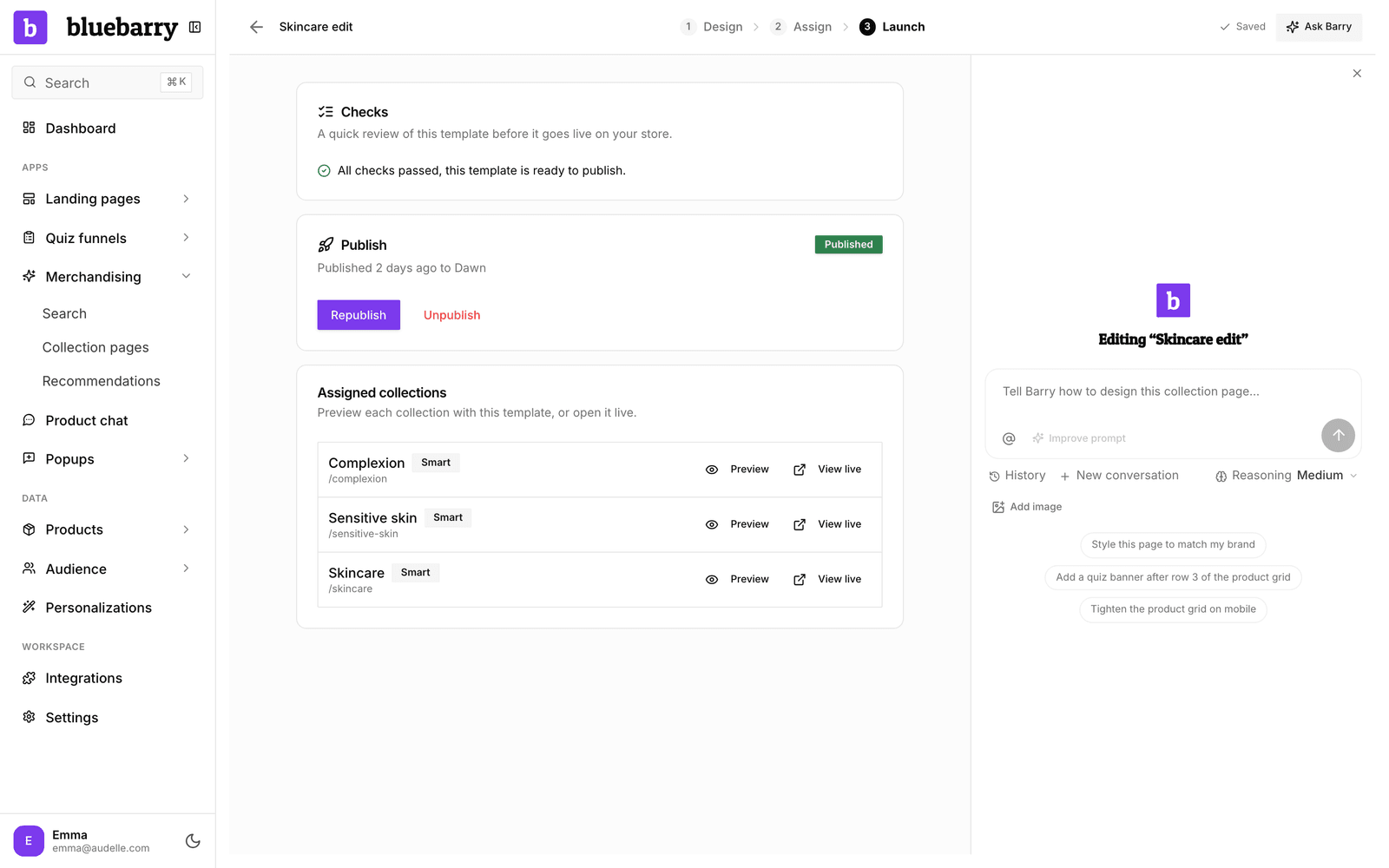
Publishing adds the template to your live Shopify theme and switches each assigned collection over to it. The status changes to Published, with the time and the theme it went to. bluebarry remembers each collection's previous layout, so you can always go back.
Update a live page
After publishing, you keep editing on the Design tab as before. Your edits stay a draft until you publish again. The Launch tab then shows Published version is out of date:
- “You've changed this template since it was last published.” Click Republish when you are happy with your changes.
- “The store's published theme changed since this template was published.” You switched to another Shopify theme. Click Republish to add the template to the new theme.
Two things don't wait for a republish: changes to your search design reach the product grid right away, and smart order starts or stops as soon as you switch it.
Make your changes in bluebarry, not in Shopify's theme editor. The bluebarry sections do appear there, but each republish replaces them with the version from Studio.
Unpublish or delete a template
Click Unpublish on the Launch tab and confirm. Every assigned collection gets its previous layout back, and its own sort order if smart order had it, and the bluebarry template files are removed from your theme. The template itself stays in Studio as a draft, so you can publish it again later.
Want to get rid of a template for good? Choose Delete on the list. For a published template, a dialog explains what happens and Unpublish and delete takes it off your store first, so your collections go back to their previous layout. If Shopify refuses, the template is not deleted and the dialog tells you why.
Good to know
- Collection pages need an Online Store 2.0 theme. If your live theme is an older, vintage theme, publishing stops with a message saying so.
- Publishing always goes to the theme that is live on your store, not to unpublished themes in your theme library.
- Something not working? See Fix collection page issues.