
A collection page template takes a few minutes to set up. You name it and pick the collections it should restyle, and it starts out in the design of your store's search. Then you fine-tune it in the editor, by hand or with Barry.
Create the template
- Go to Collection pages under Live on your store and click New template. Not in the sidebar yet? A module only shows there once it is live or has a draft. Click + Add a module and then Add next to Collection pages, and Barry sets it up with you.
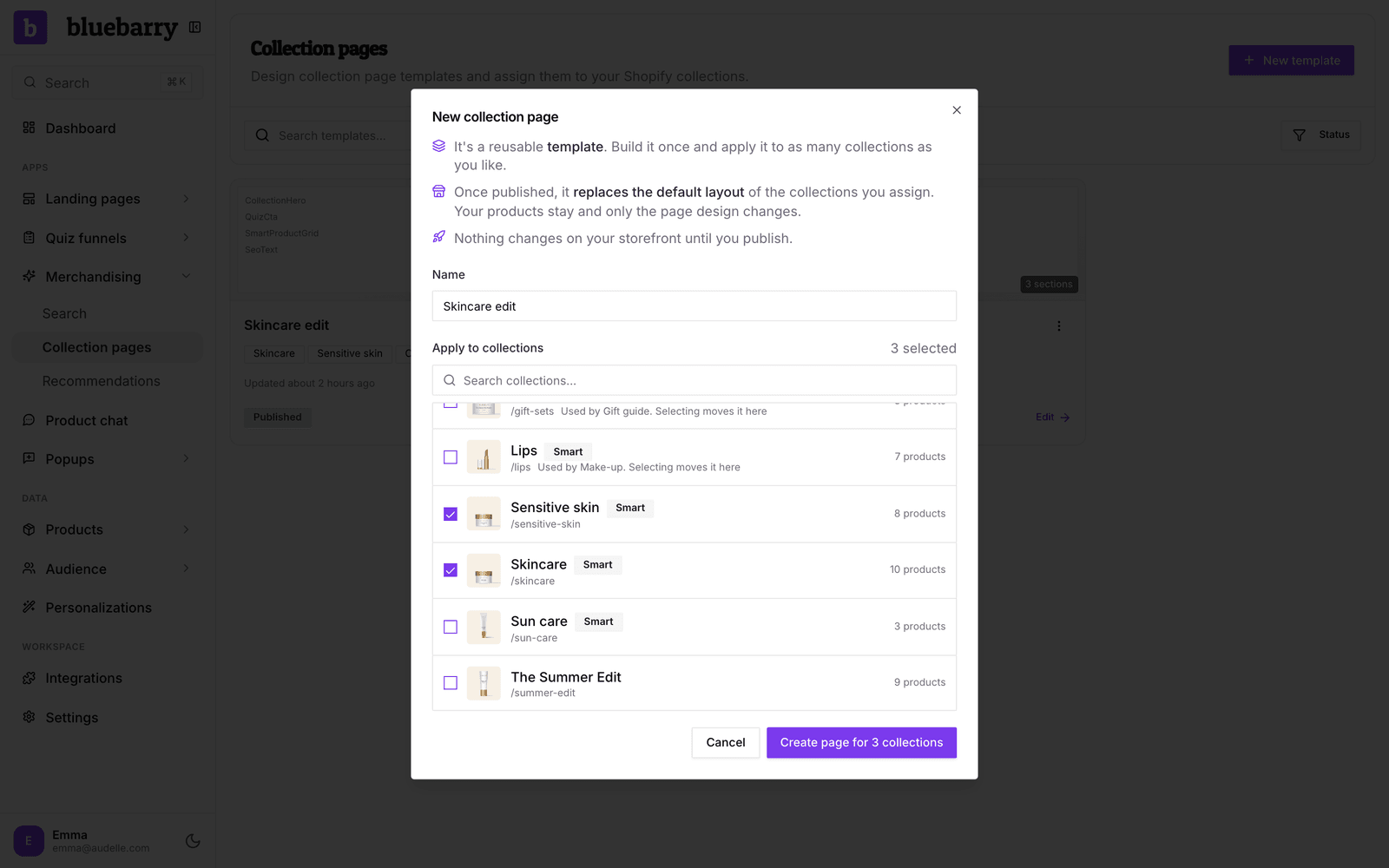
- Enter a Name, for example “Skincare edit”. Only you see it.
- Under Apply to collections, tick at least one collection. Use Search collections... to find it by name or handle. Each row shows how many products the collection has.
- Click Create page for 1 collection (the number follows your selection).
bluebarry creates the page with a collection hero, the product grid and an SEO text, all in the colors, corners and font of your store's search, and opens the editor.
A few things you may notice in the collection list:
- Smart marks an automated collection, where Shopify adds products by rules. It works with templates like any other collection.
- “Used by” means the collection already belongs to another template. A collection uses one template at a time, so selecting it moves it to this one.
If the dialog says Connect Shopify first or Sync your collections, your store isn't ready yet. See Fix collection page issues.
Find your way around the editor
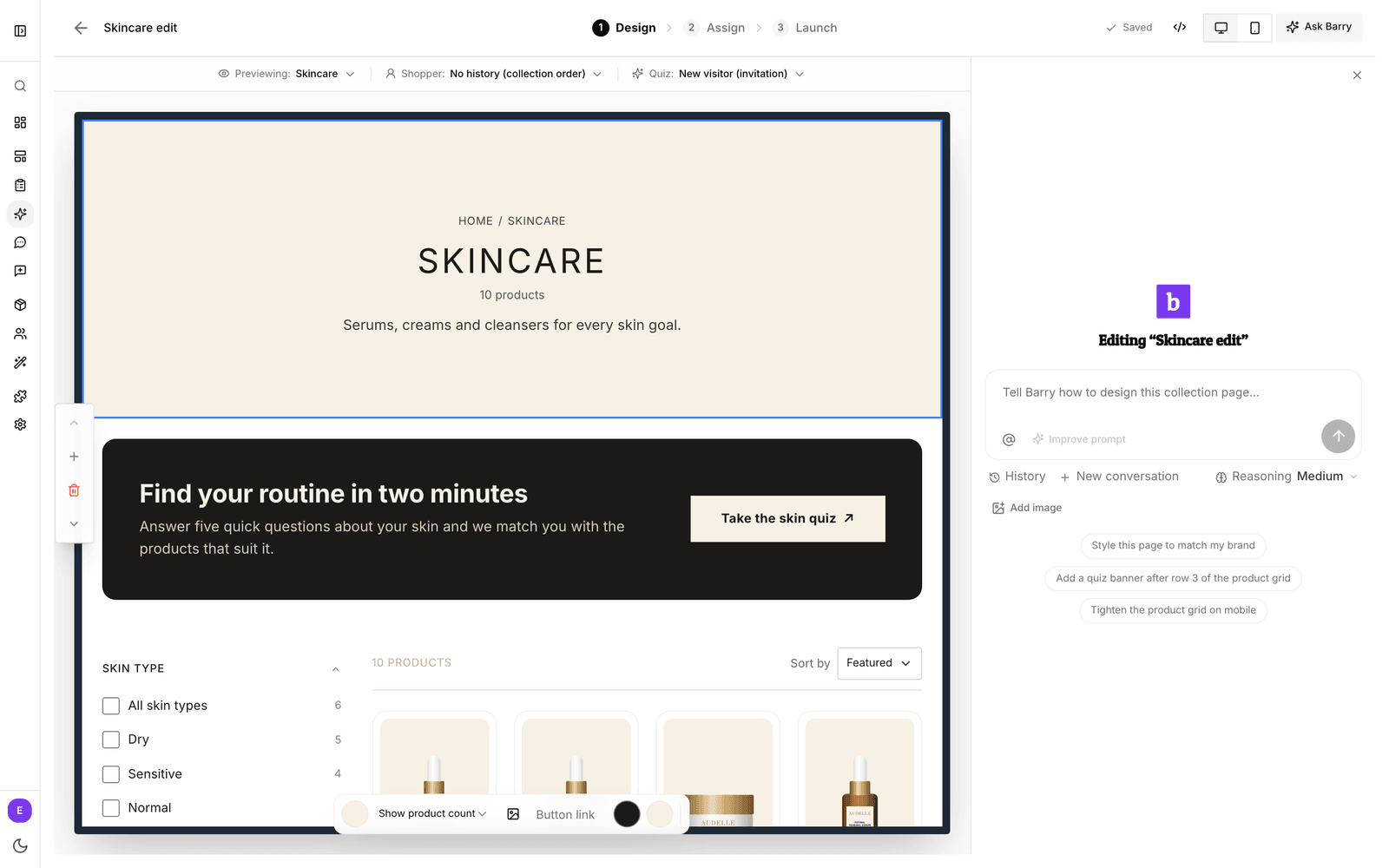
The editor has three tabs at the top: Design, Assign and Launch. This article covers Design. Changes save automatically, and the status next to the tabs shows Saving..., Saved or Save failed. Click the template name at the top left to rename it.
- Previewing: above the canvas, pick which assigned collection to preview. The canvas fills with its real title, description, products and filters.
- Desktop and phone: switch the canvas size with the two device buttons at the top right. The editor opens on phone.
- Barry: the chat panel on the right. Toggle it with the Barry button or ⌘J (Ctrl+J on Windows).
- Custom CSS: the code button at the top right.
Add, move and edit sections
Click a section in the canvas to select it. A toolbar appears with its settings, and buttons appear on the left of the canvas:
- The arrows move the section up or down.
- Add section adds a new one, with Add above or Add below. Choose Collection hero, Quiz banner or SEO text. New sections are styled to match the rest of the page, which can take a moment.
- The bin deletes the section. The product grid can't be deleted: every template has exactly one.
Click text such as a heading or button label to edit it in place.
The hero, quiz banner and SEO text start with Colors set to Match search: they take the colors, corners and font of your search results, and follow them when your search design changes. Change a color and the section switches to Own colors. Set it back to Match search at any time.
Collection hero
The hero shows each collection's own title and description from Shopify, so you edit those in Shopify, not here. In the toolbar you can set the Background, show or hide the Product count, pick a Hero image, and set a Button link with its colors. The button only shows when it has both a label and a link.
By default the hero uses the collection's image from Shopify. A hero image you pick here replaces it on every collection that uses the template.
Quiz banner
A full-width invitation to take a quiz. Edit the heading, subheading and button text in the canvas. Click the button to choose which Quiz it opens. A quiz banner without a quiz stays hidden on your store.
SEO text
Shows the collection's description from Shopify as a readable block, which gives search engines useful text to index. To change the words, edit the description in Shopify under Collections. Here you set the Background and Text color. A collection without a description shows nothing in this spot.
Product grid
The grid is your search results page and takes its look from your search design. It has its own settings panel for that design, personalization, banners and layout. See Set up the product grid.
Design with Barry
Barry opens on the right the first time you open a template, under “Design this collection page”. Describe what you want in plain words, for example:
- “Style this page to match my brand”
- “Add a quiz banner after row 3 of the product grid”
- “Tighten the product grid on mobile”
Barry can change section content and styling, add, move and remove sections, and write custom CSS. You see each change in the canvas right away. Like your own edits, it only reaches your store when you publish. You can also attach a screenshot of a page you like as a reference.
Custom CSS
For details the settings don't cover, click the code button and add CSS. It applies after bluebarry's own styles and targets the page's bb-cp- classes, for example .bb-cp-hero, and the grid's search classes, such as .sb-product-card. It only applies to this template, so it is the place for a page that should look different from search. The canvas updates as you type. If you don't write CSS, ask Barry to do it.
Good to know
- On your store, the page uses your theme's fonts and base styles, so it can look slightly different from the canvas. Use Preview on the Launch tab to check the real thing.
- Duplicate on the list page copies the design but not the collections. Assign collections to the copy before you publish it.
- Ready to go live? Continue with Assign and publish a collection page.