
Want to see your quizzes next to the rest of your store data in Google Analytics 4? bluebarry prepares a Google Tag Manager container for you. Import it once and every quiz start, answer and result shows up in GA4 as its own event.
Before you start
- Google Tag Manager is installed on your store.
- You have your GA4 Measurement ID. It starts with G- and you find it in your GA4 property settings.
Download the configuration
- In bluebarry, go to Store data → Integrations and find the Google Tag Manager card under Marketing & analytics.
- Click Download config.
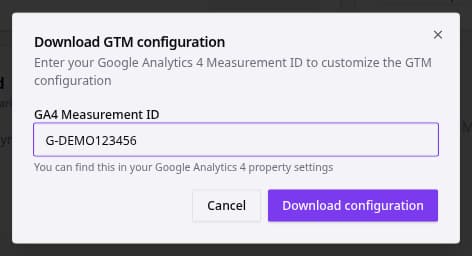
- Enter your GA4 Measurement ID and click Download configuration. You get a file called
bluebarry-gtm-config.json.
Import it into Google Tag Manager
- In Google Tag Manager, go to Admin and choose Import Container.
- Select the file you downloaded.
- Pick a workspace and choose Merge, so your existing tags stay as they are.
- Confirm the import and review the new bluebarry tags, triggers and variables.
- Test in Preview mode, then publish the container.
Events you get in GA4
| Event | Sent when |
|---|---|
| bluebarry_start_advisor | A shopper starts a quiz. |
| bluebarry_question_viewed | A question is shown. |
| bluebarry_answer_submitted | A shopper answers a question. |
| bluebarry_result_viewed | A shopper reaches the results. |
| bluebarry_result_opened | A shopper clicks a recommended product. |
The events carry useful details as parameters: the quiz, session and visitor IDs, the question and answer (name, type and value), the product (name, URL, ID and position in the results), the result card, and whether the shopper gave consent. Question and answer names are the internal names from the Test flow tab, so give them readable names before you build reports.
Test it
- Start GTM Preview and open your store.
- Take your published quiz. The quiz editor preview doesn't send events.
- Check that the bluebarry events fire in Tag Assistant.
- In GA4, open DebugView or the realtime report to see them arrive.
Good to know
- The Google Analytics card on a quiz's Launch tab leads to this guide. There's nothing to set per quiz: the container covers all your quizzes.
- Revenue from quizzes is tracked in bluebarry itself, see Measure advised revenue.