
Barry is the AI marketer built into bluebarry. Barry reads your store's data (quizzes, search, popups, product chat, your catalog and your audience), answers questions about it in plain language, and makes changes for you when you ask. Think of Barry as a colleague who has read every report and knows where each setting lives.
Where to find Barry
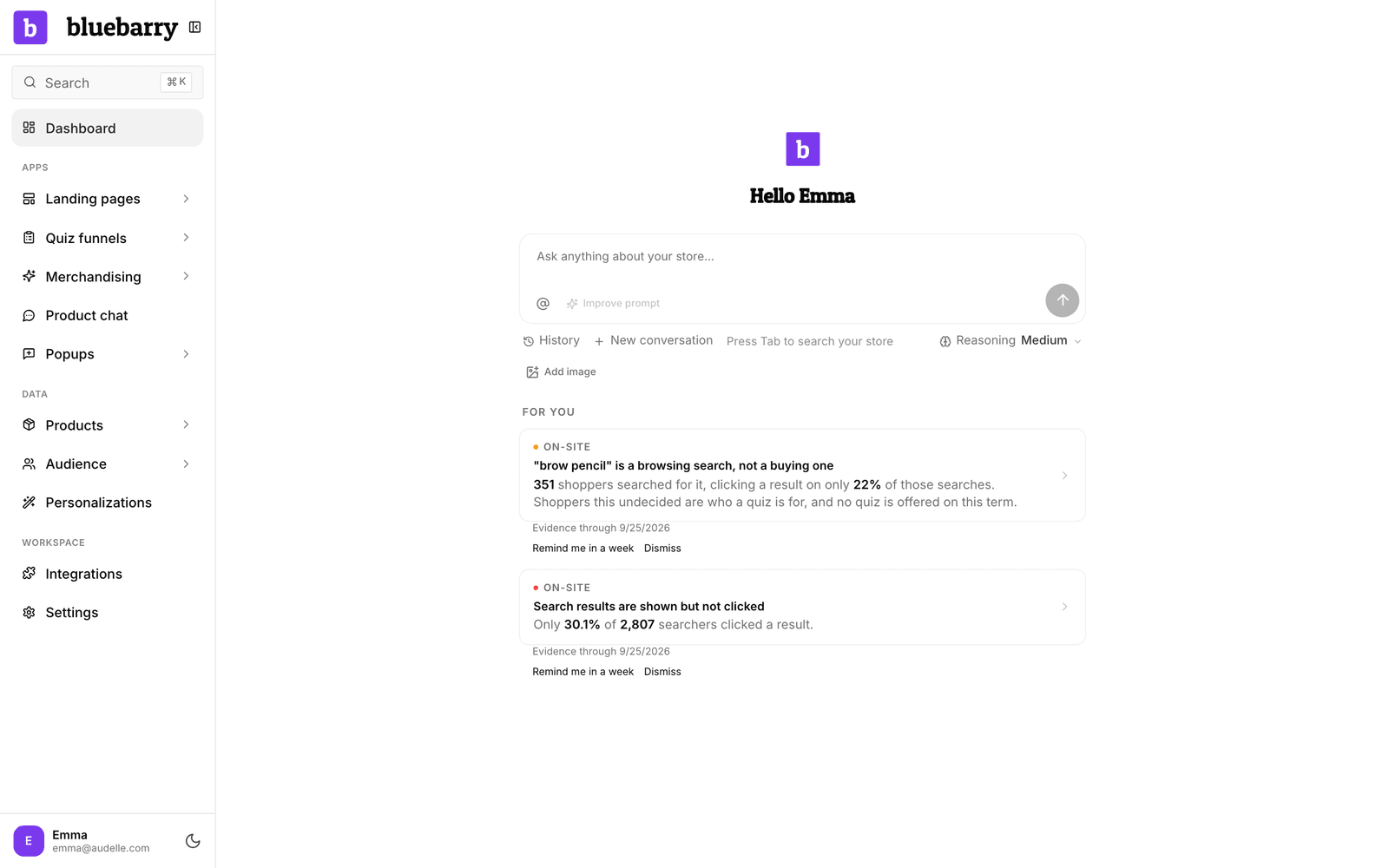
Click Home at the top of the sidebar. Barry greets you by your first name and asks what you want to grow today. Barry is also built into the editors for quizzes, search, product chat and popups, where the conversation is about the thing you are editing (more on that below).
Below Barry's box, Home shows Your personalization loop: every module, grouped in three stages (Recognize, Personalize and Profit), with how many of them are live. A live module has a green dot and its number for the last 7 days, such as “4 live · 189 sessions this week”. A module with drafts says Draft. Every other module has an Add button that starts a conversation in which Barry sets it up with you.
As long as nothing is live on your store, Home opens in setup mode. See get started with your first module.
Ask about your store
Type your question in the box that says Ask anything about your store… and press Enter (Shift+Enter starts a new line). Good first questions:
- Where am I losing the most quiz revenue, and what should I change?
- Which searches return nothing, and what should I do about it?
- Find my worst-performing quiz question and how to fix it.
Barry replies in the language you write in. While Barry works you see each step as it happens, such as “Reading quiz analytics” or “Listing popups”. Between steps, three hopping dots show Barry is still busy, with a timer once a reply takes longer than ten seconds. Answers can include charts, and a Sources link when Barry used something outside your store. For bigger jobs Barry shows a short Tasks list and ticks items off.
A few handy controls sit around the box:
- Improve prompt rewrites your question so it is clearer before you send it.
- Add image attaches a screenshot or design you like. You can also paste or drop an image.
- Reasoning trades speed for depth. Higher levels take longer and are worth it for tricky questions.
- Press Tab instead of Enter to search Studio for what you typed, for example the name of a quiz.
Point Barry at a specific quiz or search
Type @ or click the @ button to link something to the conversation. Search for a quiz or search configuration and pick it. For quizzes you choose between the Current draft and the Published version. You can link up to 10 items, then tell Barry what to do with them.
Let Barry show you where something is
Ask where a setting lives or how to get somewhere, such as “where do I add synonyms?” or “where do I connect my product feed?”. Barry answers with a Show me button. Click it and Studio opens the right page with the button or tab you need highlighted. Click anywhere or press Esc to remove the highlight. Barry knows which page you are on, so when you are already there it answers in place and only highlights what you need.
When that page has its own Barry, such as a quiz or a search configuration, the panel opens there with the same conversation, so you carry on where you left off. On other pages a Back to Barry button takes you back to it.
The same goes for what Barry builds for you. When the first version of a quiz, a search configuration, a popup or another feature is ready, the reply ends with a Show me button that opens its preview. Once you have looked at it, the next one takes you to where you put it live. If something is missing first, such as your products, the button takes you to where you fix that.
For you: what Barry noticed
Under the box, For you lists things Barry found in your own numbers without being asked. Each finding says which area it is about, what is going on (with the key figures in bold) and the date the evidence runs to. A red dot marks something urgent.
- Click a finding and Barry digs into it and works out a fix.
- Open the ⋯ menu on a finding and pick Remind me in a week to hide it for now.
- Pick Dismiss in the same menu if it is not relevant.
When there is nothing to report, you see a few example questions instead.
When Barry changes something
Ask Barry to fix something, such as “add synonyms for the terms shoppers actually use”, and Barry makes the change and shows it as a card in the conversation.
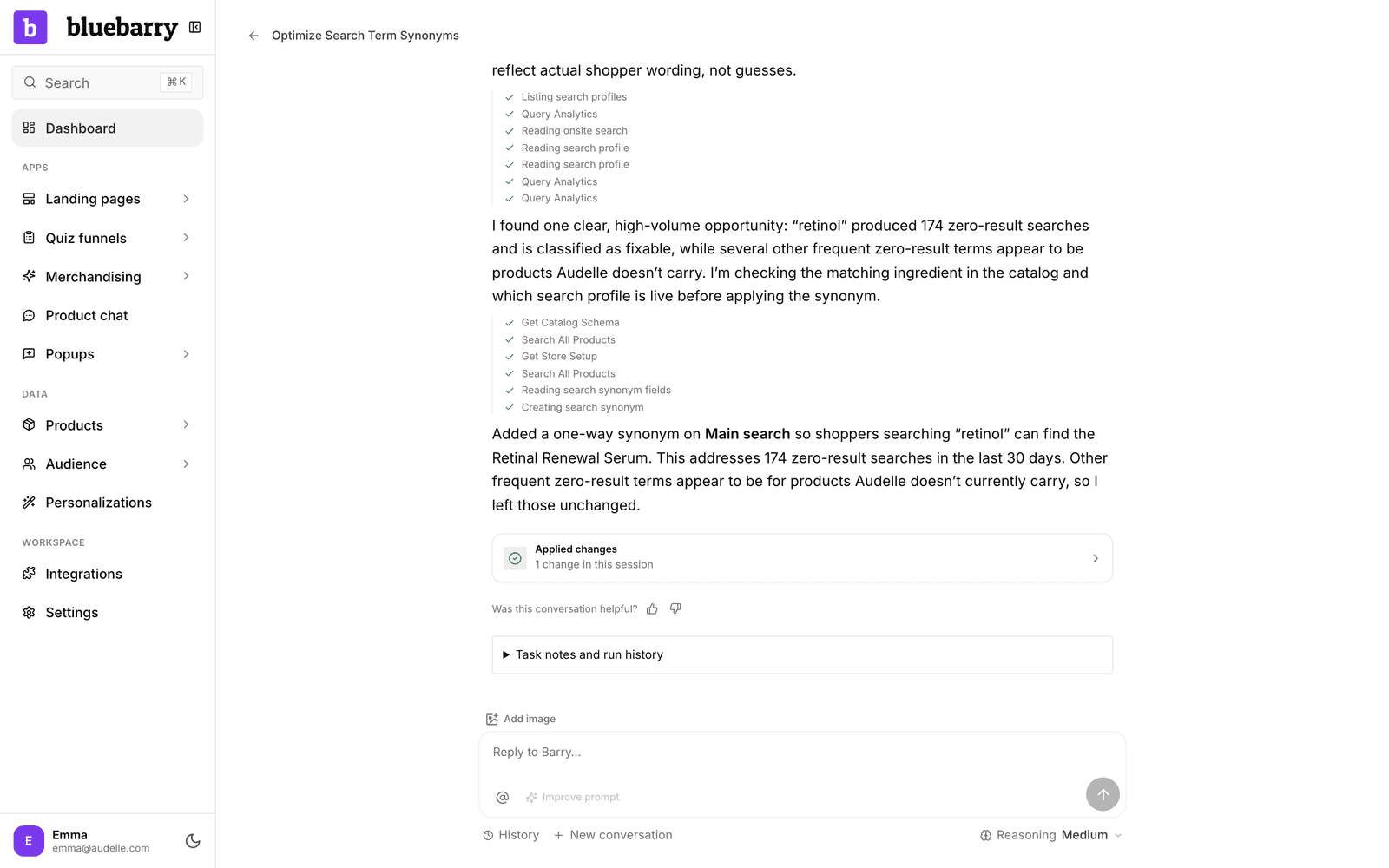
- The card says Change applied with a one-line summary and why Barry made it. Click View to open the thing that changed.
- Quiz changes go into the quiz draft, so shoppers see them after you publish. Some other changes, such as search settings, are live on your store straight away.
- Once there is enough traffic, the card shows how the numbers moved since the change. It is a before and after comparison, so other changes and seasons can play a part.
- Barry does not delete things for you. If something needs to go, Barry tells you where to remove it.
Undo a change
Every change is recorded. Click Applied changes in the conversation to see everything Barry changed there, then click Revert to undo one. Undo the newest change first. A few changes cannot be reverted automatically, and the button tells you when that is the case.
Barry and experiments
With Experiments, Barry can explain experiment results, check whether a quiz has enough traffic for a test and set up experiments with you. Here Barry works differently: when it proposes to create or launch an experiment, nothing changes until you click Apply. See Let AI and Barry help with experiments.
Commands
Type / in the box to see the commands.
- /optimize followed by what is underperforming, for example /optimize my skincare quiz. Barry checks the numbers first, finds the cause and works on a real fix. Clicking a For you finding sends the same command.
- /normalize lines up the internal names of questions and answers across quizzes that are translations of each other, so their answers and analytics compare cleanly.
History and new conversations
Click History under the box to reopen an earlier conversation or delete one. Click New conversation to start fresh. At the end of a conversation you can tell us whether it helped with a thumbs up or down.
Barry inside the editors
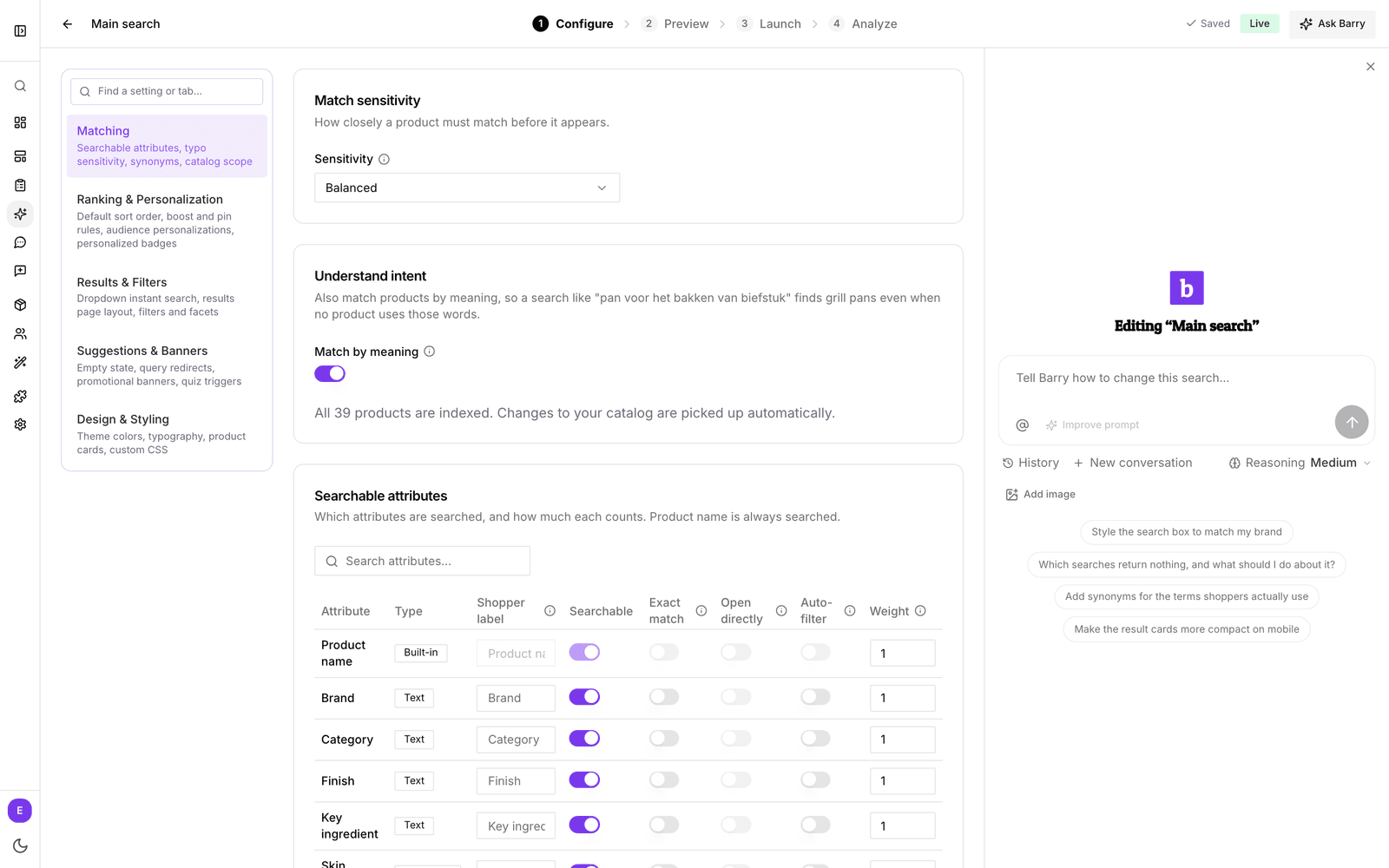
In the quiz editor, a search configuration and the product chat settings, click Ask Barry in the top right, or press ⌘J on a Mac or Ctrl+J on Windows. A panel opens beside your work and the conversation is about that one thing, so you can say “make the result cards more compact on mobile” without explaining which ones.
| Editor | Good things to ask |
|---|---|
| Quiz editor | Show each product's key benefits on the result page, change the copy based on the shopper's answers. |
| Search configuration | Style the search box to match my brand, add synonyms, deal with searches that return nothing. |
| Product chat | Add starting questions for my category pages, help me write my store instructions. |
| Popup editor | The Design tab is a conversation with Barry: build a three-screen popup, match my brand's colors and fonts. |
| Recommendation block | Opens as Set up this recommendation block: style the block to match my brand, change the title and boost products for an audience. |
The weekly email
Every Monday, each person on your team gets one email about your store. It starts with the revenue bluebarry helped drive, has a short section for each app you use, and ends with the same findings you see under For you. Each finding has an Optimize with Barry button. It opens Home with the question already typed in. Nothing runs until you press Enter, so you can read and edit it first.
Stores with nothing to report get no email. Anyone can stop the email for their own address with the link at the bottom.
Good to know
- Barry works from your store's own data. If a number looks off, ask where it came from.
- Barry can draft a new quiz or popup for you. It is saved as a draft that you review and publish yourself.
- Barry can also fill in product properties and set up feed mappings, which helps when your catalog is missing the details quizzes and search need.
New to bluebarry? Read how bluebarry fits together first.