
Collection pages give your Shopify collections the look of your search results. You create one page template in bluebarry, apply it to as many collections as you like, and publish it to your theme. Your products stay exactly where they are. Only the page around them changes.
What it does for your shoppers
A collection page is often the busiest page in a store, and in many themes it is also the plainest. With a bluebarry template you can:
- Give every collection the same look as your search results, without touching theme code. When you change your search design, your collection pages change with it.
- Help undecided shoppers with a quiz banner or a banner between the product rows that opens a quiz.
- Show returning shoppers a row of picks for them above the products, from their quiz results and what they viewed.
- Put the products that sell first, with smart order.
Where to find it
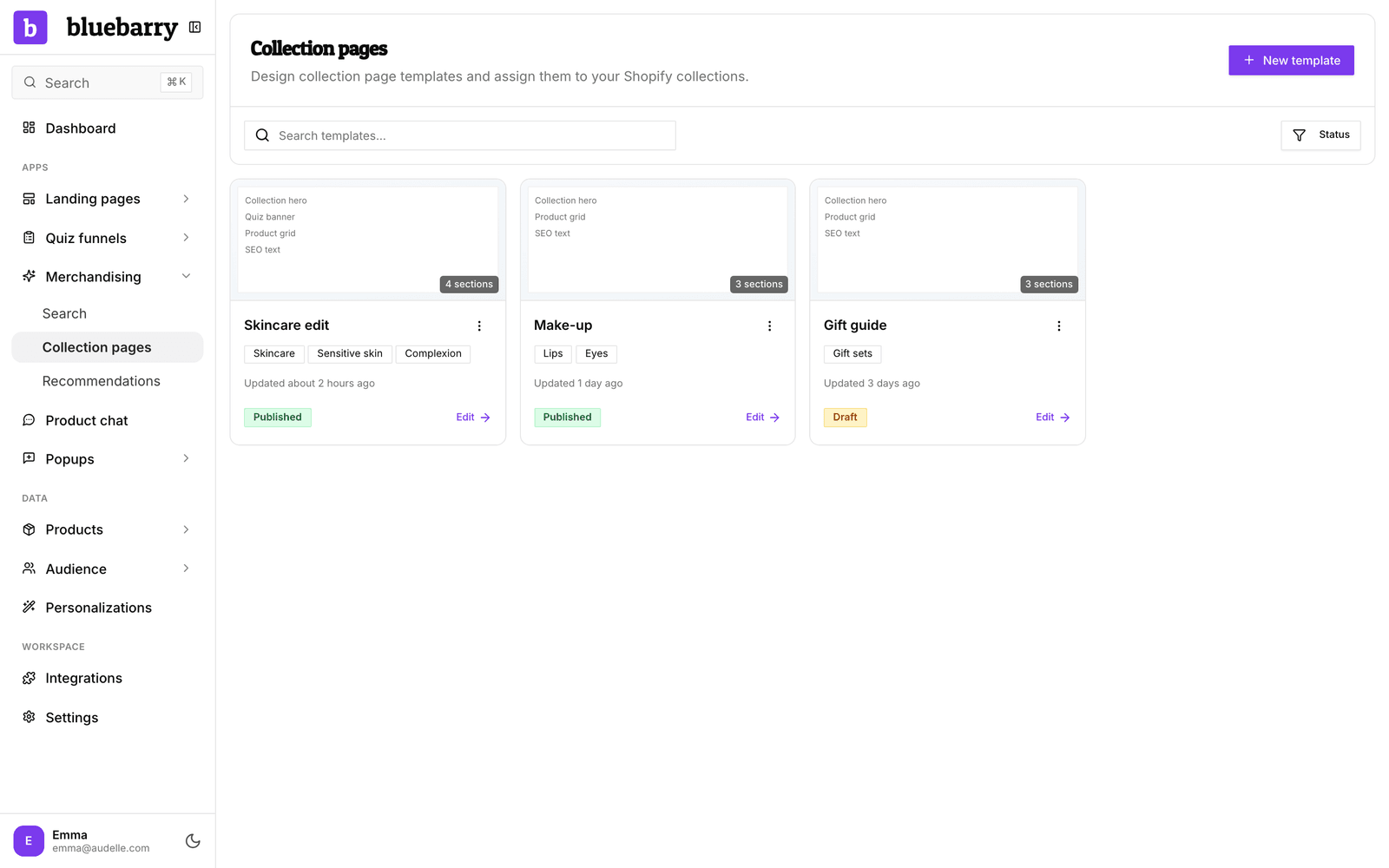
Go to Collection pages under Live on your store in the Studio sidebar. Not in the sidebar yet? A module only shows under Live on your store once it is live or has a draft. Click + Add a module and then Add next to Collection pages, and Barry sets it up with you. Each card is one template. It shows the collections it is assigned to, when it was last updated and its status: Draft (not on your store yet) or Published (live on the assigned collections). Use Search templates... and the Status filter to find one quickly. The menu on each card has Rename, Duplicate and Delete.
How it works
Every template goes through the same three tabs in the editor:
- Design: arrange the sections and style them, by hand or with Barry. The canvas previews one of your real collections.
- Assign: choose which Shopify collections use the template. A collection uses one template at a time.
- Launch: preview the page on your real store, then publish it. Nothing changes on your storefront until you do.
Publishing adds the template to your live Shopify theme and switches each assigned collection over to it. Your theme renders the page, so it loads like any other page of your store and search engines see the full content. Unpublishing gives every collection its previous layout back.
The sections on a page
A new template starts with a collection hero, the product grid and an SEO text. You can add a quiz banner and more of these sections, and change their order.
| Section | What shoppers see |
|---|---|
| Collection hero | The top of the page. Shows the collection's title and description from Shopify, with optional breadcrumbs, product count, image and button. |
| Product grid | Your search results page, showing the collection's products with filters, sorting and paging. Banners can sit between the rows, for example one that opens a quiz. Every page has exactly one grid. |
| Quiz banner | An invitation to take one of your quizzes. |
| SEO text | The collection's description from Shopify, shown as a readable block under the products, with an optional Show more toggle. |
What stays in Shopify
bluebarry changes the design, not your catalog. Shopify still decides which products are in a collection, their prices and stock, the collection's sort order (unless you switch on smart order, which sets it for you), paging, and the filters you set up in the Shopify Search & Discovery app. Collection titles, descriptions and images also come from Shopify, so every collection that shares a template still shows its own content.
Before you start
- The bluebarry Shopify app is installed and your collections have synced. You can see them under Store data → Collections.
- Your live theme is an Online Store 2.0 theme. Almost every current Shopify theme is. Older, vintage themes can't use collection pages.
- The bluebarry app embed is on in your theme. The page itself works without it, but quiz banners and everything for returning shoppers need it.
How it connects to the rest of bluebarry
- Search: the product grid is your search results page. It takes your search design, badges and CSS, live.
- Quizzes: quiz banners open your quizzes, and quiz results fill the “For you” row.
- Barry: in the editor, Barry designs the page with you. Ask for a style, a banner or a mobile tweak and watch the canvas change.
The collections your search dropdown suggests are a separate, store-wide list that you manage from search. It uses the same synced collections, but collection page templates don't change it.