
The standard result page shows your result cards side by side. That works for most quizzes. Sometimes you want something that looks and sells differently: a skincare routine in steps, a starter kit with one price, or a page that talks to each skin type in its own words. A custom result page lets you design exactly that, with the shopper's own products and prices filled in live.
Custom result pages are a beta feature. Switch on beta features first.
Turn on a custom layout
- Go to Quizzes, click Edit on your quiz and open Design quiz.
- Click Result page on the Content tab.
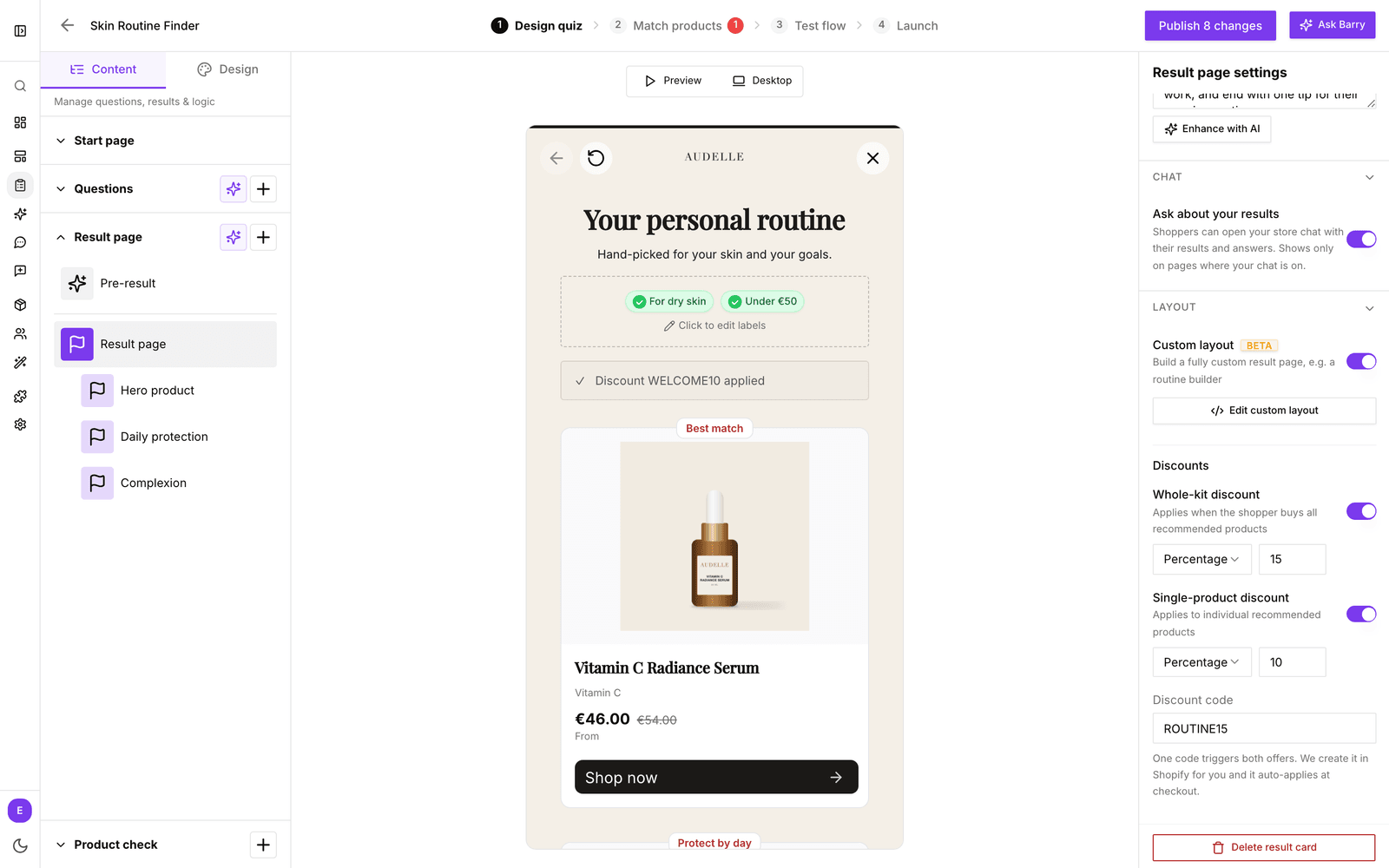
- In Result page settings, scroll to Layout and turn on Custom layout.
- Click Create custom layout. Until you do, shoppers keep seeing the standard result page.
Design it with Barry
The editor opens full screen. On the left you see a live preview of the page. On the right, Barry is ready to build it with you. Describe what you want in plain words, for example "Show the products as a numbered morning routine with an add all to cart button at the bottom". Barry writes the page and the preview updates. Keep asking for changes until it feels right: other colors, a different order, a line that only shows for dry skin.
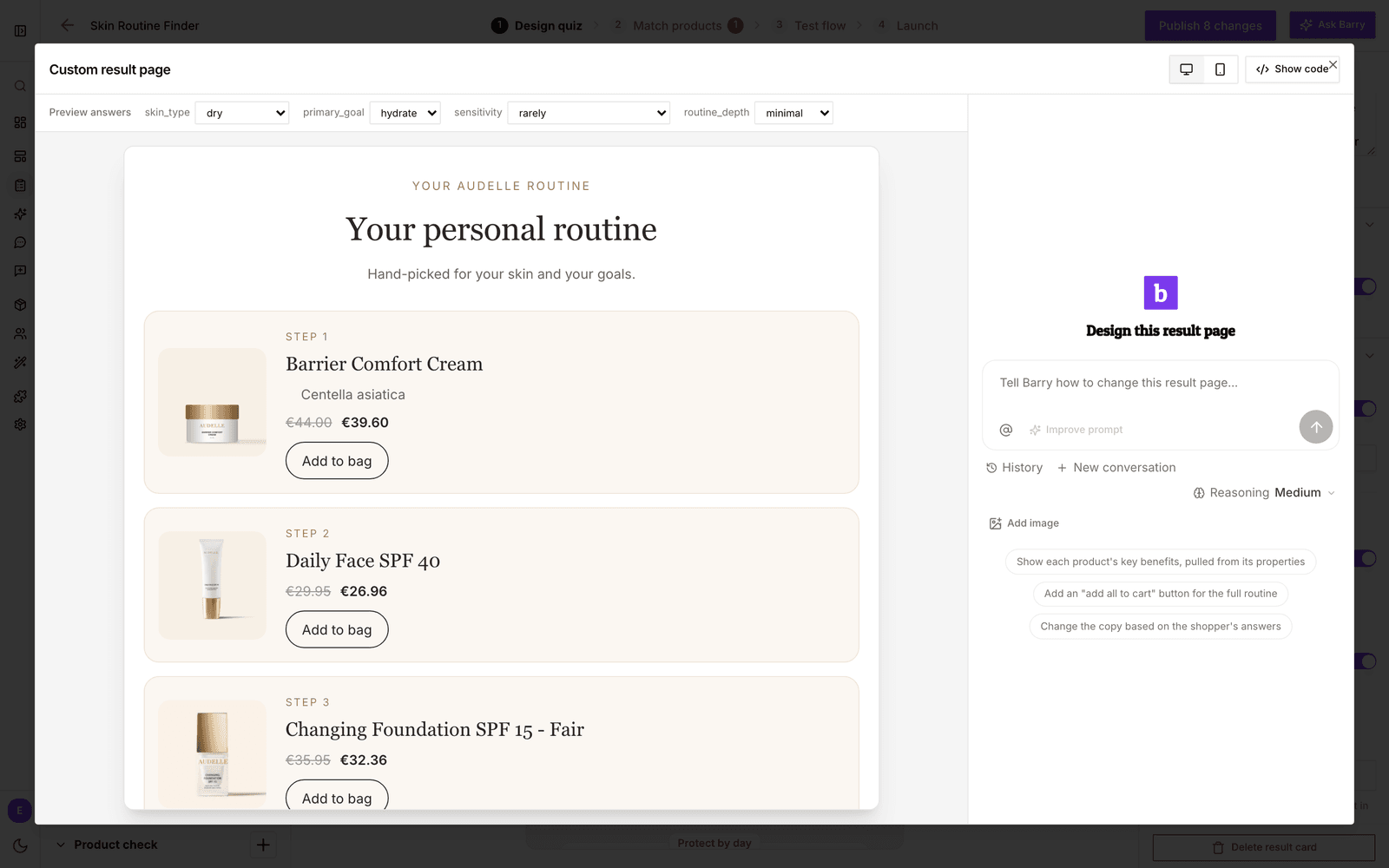
A few tools help you check the result:
- Preview answers: pick an answer for each question at the top to see the page a real shopper with those answers would get. Answers marked "no products" would leave the page empty.
- The desktop and mobile buttons in the top right switch the preview size. Most shoppers finish quizzes on their phone, so check both.
- Changes save automatically. Close the editor when you are done and publish your quiz to put the new page live.
Or edit the code yourself
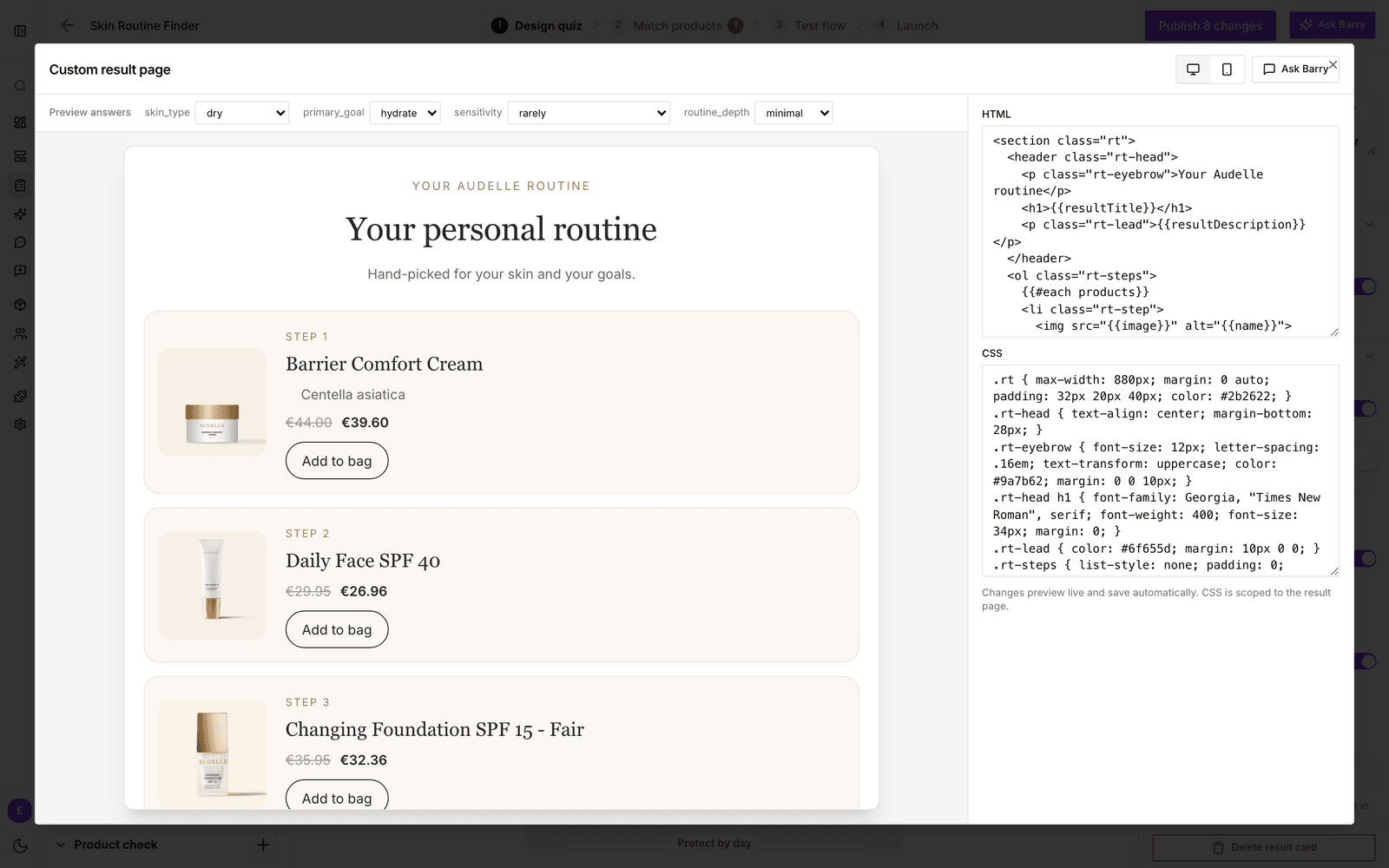
If you or your developer prefer to write it by hand, click Show code. You get two fields, HTML and CSS, and the preview updates as you type. Placeholders in double curly brackets, such as {{name}} and {{price}}, are filled in with each shopper's products. The CSS only applies to the result page, so it won't touch the rest of your store. Click Ask Barry to go back to the chat.
Add a discount
Under Layout, you can reward shoppers who follow their recommendation:
- Whole-kit discount: applies when the shopper buys all recommended products.
- Single-product discount: applies to each recommended product bought on its own.
- Free gift: pick a product from your catalog and choose whether it comes With the whole kit or With any recommended product. It goes into the cart with the order and is free at checkout.
Choose Percentage or Fixed amount for each, then type a Discount code, such as ROUTINE15. One code covers every offer. bluebarry creates it in Shopify for you and applies it at checkout. The two don't stack: a shopper who buys the full kit gets the kit discount. A whole-kit percentage comes off the regular price and doesn't add to a sale: a product on sale costs its sale price or the kit price, whichever is lower. Your page can show the offer, the kit price and the savings, and they stay correct when you change the discount later. Show the gift on your page with {{#if gift}} and {{gift.name}}.
On WooCommerce, CCV Shop and Magento there is no code to create. When the shopper adds the recommended products, bluebarry puts a one-time coupon on the cart that only works for those products. A whole-kit percentage comes on top of a product's own sale price there. The free gift needs a Shopify store.
On Magento this needs version 2.1.0 or later of the bluebarry module. A Magento cart takes one coupon code, so a shopper who entered a code of their own keeps that one.
Add a custom page between questions
You can build a page that shows between two questions the same way, for example a halfway screen that already shows the products that match the answers so far.
- On Design quiz, open Questions in the left panel and click +. On the Page tab, choose the Custom HTML template, give it an Internal name and click Add.
- In the page settings on the right, click Create with Barry. The same editor opens, with Barry, Preview answers and Show code.
- Close the editor when you are done and publish your quiz.
The page uses the same placeholders as your result page, filled in with the products and answers the shopper has at that point. It has its own continue button that takes the shopper to the next question, and Barry always adds one. If you write the code yourself, give a button the data-bb-next attribute.
Good to know
- Add to cart buttons on your page put products straight in the cart on Shopify, WooCommerce, CCV Shop and Magento. On other platforms they open the product page.
- The quiz canvas in Studio keeps showing the standard result cards. Open Edit custom layout to see your custom page.
- Your result cards still decide which products appear. To change the products, change the cards and their rules. See Build quiz result cards.
- To go back to the standard result page, turn Custom layout off and publish. Your custom page is kept in case you want it back.