
Every time a visitor completes your bluebarry quiz, a Quiz Completed event is fired in Klaviyo. You can use this event as the trigger for a flow — sending a perfectly timed, personalized email sequence without any manual work. Add trigger filters or profile filters on top to run different flows for different quiz outcomes.
Prerequisites
- The Klaviyo integration is connected and at least one quiz profile has been synced. If you have not done this yet, start with How to Connect Klaviyo to bluebarry.
- You have verified the Quiz Completed event appears in at least one Klaviyo profile (check the Activity Feed of a test profile).
Create a flow triggered by Quiz Completed
- In Klaviyo, go to Flows → Create Flow → Build Your Own
- Name your flow, for example "Post-Quiz Sequence", and click Create Flow
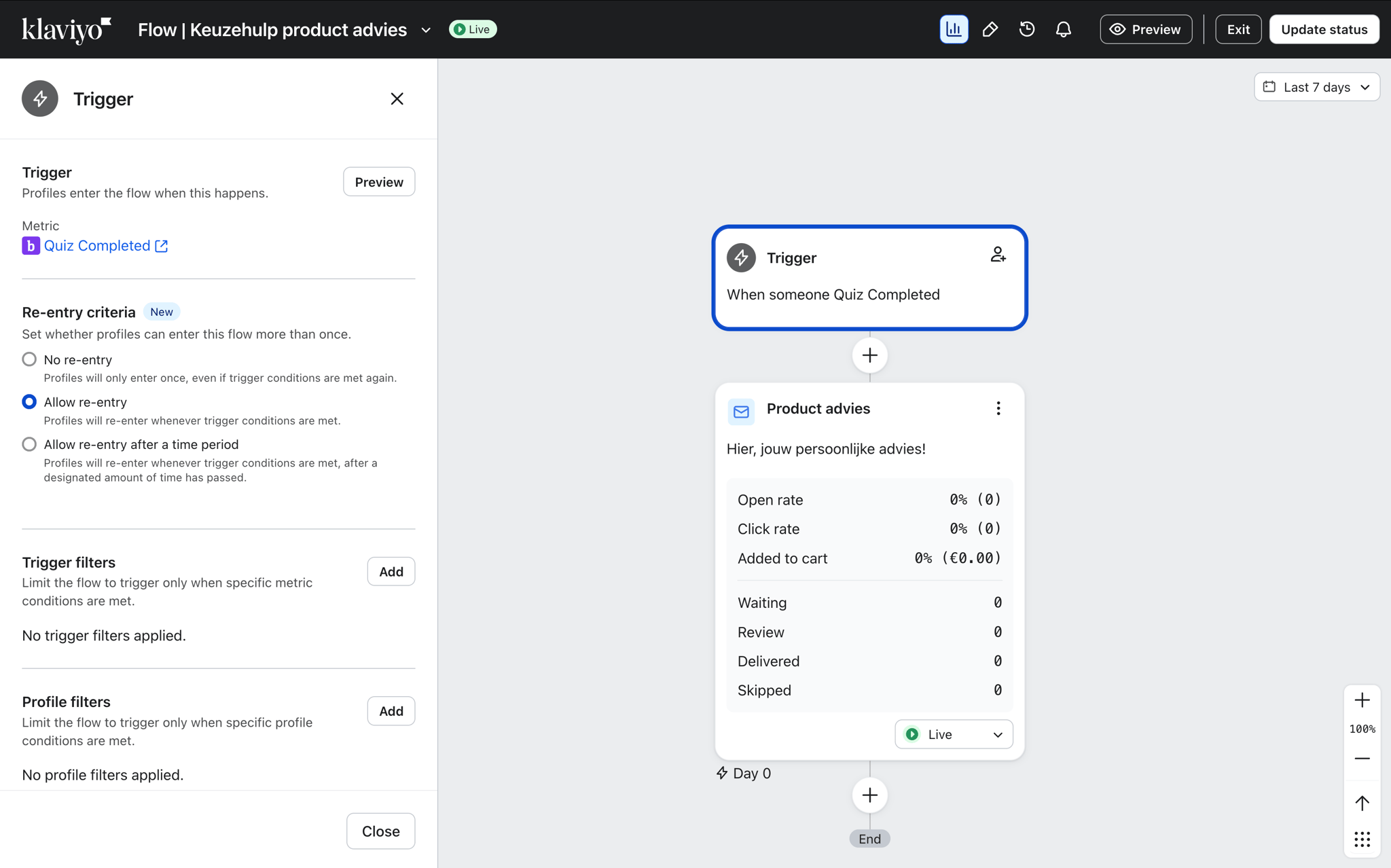
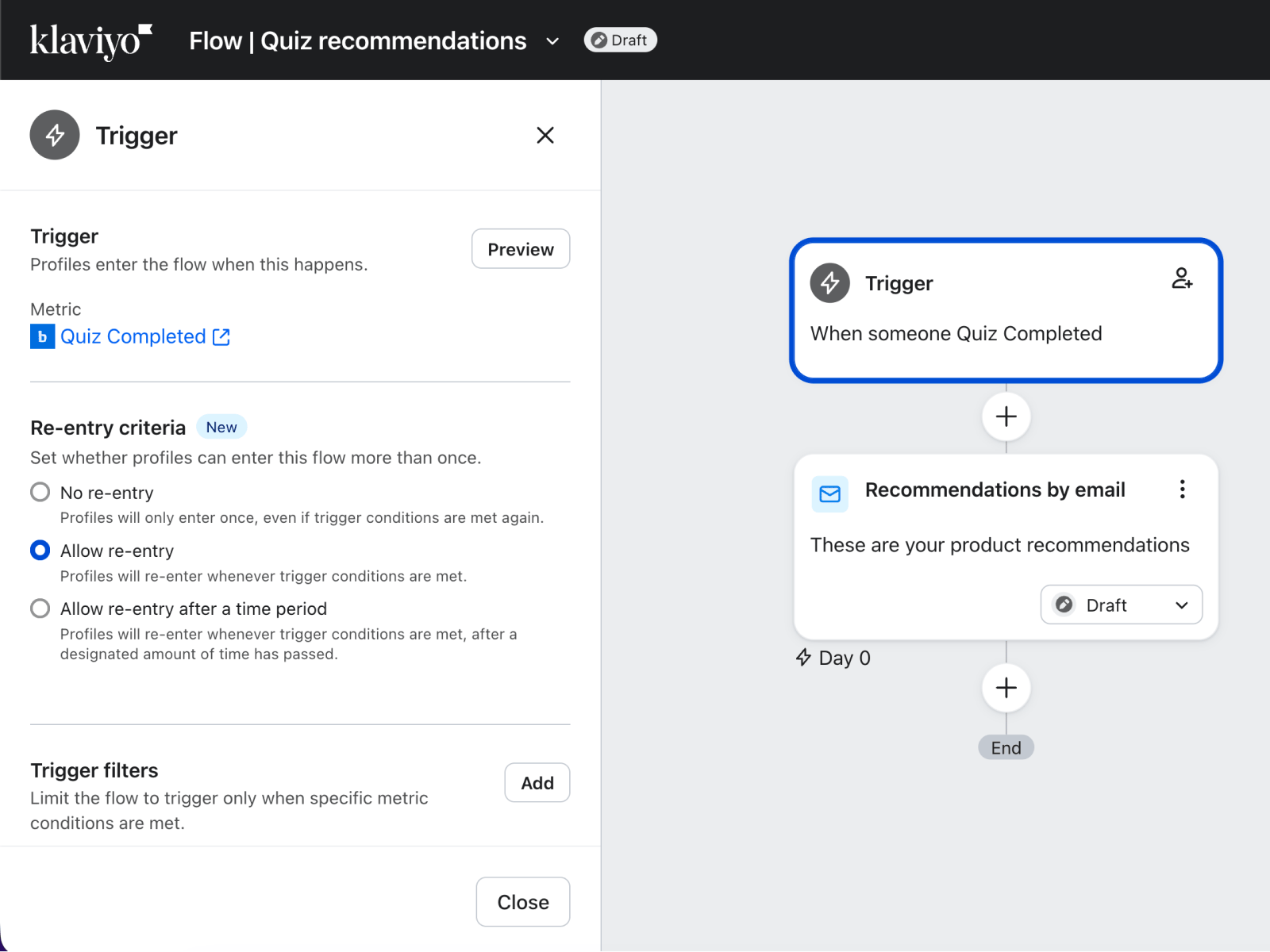
- In the trigger section, select Metric as the trigger type
- Search for and select the Quiz Completed metric — this is the event bluebarry sends
- Click Done to save the trigger and start building your email steps
What data is available in the flow
The Quiz Completed event carries all the quiz data bluebarry captured. Inside a flow email you can reference this data using event variables:
| Variable | Description |
|---|---|
| {{ event.products }} | Array of recommended products (title, image, URL, price) |
| {{ event.answers }} | All quiz answers as key-value pairs |
| {{ event.quiz_name }} | Name of the quiz that was completed |
| {{ event.result_name }} | The result page the visitor landed on |
For a full reference of all properties, complete a test quiz and inspect the event payload directly inside the Klaviyo profile. All properties that bluebarry sends are visible there.
Using trigger or profile filters for more specific flows
A single Quiz Completed trigger covers all quiz completions. To run different flows depending on quiz outcomes — for example, a separate sequence for visitors who answered "sensitive skin" — you can use Trigger Filters or Profile Filters.
Trigger filters narrow the flow to only those Quiz Completed events that match specific conditions on the event data itself. Profile filters work differently — they filter based on properties stored on the Klaviyo profile, such as quiz answers or segments that bluebarry syncs. Use trigger filters when you want to match on something from a specific quiz session, and profile filters when you want to match on cumulative profile data.
Here is how to add them:
- In your flow, click the trigger block to open its settings
- Under Trigger Filters, click Add a Filter to filter on event properties. Or switch to Profile Filters to filter on a profile property instead
- Set the condition source to Event Properties for trigger filters, or select a Profile Property for profile filters
- Enter the property path you want to filter on — for example
answers.skin_typeand set the value tosensitive - Save the filter. The flow will now only run when the Quiz Completed event matches that exact condition
You can stack multiple filters (AND conditions) or create separate flows with different filters for each quiz outcome. Combine trigger and profile filters to build a completely personalized post-quiz email experience for every segment of your audience.
Tips for high-performing quiz flows
- Send the first email within 5 minutes — quiz intent is highest right after completion. Set a 0-minute delay on your first email step.
- Include product recommendations in the first email — this is the highest-converting use case. See Adding Product Recommendations to Your Klaviyo Emails.
Next steps
- Adding Product Recommendations to Your Klaviyo Emails — add a dynamic product table to your flow emails
- Segmenting Your Audience Based on Quiz Results — build segments for campaign sends outside of flows