
The goal of this integration is simple: push quiz data, product recommendations, and quiz answers directly into Klaviyo profiles. This lets you segment your audience based on their actual answers — not just guesses — and send automated emails that increase LTV. This article walks you through authorizing the connection and verifying that data flows correctly.
Before you start
Make sure your bluebarry quiz has an Email Step added so visitors can provide their email address. Without it, there is no profile data to sync. If you have not set that up yet, open your quiz in the builder and add the Email Step question type.
Step 1: Connect the integration
- In your bluebarry dashboard, navigate to Integrations
- Find the Klaviyo section and click Connect
- You will be redirected to a Klaviyo authorization screen. Review the requested permissions and click Allow
- You will be redirected back to bluebarry to finish configuring your settings
Step 2: Configure sync settings
Once connected, the Klaviyo settings dialog lets you control how and when data is synced.
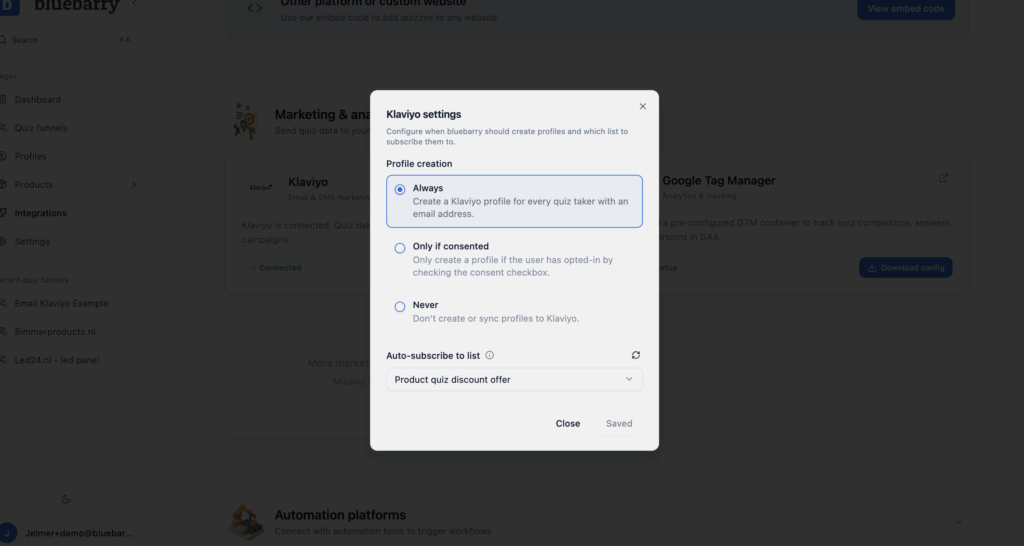
Profile creation
Choose when a Klaviyo profile is created:
- Always — Every time an email address is collected
- On Consent — Only when the visitor ticks a specific consent checkbox in the quiz. See Consent Settings & Profile Sync for a full walkthrough.
- Never — Useful during testing to avoid creating dummy profiles
Auto-subscribe to list
Select a Klaviyo list (for example, "Product Quiz") to automatically add new profiles to when they are created. This makes it easy to trigger welcome flows immediately after quiz completion.
Step 3: Verify & test
- Complete your quiz as a test user and submit a real email address at the Email Step
- In bluebarry, open Profiles and find your test email. If it shows "Not Synced," wait around 10 seconds and refresh — the sync is near real-time
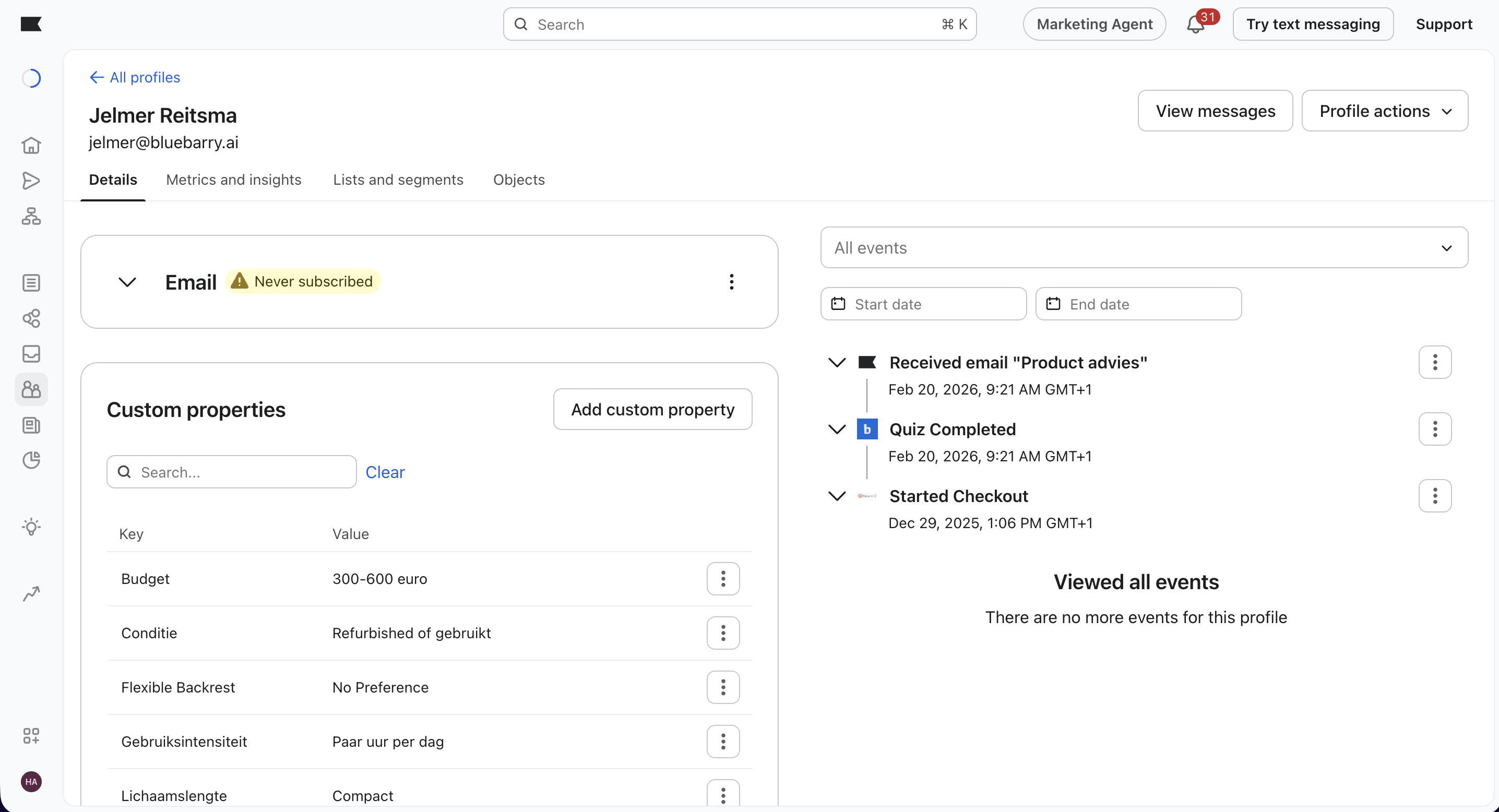
- Once synced, all quiz properties appear on the profile: answers, product recommendations, topic scores, and more
- Open the same profile directly in Klaviyo and look for a Quiz Completed event sent by bluebarry. This event contains the full payload bluebarry captured
Connecting multiple Klaviyo accounts
Serving different markets with separate Klaviyo accounts? You can connect multiple Klaviyo accounts to a single bluebarry workspace. Each connection has its own sync settings so you stay in full control per account.
On the Launch page of an individual quiz, select which Klaviyo account that quiz syncs to. This makes it easy to route quiz data to the right account based on market, brand, or region.
Next steps
Now that the connection is live, explore the rest of the Klaviyo integration to get the most out of your quiz data:
- Consent Settings & Profile Sync — control exactly who gets added to Klaviyo
- Trigger Email Flows Based on Quiz Events — set up automated sequences after quiz completion
- Adding Product Recommendations to Your Klaviyo Emails — send personalized product tables in every email
- Segmenting Your Audience Based on Quiz Results — build precise Klaviyo segments from quiz properties