
The goal of this integration is simple: push quiz data, product recommendations, and preferences directly into Klaviyo profiles. This lets you segment your audience based on their actual answers—not just guesses—and send automated emails that increase LTV.
Step 1: Connect the Integration
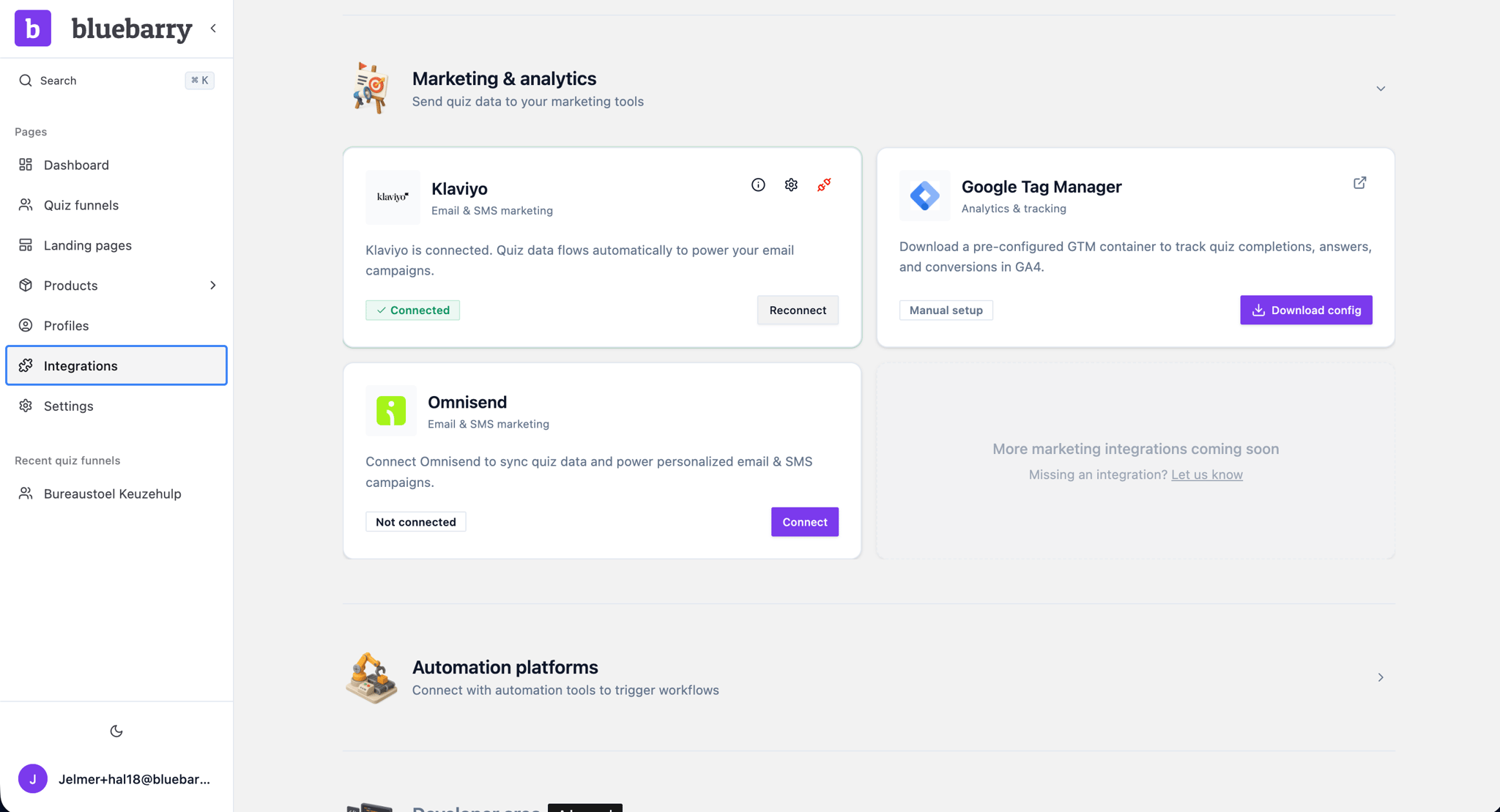
- In your bluebarry dashboard, navigate to Integrations
- Find the Klaviyo settings section and click Connect
- You'll be redirected to a Klaviyo authorization screen. Click Allow to grant permissions
- You'll be redirected back to bluebarry to configure your settings
Step 2: Configure Sync Settings
Once connected, define when and how data is synced:
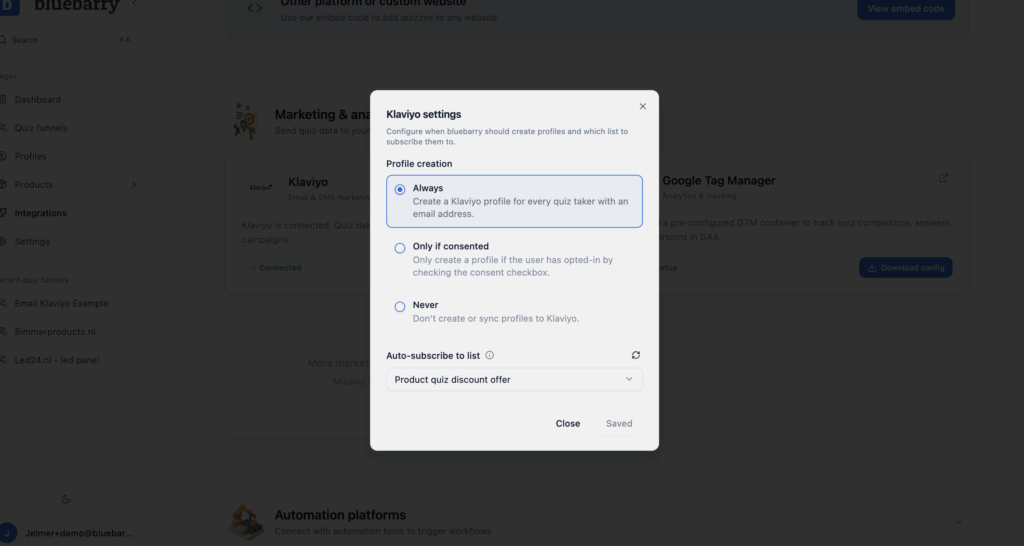
Profile Creation
Choose when a profile is created in Klaviyo:
- Always — Every time an email is provided
- On Consent — Only when the user checks a specific consent box
- Never — Useful for testing without cluttering your list
Auto-Subscribe
Select a specific Klaviyo list (e.g., "Product Quiz") to automatically add new profiles to.
Step 3: Verify & Test
- Open your quiz and complete it as a user. Fill in the Email Step (e.g., "Would you like a 10% discount?")
- In bluebarry, go to the Profiles section
- Find your test email. If the status says "Not Synced," refresh the page — syncing takes about 10 seconds
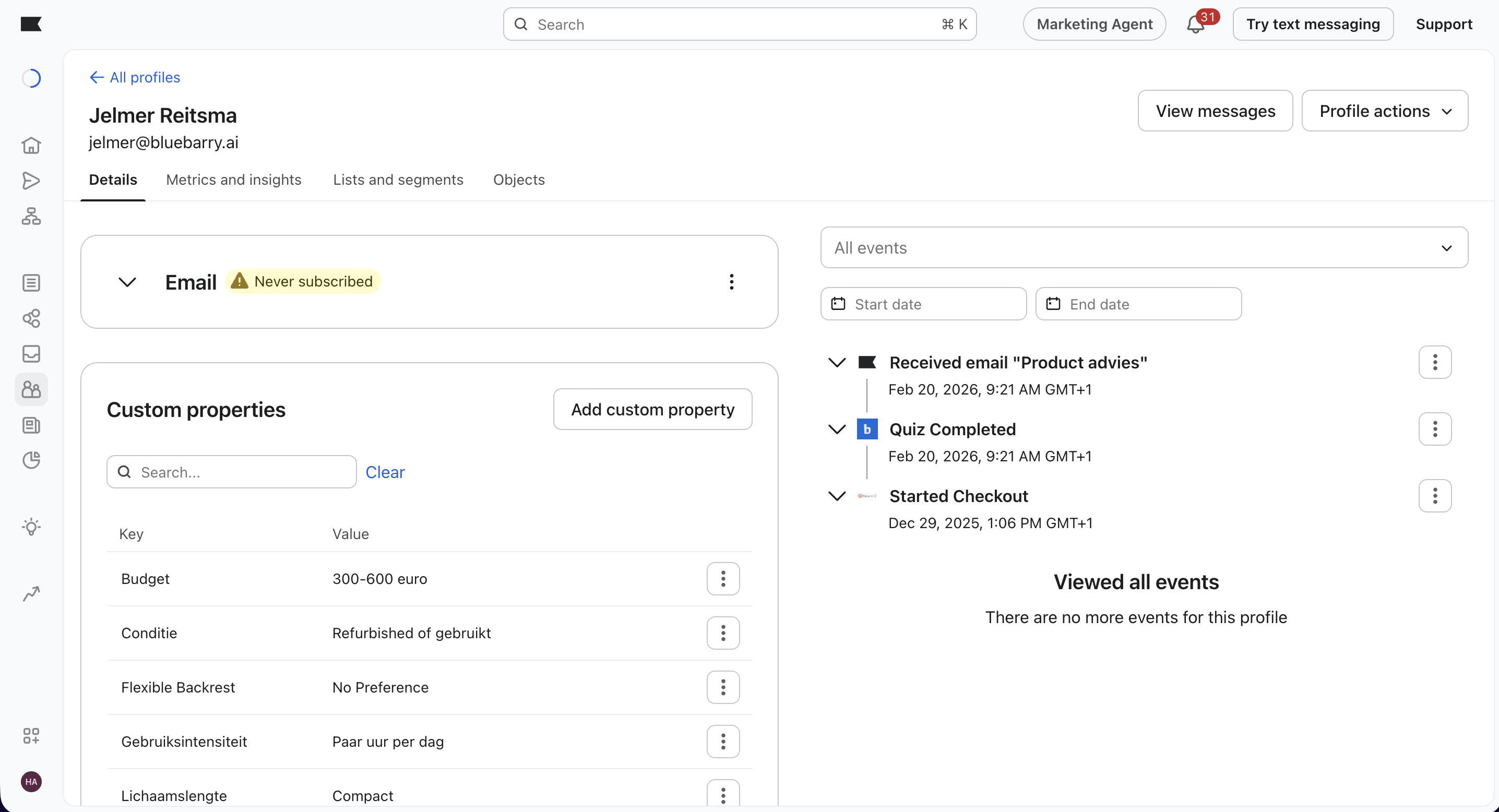
- Once synced, you'll see all properties attached to that profile: quiz answers, product recommendations, and more
Also check this in Klaviyo directly. Open the profile you just created and look for a Quiz Completed event from bluebarry. Inside that event you'll find everything bluebarry captured: product recommendations, answered questions, individual answers, and more. This is your source of truth for what's being sent.
Step 4: Send Recommendations by Email
You can email product recommendations directly from a Klaviyo flow triggered by the Quiz Completed event. It works the same way as add-to-cart tables.
Set up a dynamic product table in your email template:
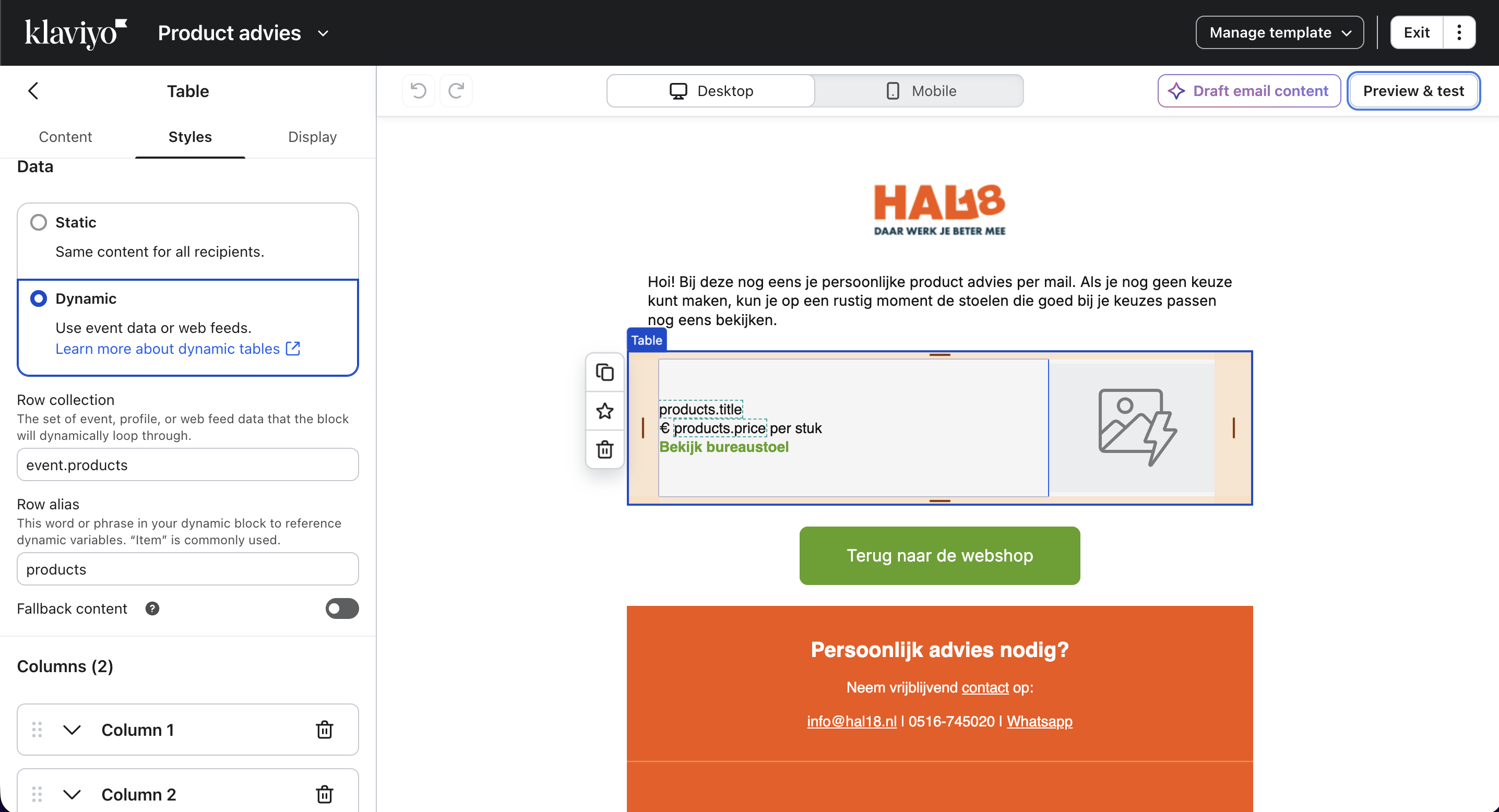
- Add a dynamic table block to the email template you want to use
- In the Row Collection field, enter:
event.products - In the Row Alias field, enter:
products - Inside the table, use these variables to display product data:
| Variable | Output |
|---|---|
| {{ products.title }} | Product name |
| {{ products.imageUrl }} | Product image |
| {{ products.url }} | Product page link |
| {{ products.price }} | Product price |
| {{ products.position }} | Rank in recommendations |
This pulls the exact products bluebarry recommended for that specific quiz taker — personalized to their answers, sent automatically.