
Connecting Bluebarry to your Lightspeed store allows you to seamlessly integrate your product catalog and start building powerful product recommendation quizzes. This guide explains how to install and configure the official Bluebarry app for Lightspeed.
What the App Does
The Lightspeed plugin serves two primary functions for your store:
- Script Installation & Tracking: It automatically installs the necessary scripts to launch your quizzes on your storefront and tracks conversion data, sending revenue metrics directly back to your Bluebarry dashboard.
- Product Data Sync: It synchronizes your entire product catalog, enabling you to use your store's live data to set up accurate and dynamic product recommendation quizzes.
Installation & Authentication
To get started, install the Bluebarry app from the Lightspeed App Store. Upon installation, you will be redirected to the Bluebarry environment to authenticate the connection using your Tenant ID and API Key.
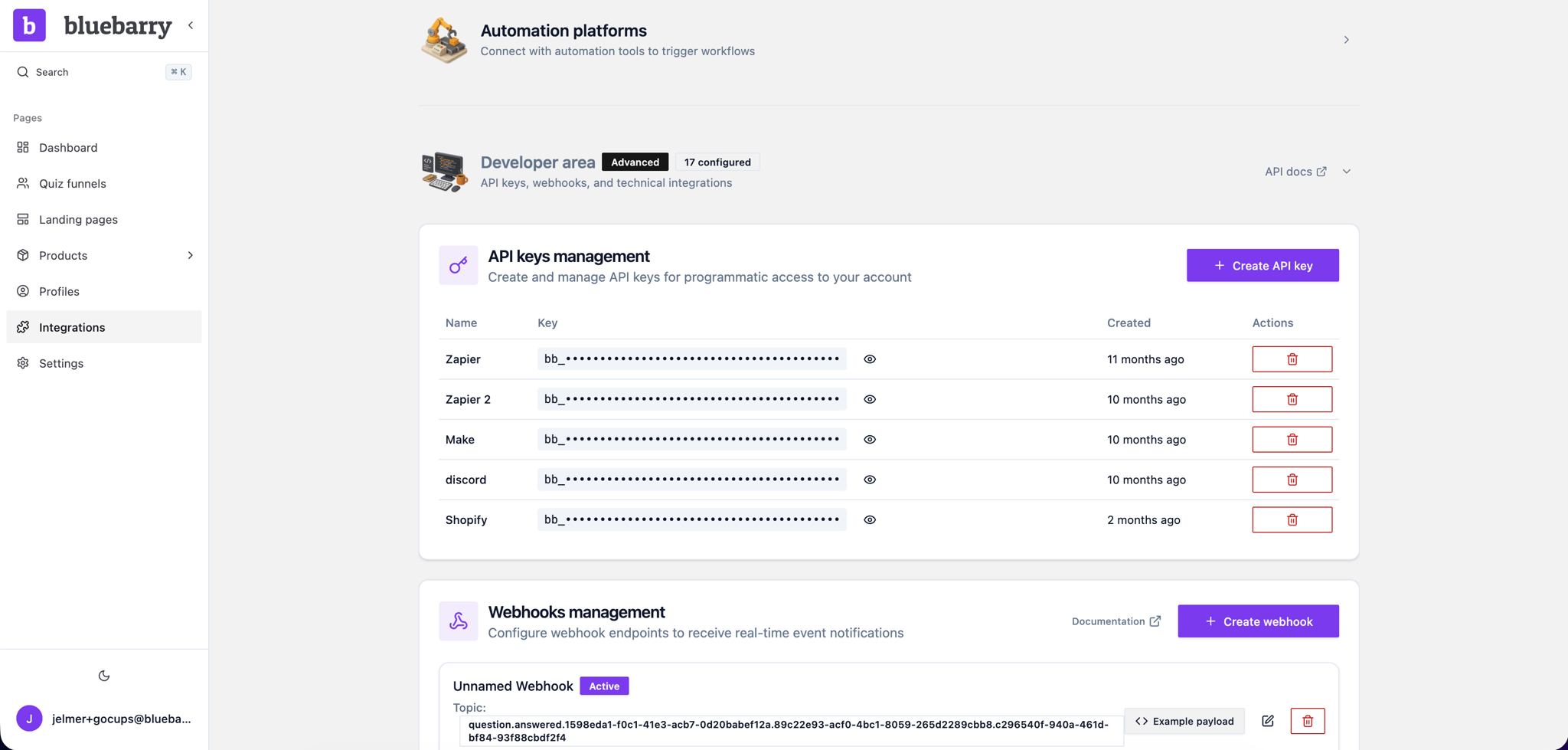
- Locate your Tenant ID: Navigate to the integration screen within your Bluebarry account. You will find your Tenant ID in the top right corner.
- Generate an API Key: On that same integration page, scroll down to the Developer area section to create a new Bluebarry API key.
- Connect: Enter both the Tenant ID and the new API Key into the app setup screen to link your accounts.
.png)
Configuring Product Sync Settings
Once authenticated, you will be prompted to configure your product sync settings to determine exactly what data is sent to Bluebarry.
- Sync Variants: Ensure all product variants are pushed to your Bluebarry account.
- Configure Attributes: Select which specific product attributes are relevant for your quizzes and choose to exclude the ones that are not needed.
- Category Filtering: You can map your webshop's category filtering on a product level, allowing you to utilize your store's existing product filtering logic within your quiz results.

After configuring these settings, initiate the sync.
Finalizing the Setup
Return to your Bluebarry dashboard to verify the sync. Depending on the size of your catalog, it typically takes between one and five minutes for all product data to populate. Once the data appears, you are ready to start building product recommendation quizzes using your Lightspeed catalog and publish them live on your store.